Pixel Training
Google Ads conversions without a click ID
Google Ads shows 'Importing limited user-provided data'? LeadJourney also sends leads that have no GCLID, matched by hashed email, phone and name (enhanced conversions for leads). No switch is needed, but three things decide how much Google receives.
Google Ads sometimes shows "Importing limited user-provided data" on a conversion action, for example on Submit Lead Form. Google wants every conversion that has user-provided data, with or without a click ID (GCLID). This article explains what LeadJourney sends, and what you need to check so Google gets all of it.
Short answer
Yes, LeadJourney sends leads without a click ID, and there is no switch to turn on. When a lead came from a Google Ads click but has no GCLID, LeadJourney still sends the conversion to Google with the hashed email, phone number and name. Google calls this enhanced conversions for leads.
What LeadJourney sends to Google
| The lead has… | What LeadJourney sends | How Google matches it |
|---|---|---|
| A GCLID and email or phone | The GCLID plus the hashed email, phone and name | On the click, with the personal data as an extra signal |
| Email or phone, but no GCLID | The hashed email, phone and name | On the personal data alone (enhanced conversions for leads) |
| No GCLID, no email, no phone | Nothing | Google has nothing to match on |
Email, phone and name are hashed (SHA-256) before they leave LeadJourney. Google only receives the hashes.
In LeadJourney you can see which way a conversion went. On a lead's journey, a conversion sent without a click ID shows Ads Click: Enhanced conversion (no click ID). It still counts in Google Ads. The attribution is just less exact than with a click ID.
Three things that decide how much Google receives
1. Two settings in your Google Ads account
This is the most common cause of the limited user-provided data warning. Google flags the data as limited, even when LeadJourney sends it, as long as these settings are missing.
In Google Ads, open Goals → Conversions → Settings and check both:
- Customer data terms. Open them and accept them. Without this, Google rejects every conversion that contains customer data.
- Enhanced conversions for leads. Tick Turn on enhanced conversions for leads. If Google asks for a method, choose Google Ads API, because LeadJourney uploads conversions through the API. Save, and also check that Enhanced conversions is switched on.
LeadJourney shows the same checklist in the Google Ads connection, with a direct link:
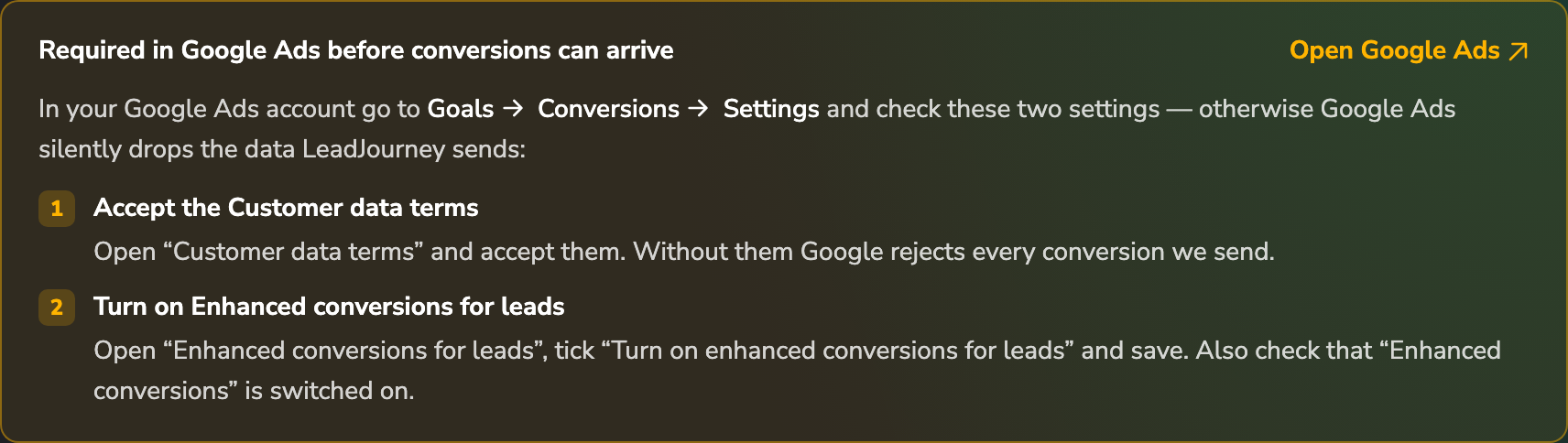
You'll find it under Settings → Traffic channels → Google Ads → Edit Integration, in the event mapping step. Open Google Ads takes you straight to the right settings page.
Changes take a few days
After you change these settings, Google needs a few days of new uploads before the diagnostic in Google Ads updates. The warning doesn't disappear immediately.
2. Your form has to capture email or phone
LeadJourney can only send what your form passes on. If your lead form doesn't send an email or a phone number to LeadJourney, there is nothing to hash, and the lead can't be sent without a click ID.
To check, open a recent lead from that form in the CRM (Lead Overview). If email and phone are filled in there, everything is fine. If they're empty, the form or its integration isn't passing those fields through. See Capture leads automatically.
3. Only leads with a Google Ads visit are sent
LeadJourney sends a lead to Google Ads only if its journey includes a visit from Google Ads. Leads that never touched Google Ads (organic, direct or other channels) are not sent, because Google can't match them to an ad anyway.
So it's normal that Google receives fewer conversions than your total number of leads.
Make sure the event is sent at all
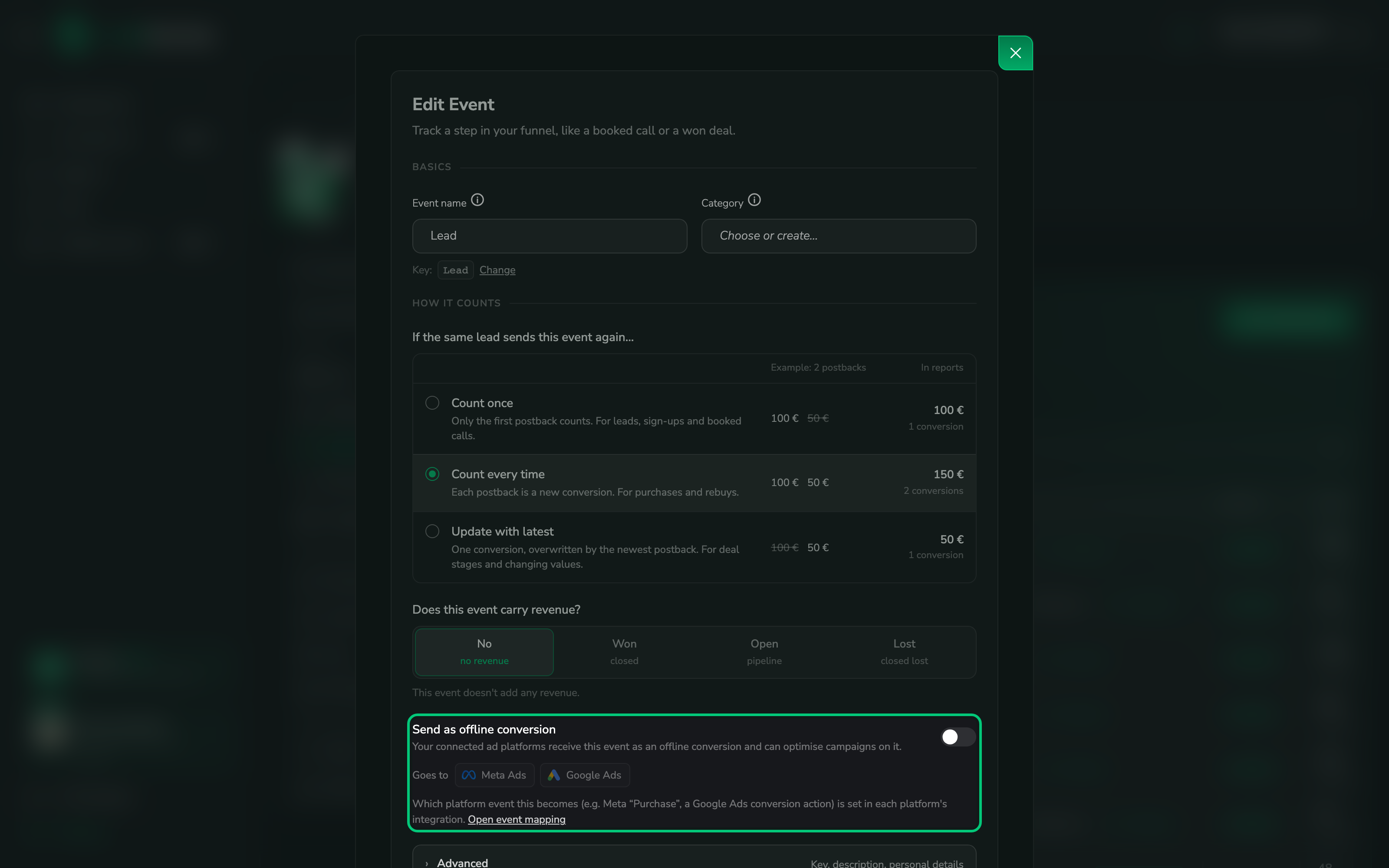
Conversions only go to Google if the event is switched on as an offline conversion. In Settings → Events & conversions, click Configure on the event (for example Lead) and turn on Send as offline conversion. Below the switch you can see which connected ad platforms receive it.
Common questions
Related articles
Google Ads (Pixel Training)
Send real outcomes back to Google so Smart Bidding optimises toward them.
Connect Google Ads
Link your ad accounts and tag your campaigns.
Capture leads automatically
Make sure email and phone reach LeadJourney.
Event Match Quality
The same idea for Meta: richer data, more matched conversions.
Google Ads
Send LeadJourney offline conversions back to Google Ads as your own conversion actions, so Smart Bidding optimises toward real outcomes – qualified leads, booked calls and won deals – instead of raw form fills.
LinkedIn Ads
Send LeadJourney offline conversions back to LinkedIn so its bidding optimises toward real outcomes – qualified leads, booked calls and won deals – instead of raw form fills, by training your LinkedIn Insight Tag with the conversions that actually matter.