Features
Attribution models
All six attribution models in LeadJourney – Last Click, First Click, Linear, Time Decay, U-Shaped and Progressive – what each one credits, when to use it, and the Conversion Window and Attribution Date settings that decide which conversions count and on what day.
Most leads touch more than one channel before they convert – they click a Google ad, come back through an email a few days later, then buy after a Meta ad. Attribution is the rule that decides which of those touches gets the credit. LeadJourney offers six models: two that give one touch all the credit, and four that spread it across the journey.
In short
Last Click (the default) credits the final touch, First Click the one that started it. The four multi-touch models – Linear, Time Decay, U-Shaped and Progressive – split the credit instead. It's a report setting: switching it recalculates your numbers instantly and never changes the underlying data.
Where to find it
Attribution is a report-level control, not a workspace-wide switch, so you can look at the same data through different models without changing anything permanently.
Open a report – Traffic Channel, Campaign, Ad Creative, Landing Page, Conversion Path or the Report Builder – and click the filter icon next to the search field. The filter row that opens holds everything that shapes attribution:
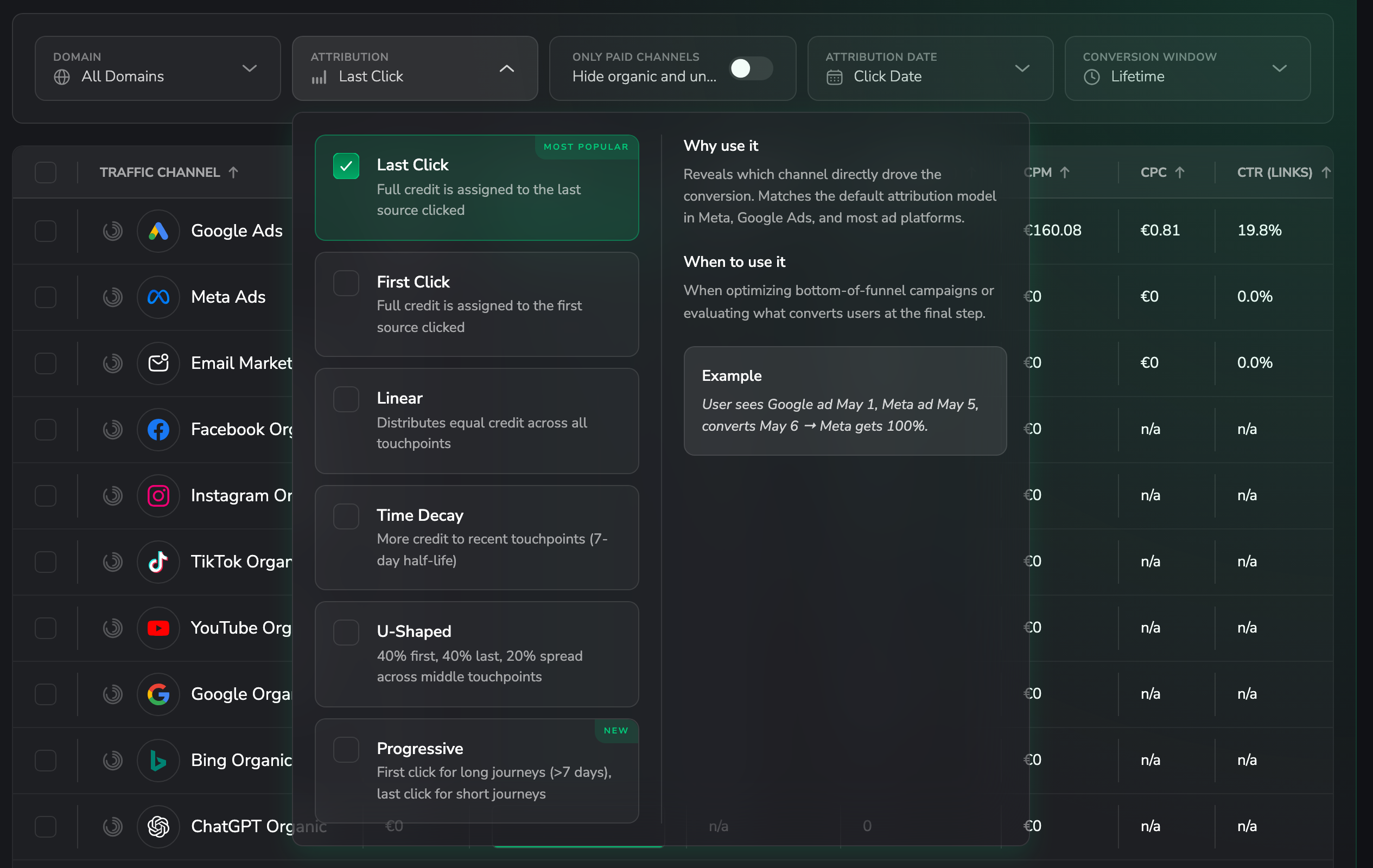
| Control | What it decides |
|---|---|
| Attribution | Which touch gets the credit – the six models below. |
| Conversion Window | How long after a click a conversion may still count. |
| Attribution Date | Which day a conversion is counted on. |
It's a view, not an edit
Changing any of the three only changes how your data is read. The clicks and conversions themselves stay exactly as they were recorded, so you can flip back and forth as often as you like.
The two single-touch models
Last Click
Full credit goes to the last source the lead clicked before converting.
- Why use it – it reveals which channel directly drove the conversion, and it matches the default model in Meta, Google Ads and most ad platforms, so your numbers line up with the dashboards you already know.
- When to use it – optimising bottom-of-funnel campaigns, or judging what actually converts people at the final step.
Last Click is the default because it answers the most common question – "what closed this sale?"
First Click
Full credit goes to the first source the lead ever clicked.
- Why use it – it reveals which channels are starting journeys and driving discovery, even when a different channel closes the deal.
- When to use it – top-of-funnel investment decisions, brand-awareness analysis, or measuring a new traffic source.
The four multi-touch models
Single-touch models hand 100% to one channel, which means every other channel in the journey shows up as having done nothing. The multi-touch models split the credit instead.
Linear
Equal credit across all touchpoints. Three touches, roughly a third each.
Use it when every channel genuinely plays a part and you have no reason to weight one over another – the most neutral view of your mix.
Time Decay
More credit to recent touchpoints, with a 7-day half-life: a touch seven days before the conversion carries half the weight of one on the day itself.
Use it for long sales cycles, where the touches close to the decision matter most but the earlier ones shouldn't vanish.
U-Shaped
40% to the first touch, 40% to the last, and the remaining 20% spread across everything in between.
Use it for lead-gen funnels with a clear beginning and end – it recognises that getting someone in and closing them are the two hardest moments.
Progressive
Switches depending on how long the journey took: first click for journeys longer than 7 days, last click for shorter ones.
Use it for a mixed funnel – a slow burn gets credited to whatever created the demand, while a quick win gets credited to whatever closed it.
The same journey through all six models
A lead clicks a Google ad on May 1, an email on May 3, a Meta ad on May 5, and converts on May 6:
| Model | Google (first) | Email (middle) | Meta (last) |
|---|---|---|---|
| Last Click | – | – | 100% |
| First Click | 100% | – | – |
| Linear | ~33% | ~33% | ~33% |
| Time Decay | smallest share | middle share | largest share |
| U-Shaped | 40% | 20% | 40% |
| Progressive | – | – | 100% (journey under 7 days → last click) |
Openers and closers
Run the same date range on First Click and then on Last Click. A channel that looks strong on First Click and weak on Last Click is an opener – good at bringing leads in, rarely the final touch. The reverse marks a closer. That gap is how you avoid cutting a channel that is quietly feeding the whole funnel. The Conversion Path Report shows the same thing directly, with an opener/assist/closer split per channel.
Conversion Window
How long after a click a conversion may still be attributed to it. A conversion that happens after the window closes still exists – it just isn't credited to that click any more.
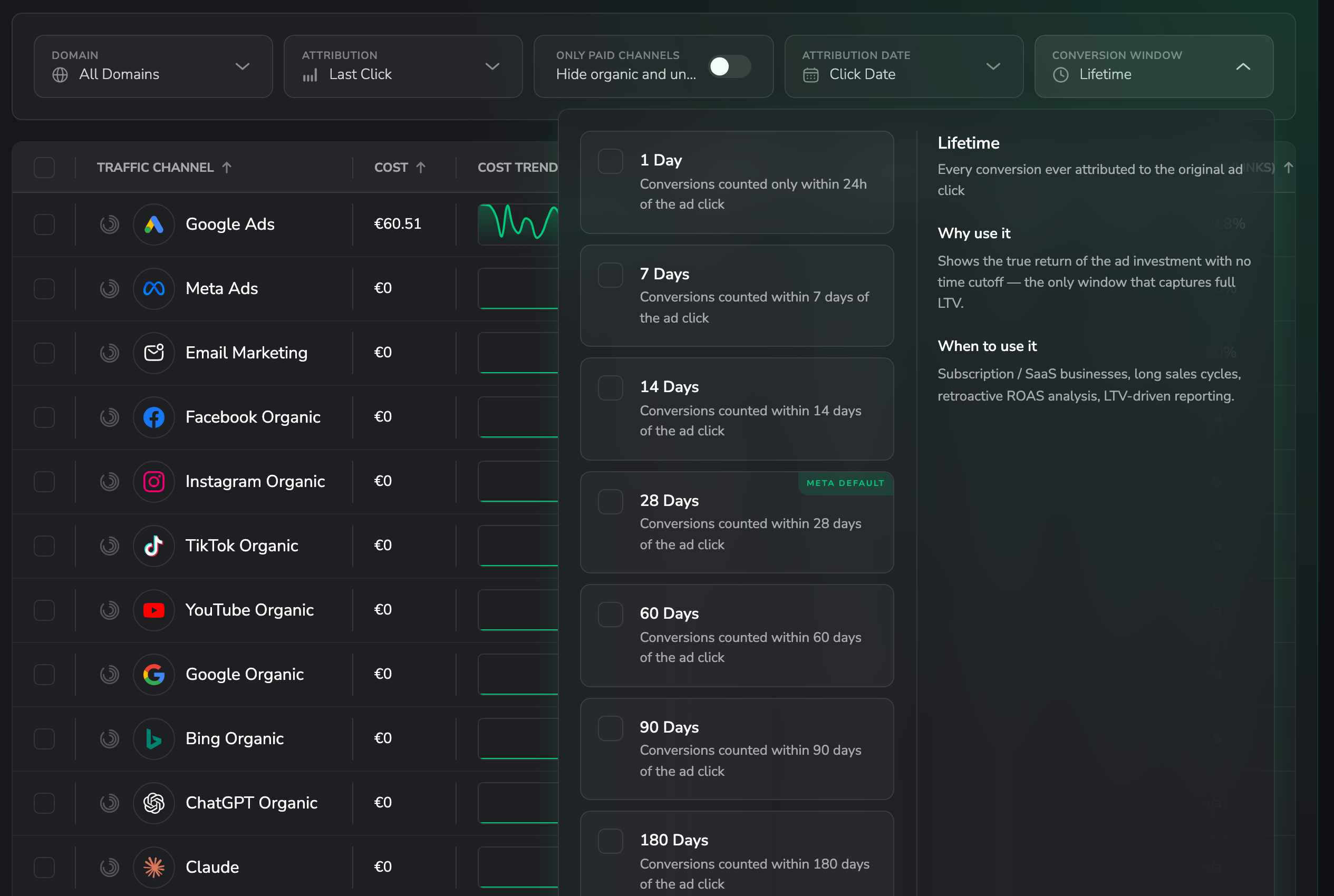
| Option | Counts conversions within |
|---|---|
| 1 Day | 24 hours of the ad click |
| 7 Days | 7 days |
| 14 Days | 14 days |
| 28 Days | 28 days – Meta's default |
| 60 Days | 60 days |
| 90 Days | 90 days |
| 180 Days | 180 days |
| Lifetime | No cutoff at all – every conversion ever tied to the original click. The default. |
Lifetime is the only window that captures full customer value, which is why it's the default and the right choice for subscriptions, long sales cycles and LTV reporting. Shorten it when you want to compare like for like with an ad platform, or to see how much of your revenue closes quickly.
Attribution Date
Which day a conversion is counted on. This one doesn't change who gets credit – it changes which reporting day the number lands on, which is why a report can look different without a single conversion having moved.
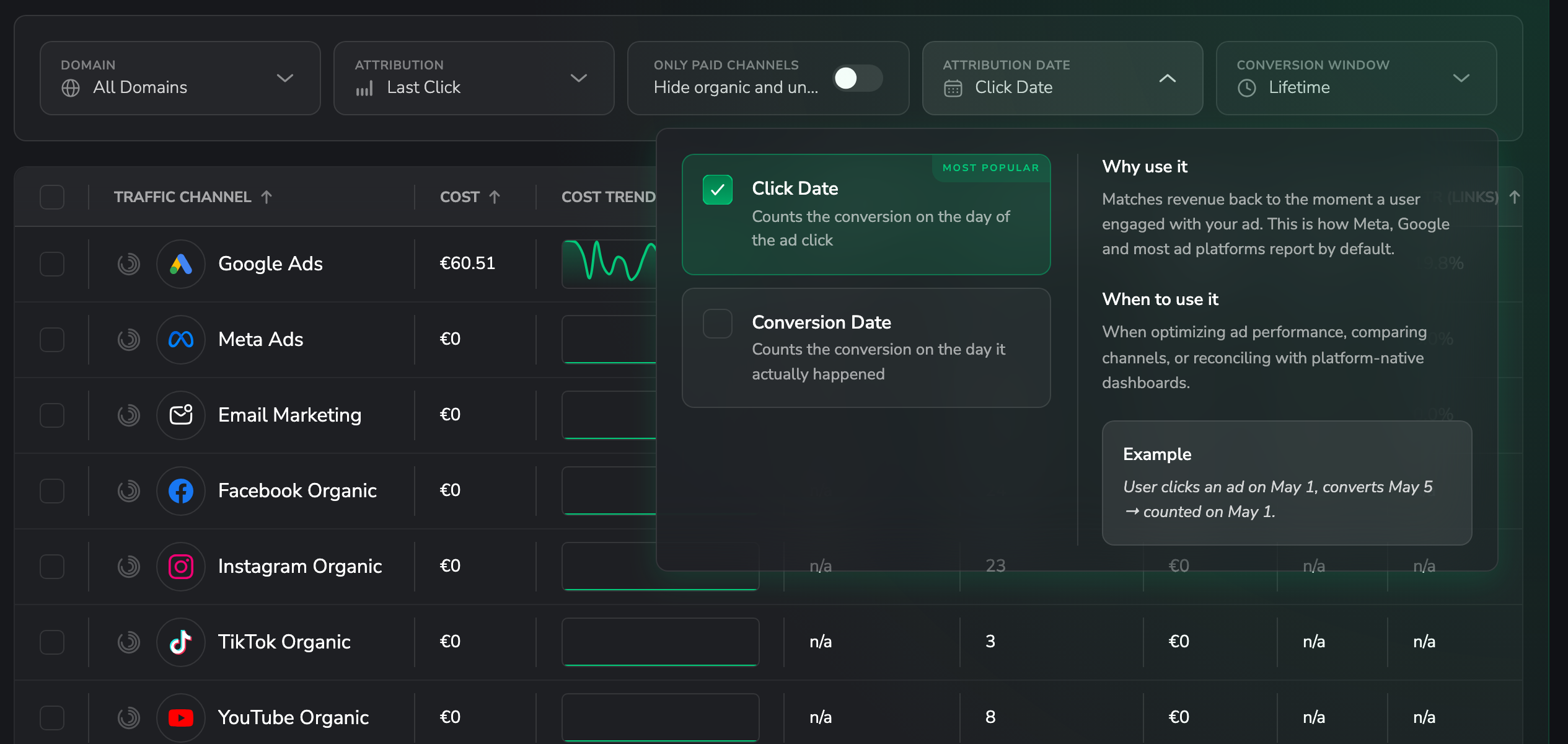
- Click Date (default) – counts the conversion on the day of the ad click. This is how Meta, Google and most platforms report, so it's the setting to use when you're comparing against them or judging a campaign's return.
- Conversion Date – counts it on the day the deal actually happened. This is the view sales and finance recognise, because it matches when the revenue landed.
Why your numbers might differ from Meta or Google
If LeadJourney and your ad platform disagree, it's almost always one of these three settings. The platforms default to Last Click, a shorter window (often 7 or 28 days) and Click Date. Match those three and the figures move much closer together.
See the journey behind a single lead
Models are an aggregate view. For one named person, open Lead Overview and click the lead: the journey shows every click and conversion in order, with first and last touch marked. That's where you check why a particular deal is credited the way it is.
Common questions
Related articles
How dynamic number insertion works
The technical explanation of LeadJourney's call tracking – how a visitor gets their own number, what the script actually changes on your page, how many numbers a pool needs, and what it means for your NAP consistency and SEO.
Affiliate tracking
Track the offers you promote as an affiliate – the four building blocks (networks, offers, campaigns and landing pages) that let you see true ROI per campaign, offer and network.