Data Quality
Manage your blacklist
Keep your reports clean by excluding unwanted traffic and leads – block referrer domains, ad campaigns, IPs and user agents, email addresses, email domains and entry URLs in LeadJourney.
The Blacklist is where you keep junk out of your numbers. Anything you add is ignored across all of your reports and lead data – so bot hits, internal visits, spam leads and campaigns you don't want to measure stop skewing your attribution.
In short
The blacklist filters your data by six different signals – referrer, campaign, IP or user agent, email, email domain and entry URL. Add an entry and matching traffic or leads are excluded from then on; remove it and they're tracked again.
Where to find it
In LeadJourney, open Settings → Blacklist, or go straight to app.leadjourney.io/settings?slug=blacklist.
Don't see the Blacklist tab?
The Blacklist is a permission-gated workspace setting. If the tab isn't there, your role doesn't include access – ask a workspace owner (or the agency managing the workspace) to make the change or grant you the permission.
What you can block
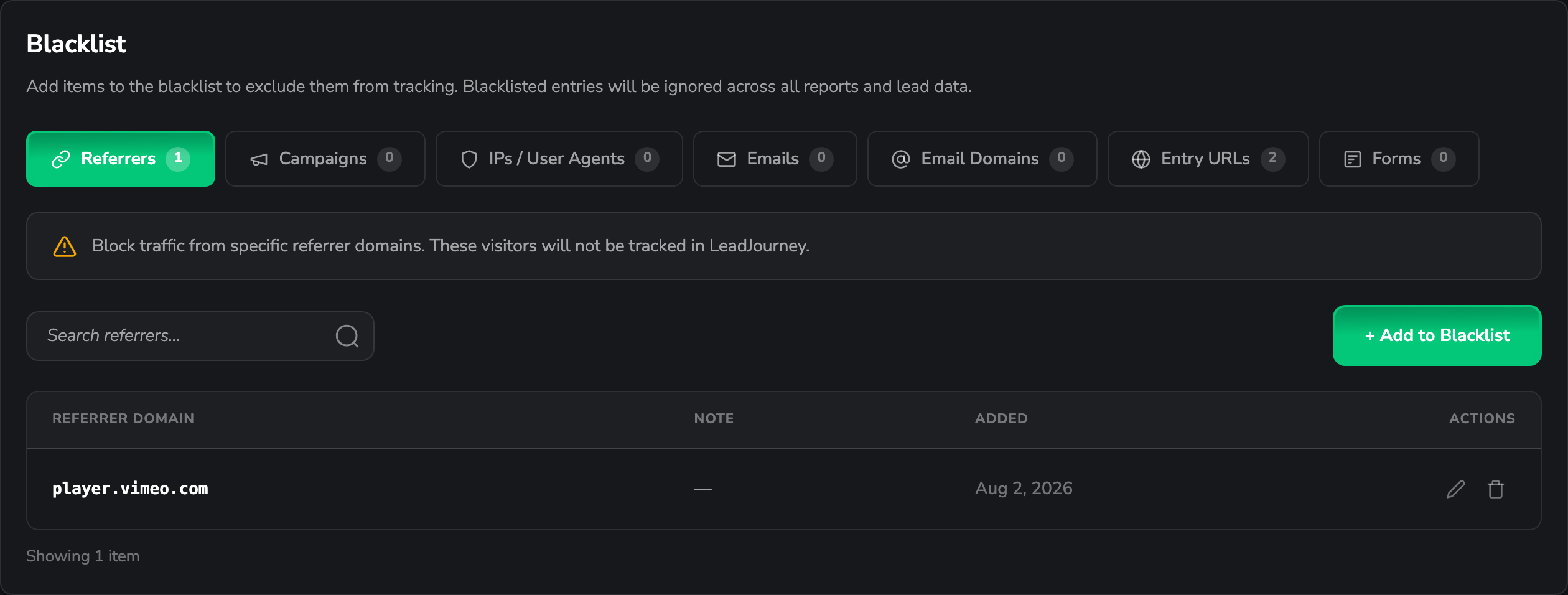
The Blacklist page has six sub-tabs, each for a different kind of entry. The number on each tab shows how many entries it already holds.
| Tab | What it blocks | Example entry |
|---|---|---|
| Referrers | Visitors arriving from a referrer domain you don't want to track | calendly.com |
| Campaigns | A specific ad campaign ID on Meta, Google, LinkedIn or Bing Ads | 120398457283940123 |
| IPs / User Agents | An IP address, IP range or user-agent string – bots and your own internal traffic | 192.168.1.100 |
| Emails | A single email address captured as a lead | [email protected] |
| Email Domains | Every email from a domain, with optional wildcard | *.competitor.com |
| Entry URLs | Visits that start on a given landing page, with rule-based matching | /careers/* |
The format is enforced per tab
Each tab cleans up what you type so you don't have to. Referrer and entry-URL entries have
the protocol (https://) and www. stripped automatically, email matching is
case-insensitive, and email-domain entries drop the @. The placeholder and helper text in
the form always show the exact format that tab expects.
Add an entry to the blacklist
Open the right tab
Pick the sub-tab for what you want to block – Referrers, Campaigns, IPs / User Agents, Emails, Email Domains or Entry URLs.
Click "+ Add to Blacklist"
The button sits on the right of the toolbar, next to the search box.
Enter what you want to block
Type the value into the field. Follow the placeholder and helper text for the right format –
a referrer is just the domain (calendly.com), an email is the full address
([email protected]), an IP can be a single address or a range.
- For Campaigns, also choose the Platform (Meta, Google, LinkedIn or Bing Ads).
- For Entry URLs, build a rule instead of a plain value – see Block entry URLs with rules below.
Add a note (optional)
Use the Note field for a short reminder of why you blocked it – future-you and your teammates will thank you (e.g. "recruiting campaign", "office IP", "competitor").
Save
Click Add to Blacklist. The entry takes effect immediately and the counter on the tab goes up by one.
Block ad campaigns
The Campaigns tab blocks a whole ad campaign by its Campaign ID on the platform you select. It's the right tool for excluding campaigns you don't want in your lead KPIs – a recruiting campaign, a brand-awareness campaign, or a test you'd rather not measure.
When you add a campaign you'll see one extra option:
“Also delete historical data for this campaign” is permanent
This optional checkbox does more than stop future tracking. It permanently removes all cost data, postback logs, ads and adsets already synced for that campaign ID on the selected platform. This cannot be undone. Leave it unticked if you only want to stop measuring the campaign from now on; the removal runs in the background once you confirm.
Block entry URLs with rules
The Entry URLs tab is the most flexible one: instead of a single value, you define a rule with three parts.
- Field – what to match against: Entry Page (the path the visitor landed on) or Full URL (the complete landing-page URL).
- Condition – Contains, Equals, Not Contains, Starts With or Ends With.
- Value – the text to match, e.g.
/marketplace-service/orhttps://example.com/page.
You can also use * as a wildcard.
Tip: block a whole section
Add /* to the end of a path to block every page beneath it. For example,
/careers/* keeps all of your careers pages out of your lead tracking in one entry.
Manage and remove entries
Each tab has its own search box to find an entry quickly, and every row has two actions:
- Edit (pencil) – change the value, note, platform or rule. (The "delete historical data" option only appears when adding a campaign, not when editing one.)
- Delete (trash) – remove the entry from the blacklist.
Removing an entry un-blocks it
When you delete a blacklist entry, traffic matching it will be tracked again from that point on. Removing an entry doesn't bring back data that was blocked while it was active.
What's worth blacklisting?
A few common clean-ups:
- Your own traffic – add your office or VPN IP address so internal visits don't inflate your numbers.
- Bots and scrapers – block known user-agent strings under IPs / User Agents.
- Booking and tool domains – add referrers like
calendly.comwhen they shouldn't count as a traffic source. - Spam and competitor leads – block individual emails or whole email domains.
- Campaigns you don't measure – exclude recruiting or brand campaign IDs from your lead KPIs.
- Pages that aren't real entries – block entry URLs like
/careers/*or internal tools.
Related articles
Track YouTube Organic from click to pipeline revenue
Use LeadJourney to attribute every YouTube organic click – from a video description, pinned comment, Short, community post or channel page – to leads, won deals and pipeline revenue. YouTube organic is tracked automatically by referrer, with no parameters to set up; add lj_ tags only when you want to know which video or placement drove the result.
Edit your profile & account settings
Update your name, email and password, and set your company details, time zone, currency and time format in LeadJourney.