Account & Security
Edit your profile & account settings
Update your name, email and password, and set your company details, time zone, currency and time format in LeadJourney.
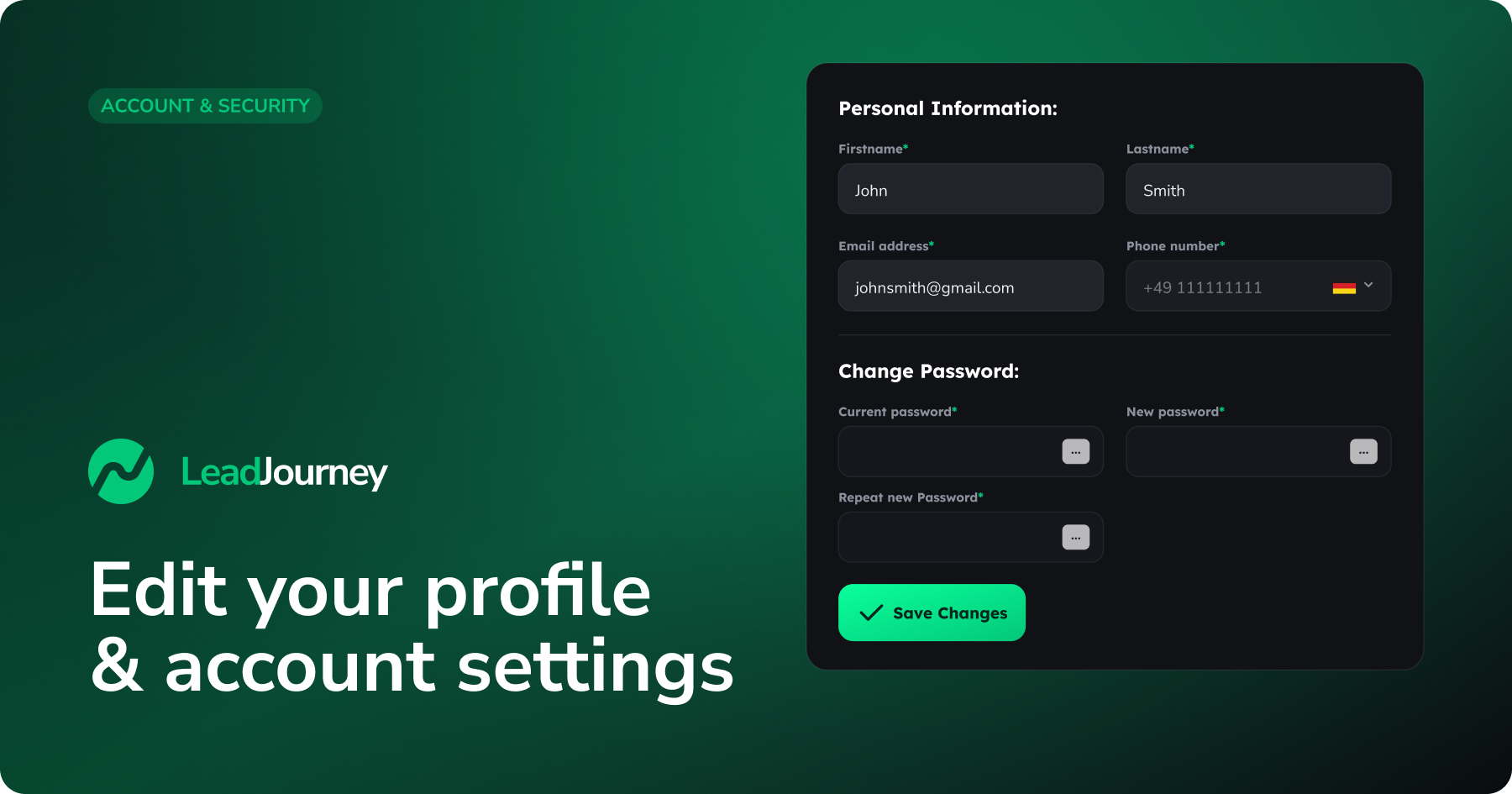
Everything about you and your workspace lives under Settings. Your personal details – name, email and password – sit on the Profile tab, while your company details and your time zone, currency and time format are part of the Workspace Information card on the Sub-users tab. This guide shows you where to find each one and how to change it.
Two tabs, two scopes
Profile settings are personal – they only affect your login. Workspace Information settings (company, time zone, currency, time format) apply to the whole workspace, so every member sees them. Only a workspace owner (or an agency managing the workspace) can edit the workspace settings.
Update your personal details
Your name, email address and phone number live on the Profile tab.
Where to find it
In LeadJourney, open Settings → Profile, or go straight to app.leadjourney.io/settings?slug=profile.
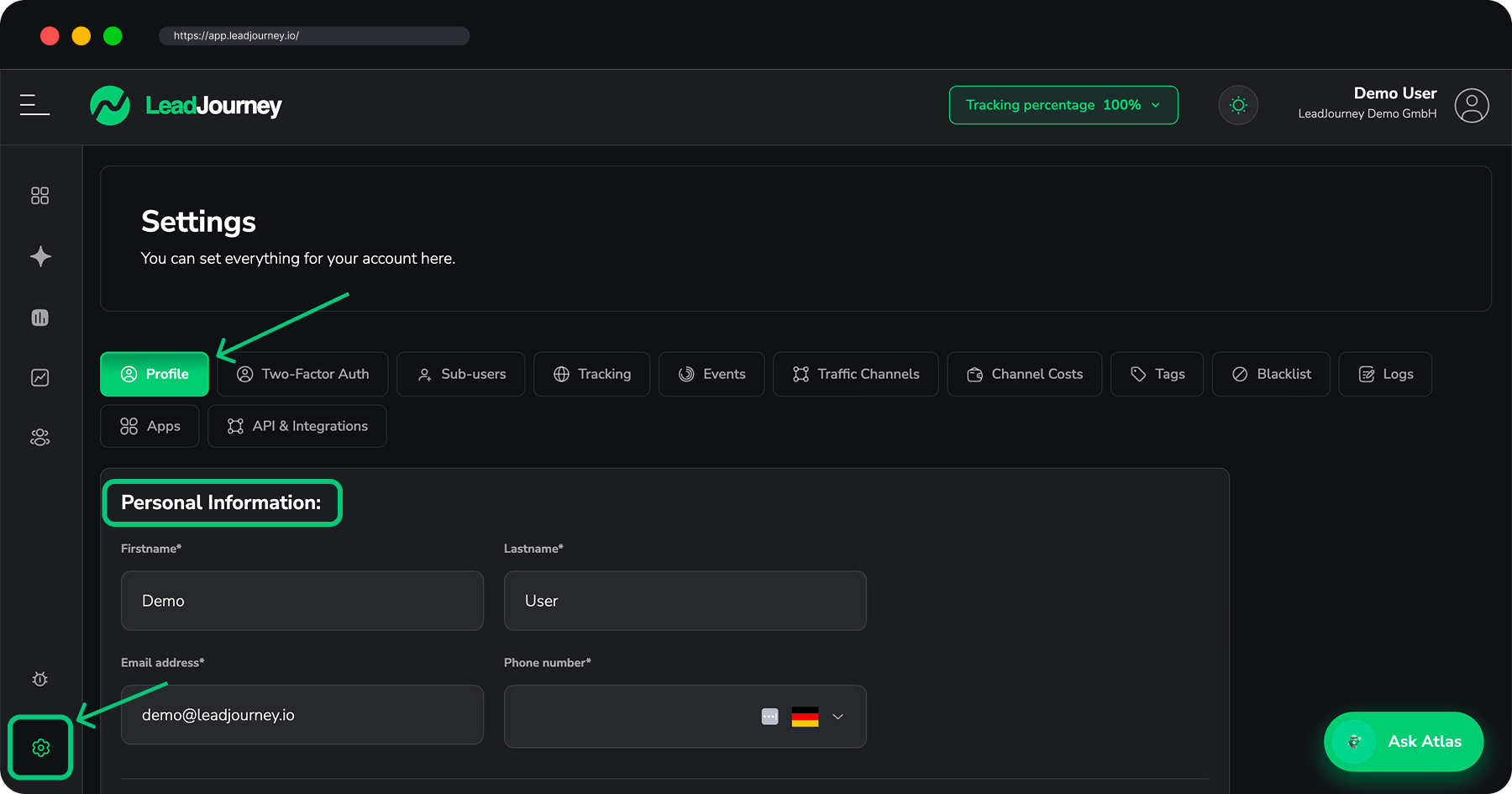
Open the Profile tab
Go to Settings → Profile. The Personal Information section is at the top.
Edit your details
Update any of the fields:
- Firstname and Lastname – your display name across LeadJourney.
- Email address – this is the address you use to sign in and where account notifications are sent. Change it carefully.
- Phone number – your contact number.
Save your change
Click Save Changes. The button stays greyed out until you actually change something, so if it's disabled you haven't edited a field yet.
Changing your email
After you save a new email address, use the new address to sign in from then on. If you have two-factor authentication enabled, keep your authenticator app handy for the next login.
Change your password
Your password is changed on the same Profile tab, in the Change Password section just below your personal information.
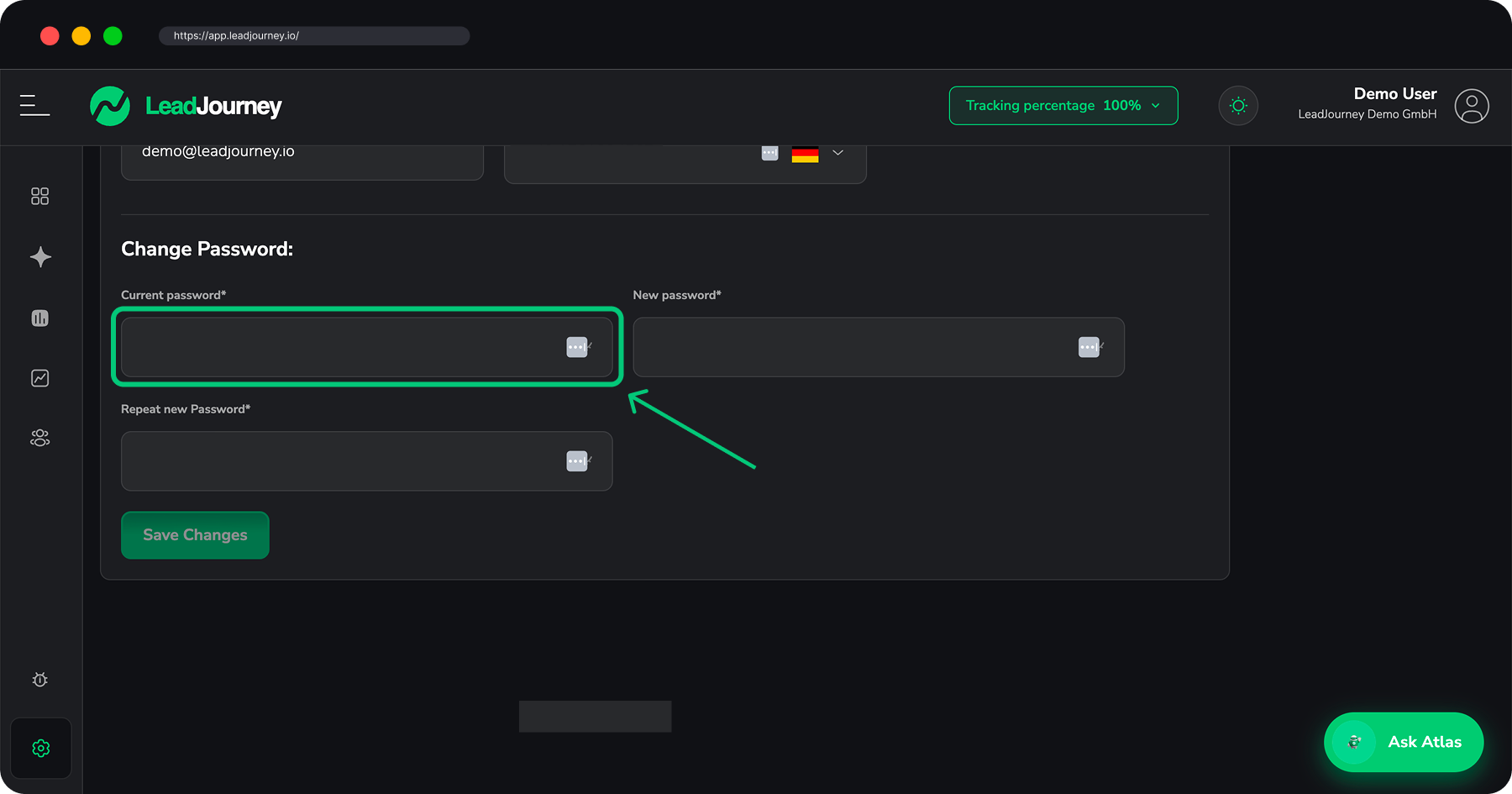
Open the Change Password section
On the Profile tab (Settings → Profile), scroll to Change Password.
Enter your passwords
Fill in all three fields:
- Current password – your existing password, to confirm it's really you.
- New password – the password you want to switch to.
- Repeat new Password – type the new password again so it can be confirmed.
The new password and its repeat must match.
Save your change
Click Save Changes. The password fields clear once the change is saved, and you'll use the new password the next time you sign in.
Can't sign in at all? Reset a forgotten password from the login screen instead – see How do I change or reset my password?.
Use a strong, unique password
Pick a long password you don't reuse anywhere else, and store it in a password manager. For an extra layer of protection, also turn on Two-Factor Authentication.
Edit your company details
Your company name and address live in the Workspace Information card on the Sub-users tab – they belong to the workspace, not to your personal profile.
Where to find it
Open Settings → Sub-users, or go straight to app.leadjourney.io/settings?slug=sub-users. The Workspace Information card sits at the top of the tab.
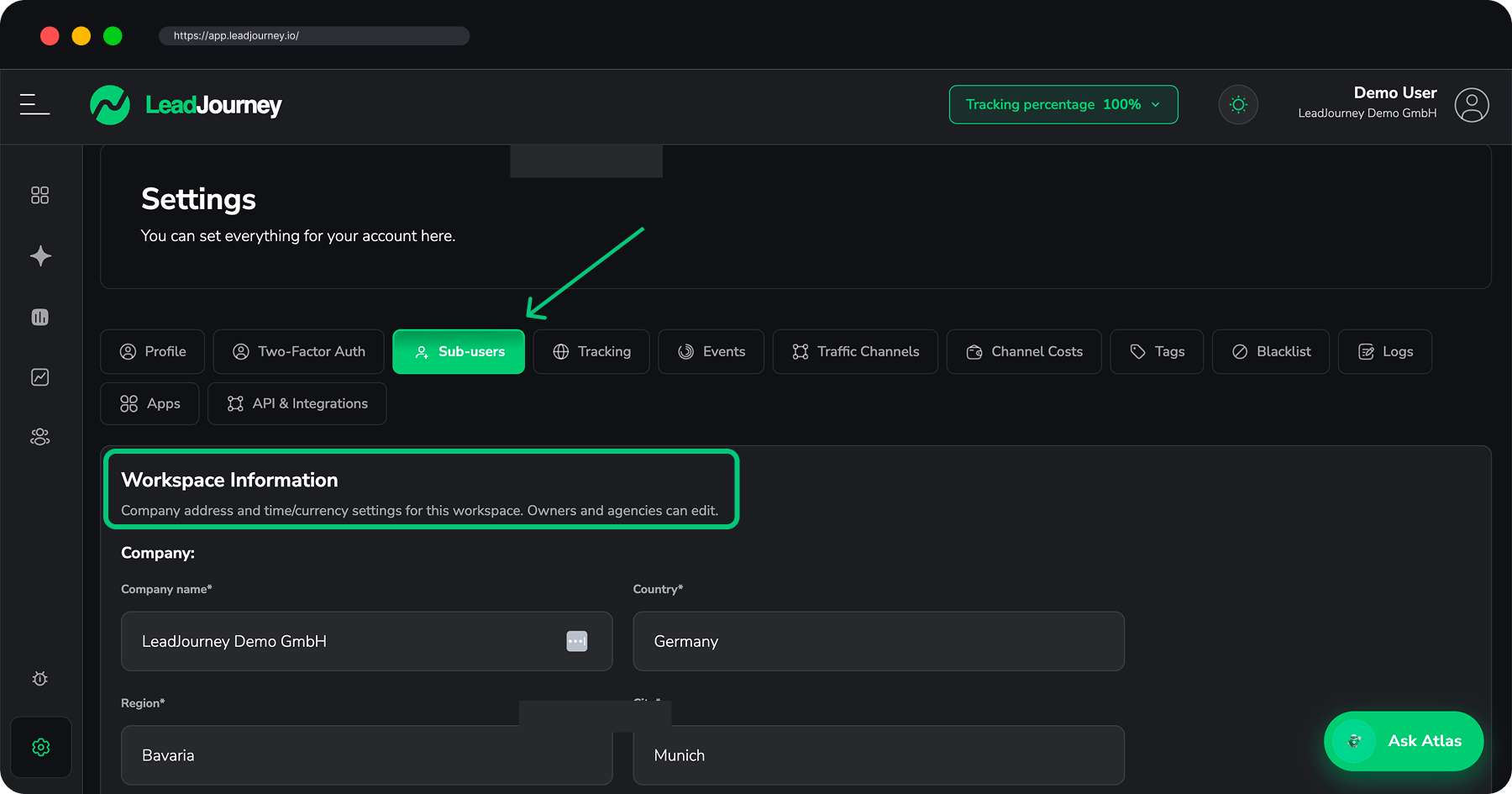
Don't see the card?
Only a workspace owner (or an agency managing the workspace) can edit Workspace Information. If the card isn't there, you don't have permission – ask your workspace owner to make the change.
Open the Workspace Information card
Go to Settings → Sub-users. The Workspace Information card is at the top of the page, starting with the Company details.
Update your company details
Fill in your Company name and address: Country, Region, City, Street and Postal Code.
Save your change
Click Save Workspace Details. A confirmation appears once the change is saved.
Set your time zone, currency and time format
These three settings are in the same Workspace Information card on the Sub-users tab, right below your company details. Because they're workspace-wide, every member sees the same dates, currency and clock format.
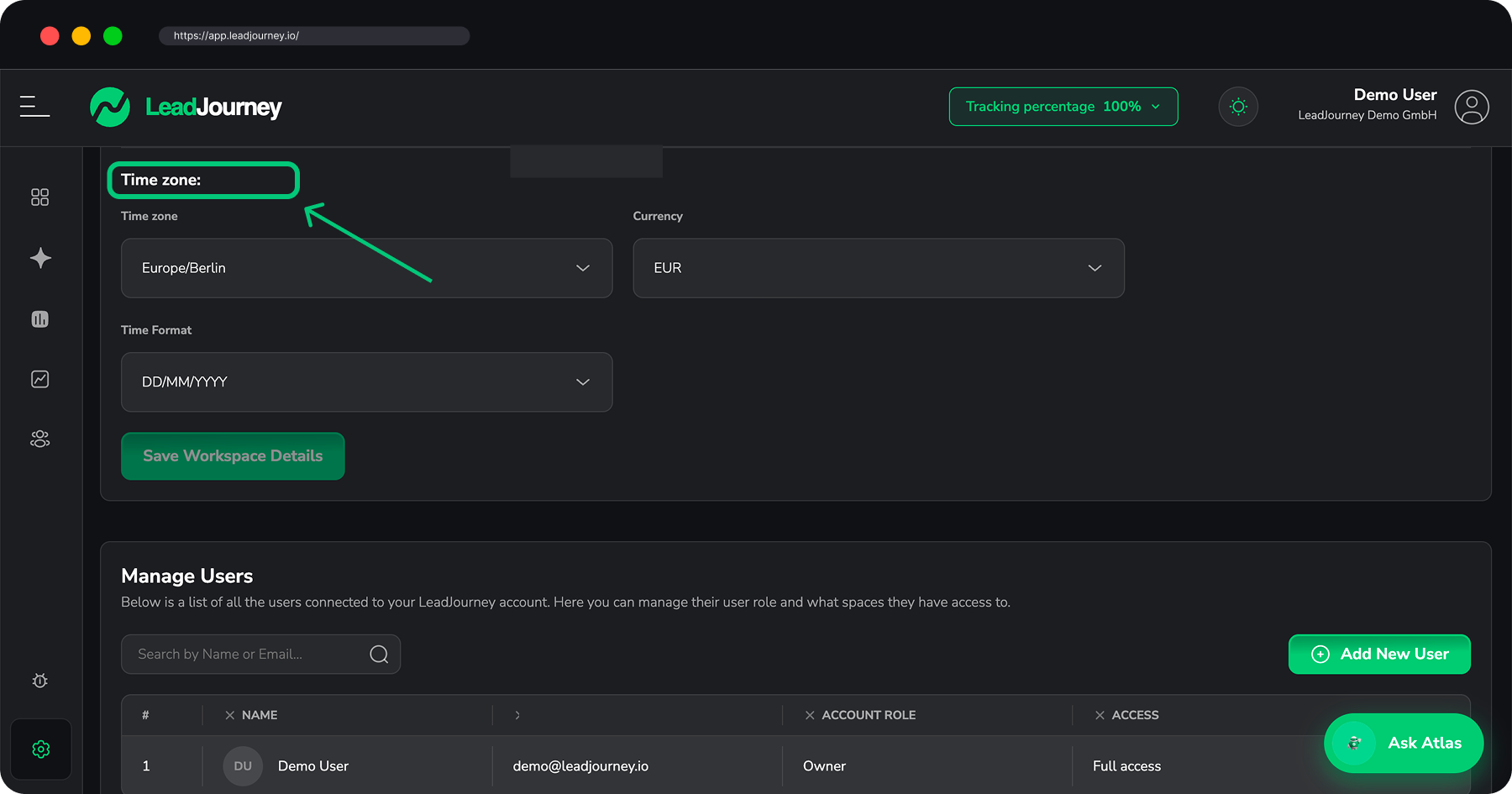
Open the Workspace Information card
Open Settings → Sub-users (app.leadjourney.io/settings?slug=sub-users) and find the Time zone part of the Workspace Information card.
Choose your settings
- Time zone – open the dropdown and start typing your city or region to filter the list, then pick the right zone. LeadJourney can also auto-detect the time zone from your browser and suggest it – accept the suggestion if it matches. This controls the dates and timestamps shown across your reports and logs.
- Currency – the currency your costs, revenue and reports are displayed in.
- Time Format – switch between a 12-hour (AM/PM) and 24-hour clock.
Save your change
Click Save Workspace Details. The button stays disabled until you change a value, and a confirmation appears once it's saved.
Dedicated guides
Need just one of these? See Change your workspace time zone and Change your workspace currency.
Invite and manage team members
The rest of the Sub-users tab is where you manage who has access to your workspace.
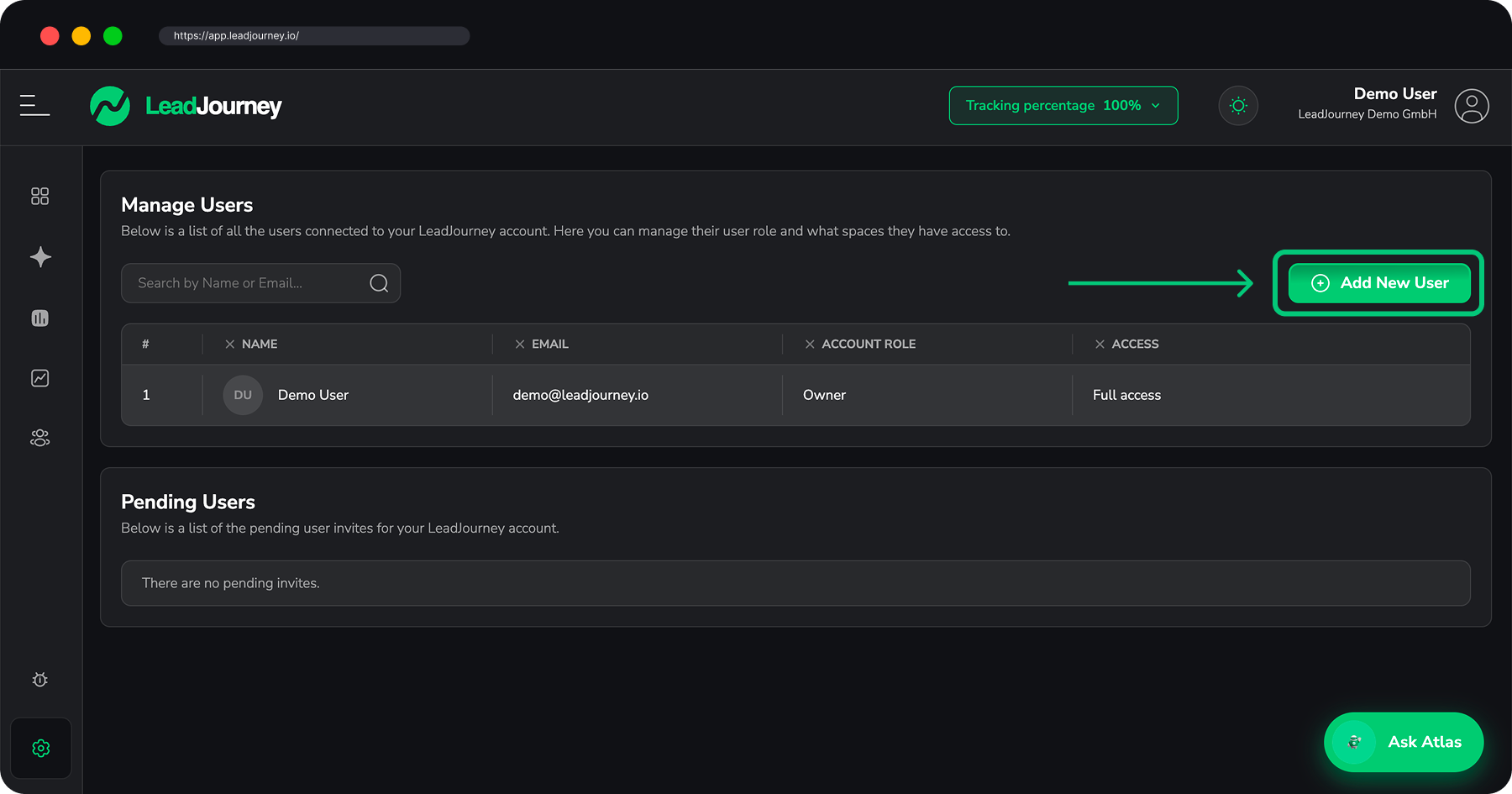
Full guide
For the complete walkthrough – roles, fine-grained access and managing invites – see Add users to your workspace.
- Add a user – click Add New User, enter their Email Address, pick a Role (Member, Advertiser or Agency Member) and choose their access. You can grant full access to all reports and traffic channels, or pick specific ones. Click Send Invitation.
- Manage users – the Manage Users table lists every active member. Use the edit (pencil) icon to change a member's role and access, or the delete (trash) icon to remove them. The workspace owner can't be removed.
- Pending invites – invitations that haven't been accepted yet appear under Pending Users, where you can resend or cancel them.
Related articles
Add users to your workspace
Invite team members and control what each person can access.
Set up Two-Factor Authentication
Add a second layer of security to your login.
Change or reset your password
Change it from your profile, or reset a forgotten one from the login screen.
Change your workspace time zone
Set the time zone for timestamps and report dates.
Change your workspace currency
Set the currency your reports and costs are shown in.
Manage your blacklist
Keep your reports clean by excluding unwanted traffic and leads – block referrer domains, ad campaigns, IPs and user agents, email addresses, email domains and entry URLs in LeadJourney.
Add users to your workspace
Invite team members to your LeadJourney workspace, pick their role, and control exactly which reports and traffic channels each person can access.