Getting Started
5. Events & the Events Manager
Events are the meaningful actions in your sales pipeline – Lead, Booked Call, Won. Learn what events are, how the Events Manager works, and how they map your CRM pipeline stages into LeadJourney.
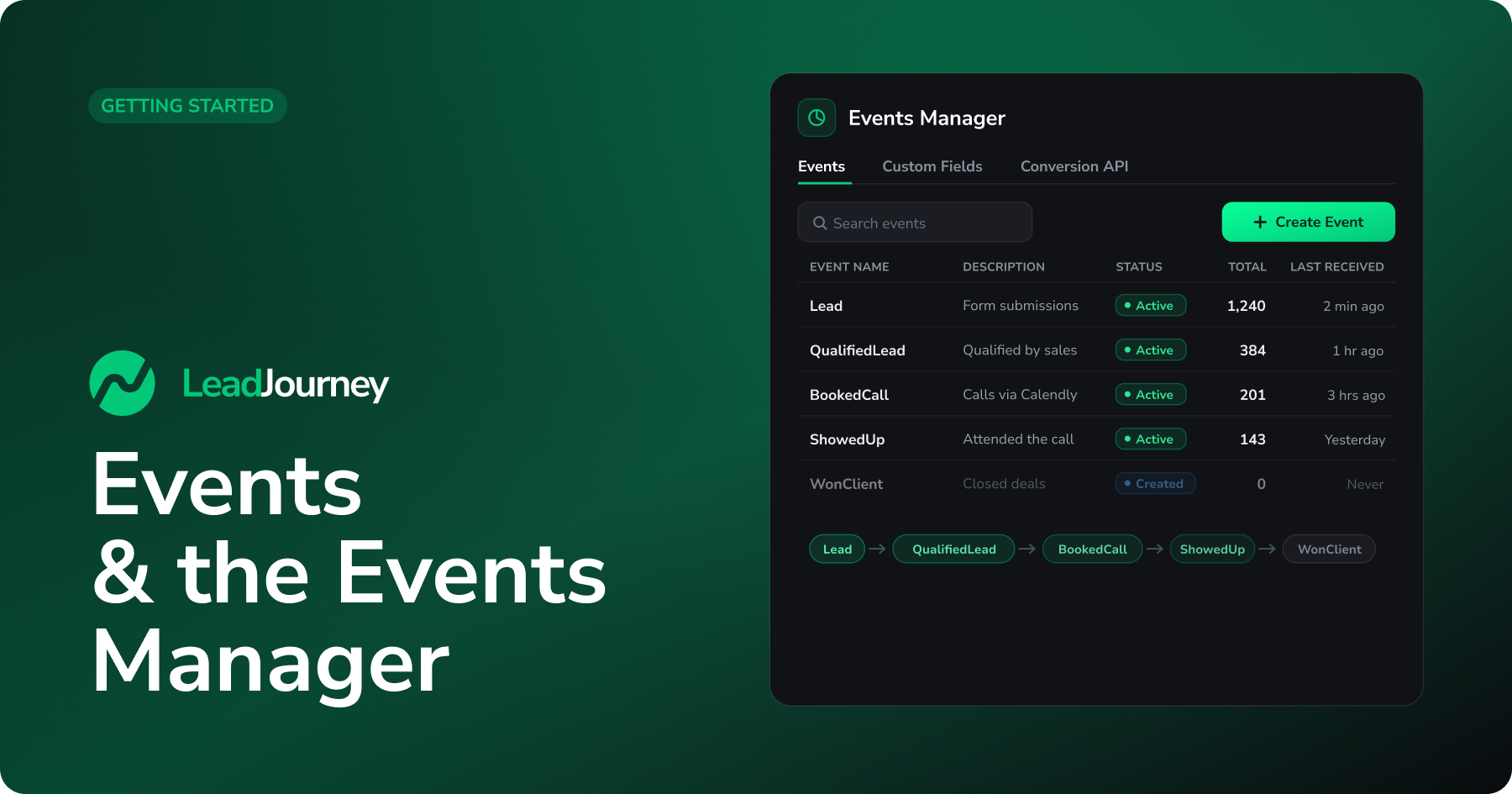
Events are the heart of LeadJourney. The tracking script records clicks and page views, but events record what actually happened afterwards – a lead came in, a call was booked, a deal was won. Without events, LeadJourney can see the traffic but not the outcomes, so every workspace needs at least a few events to get real attribution.
Prerequisite: tracking is live
Events are matched back to the visitor that triggered them, so your tracking needs to be running first. See Install the tracking script. Once clicks are being recorded, the events you send can be stitched to the right campaign, ad set and ad.
What is an event?
An event is a meaningful action you want to track – for example a Lead, a
BookedCall, a ShowedUp or a WonClient. Think of each event as a milestone in your
sales pipeline.
Most of these actions don't happen on your website – they happen later, in your CRM: a sales rep qualifies a lead, a call gets booked, a deal closes. That's why events are also called offline (CRM) events: your CRM sends each milestone to LeadJourney, and LeadJourney matches it back to the original ad click. This is what turns "we got 200 clicks" into "those clicks produced 40 qualified leads and €18,000 in revenue."
Events = your CRM pipeline stages
The most powerful way to use events is to mirror your CRM pipeline stages. Each stage a lead passes through – Qualified Lead → Closing Call Scheduled → Showed Up → Offer Sent → Won – becomes its own event. As a contact moves through your pipeline, your CRM fires an event for each step, and LeadJourney rebuilds the full funnel per campaign, ad set and ad.
Default and recommended events
Every workspace starts with two default events already active:
| Event | What it means |
|---|---|
Lead | A new lead is captured (form submission, signup). |
WonClient | A lead converted into a paying customer. |
To get full funnel visibility, we recommend adding events for the stages in between, such
as QualifiedLead, BookedCall, ShowedUp, OfferSent, and outcomes like Won, Lost
or Unqualified – whatever matches your own pipeline.
Common events by business type
Every business measures a different funnel. The sets below are starting points for three
common models – pick the milestones that exist in your own pipeline and skip the rest. Each
event name is just the type you'll send in the webhook, so feel free to rename them to
whatever your team already says.
Product-led and sales-assisted SaaS funnels track signups through to paid subscriptions and expansion.
| Event | When it fires |
|---|---|
Lead | Free trial started or account created. |
Activated | User reaches the "aha" moment (completes onboarding / key action). |
BookedCall | A demo or sales call is scheduled (sales-assisted). |
WonClient | Trial converts to a paid subscription – send revenue (MRR or plan value). |
Upgraded | Moves to a higher plan – expansion revenue. |
Churned | Subscription is cancelled. |
Agencies, coaches and B2B / high-ticket services track a lead from first form through to a closed deal.
| Event | When it fires |
|---|---|
Lead | Form submitted (lead magnet, contact or application form). |
QualifiedLead | Lead is qualified by sales (fits ICP, has budget). |
BookedCall | Discovery or closing call is scheduled. |
ShowedUp | Prospect actually attended the call. |
OfferSent | Proposal or offer is sent. |
WonClient | Deal closes – send revenue (contract value). |
Unqualified | Lead doesn't fit – useful for spotting low-quality traffic. |
Online stores track the path from interest to a completed (and ideally repeat) order.
| Event | When it fires |
|---|---|
Lead | Newsletter signup or account created. |
AddToCart | A product is added to the cart. |
InitiateCheckout | Checkout is started. |
WonClient | Order is completed – send revenue (order value). |
RepeatPurchase | A returning customer places another order. |
Refund | An order is refunded – send a negative revenue to correct it. |
These are templates, not a fixed list
Don't feel you need every row. The goal is to mirror your pipeline stages – two or three well-chosen events already give you a usable funnel, and you can add more later.
The Events Manager
The Events Manager is where you create events, watch them come in, and get the credentials to send them. Open it under Settings → Events. It has three tabs:
- Events – create and monitor your events.
- Custom Fields – capture extra CRM data (industry, deal size, …) alongside each event.
- Conversion API – the Webhook URL and Postback Secret you use to send events.
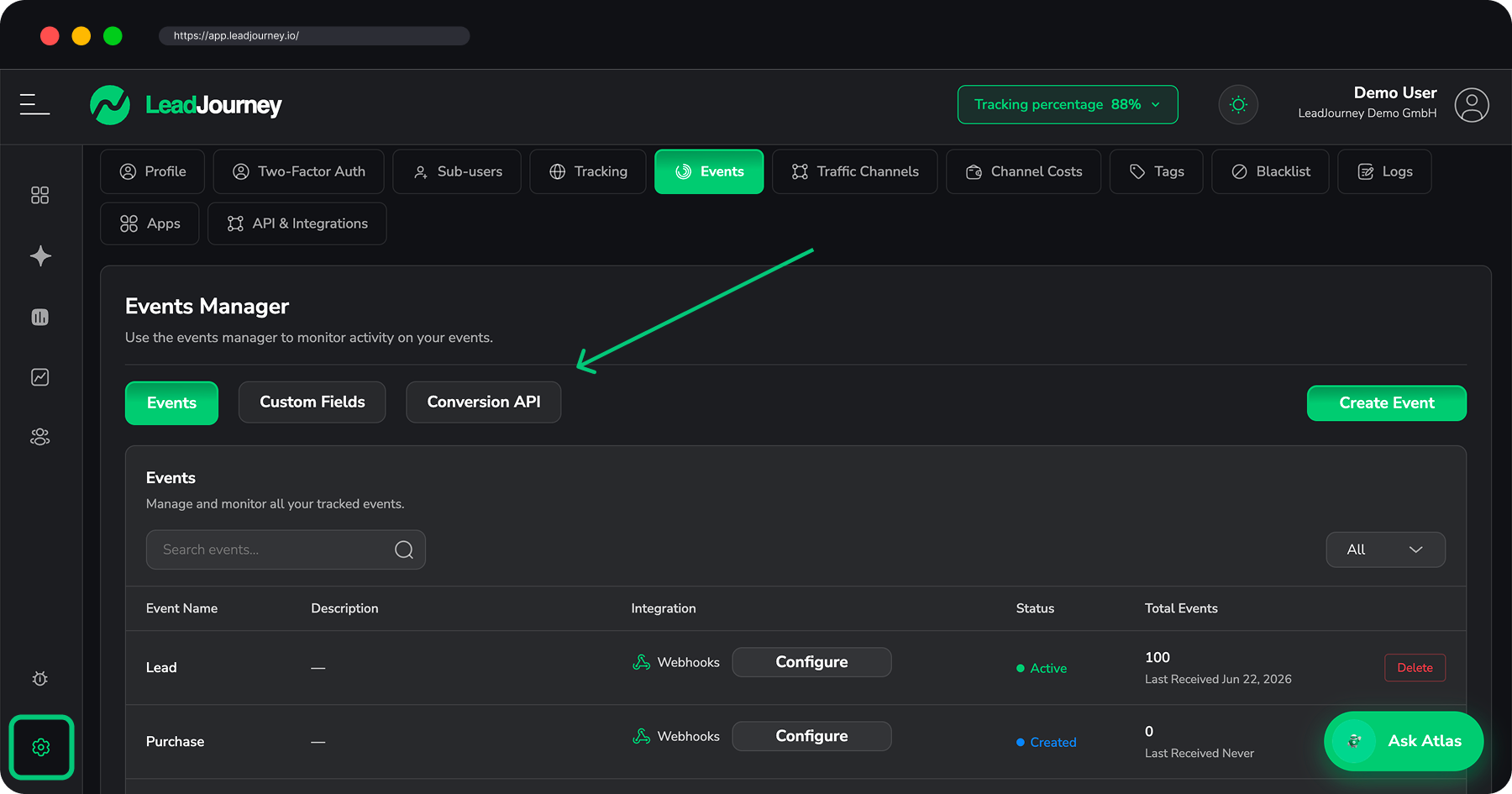
Events tab
The Events tab lists every event with its description, integration (Webhooks), status and total count. Each row shows two important things at a glance:
- Status – an event is Created (blue) until the first one arrives, then flips to Active (green) once it has received data.
- Total Events and Last Received – how many events of this type have come in, and when the most recent one arrived (or Never if you're still waiting on the first).
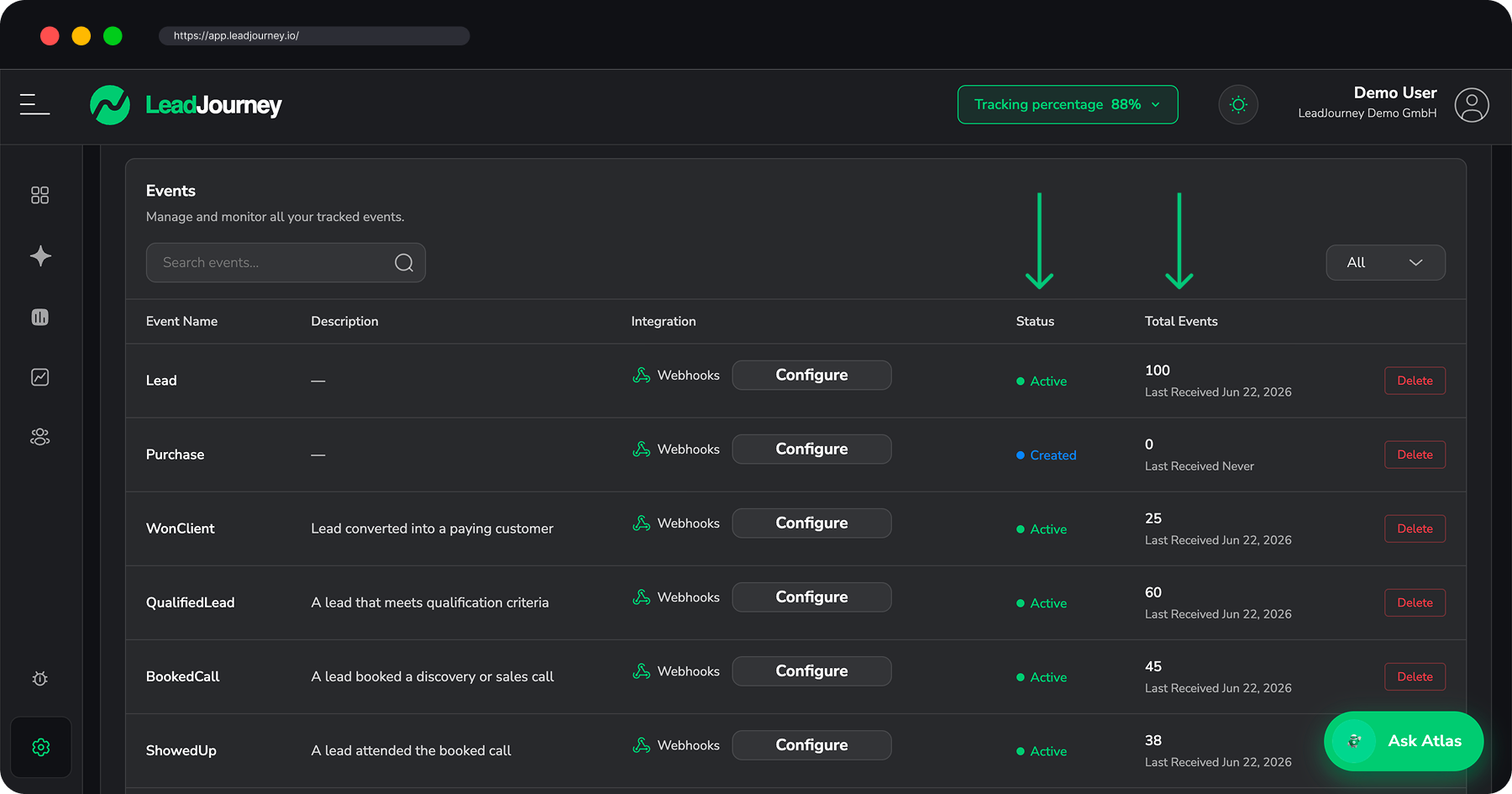
Incoming events
This is how you confirm everything is wired up: send a test from your CRM, and within moments the count goes up, the Last Received date updates, and the status turns Active. If an event stays on Created / Never, the events aren't reaching LeadJourney yet – check the Webhook URL and payload on the Conversion API tab.
Custom Fields tab
Custom fields let you capture extra data that rides along with your CRM webhook – things like industry, job title or deal size. Each field becomes a dimension you can use as a Group By or Filter in your reports. You can create up to 30 custom fields per workspace (text, number or currency), and the modal shows the exact JSON to add to your integration. For the full walkthrough, see Custom Fields.
Conversion API tab
This tab holds the credentials your CRM needs to send events:
- Workspace ID
- Postback Secret – your authentication token (you can regenerate it here)
- Webhook URL – the endpoint events are sent to
It also includes a ready-to-copy example request (with an Authorization Header or a Token in URL variant for platforms like HubSpot that can't send custom headers) and a reference of every payload field.
Create an event
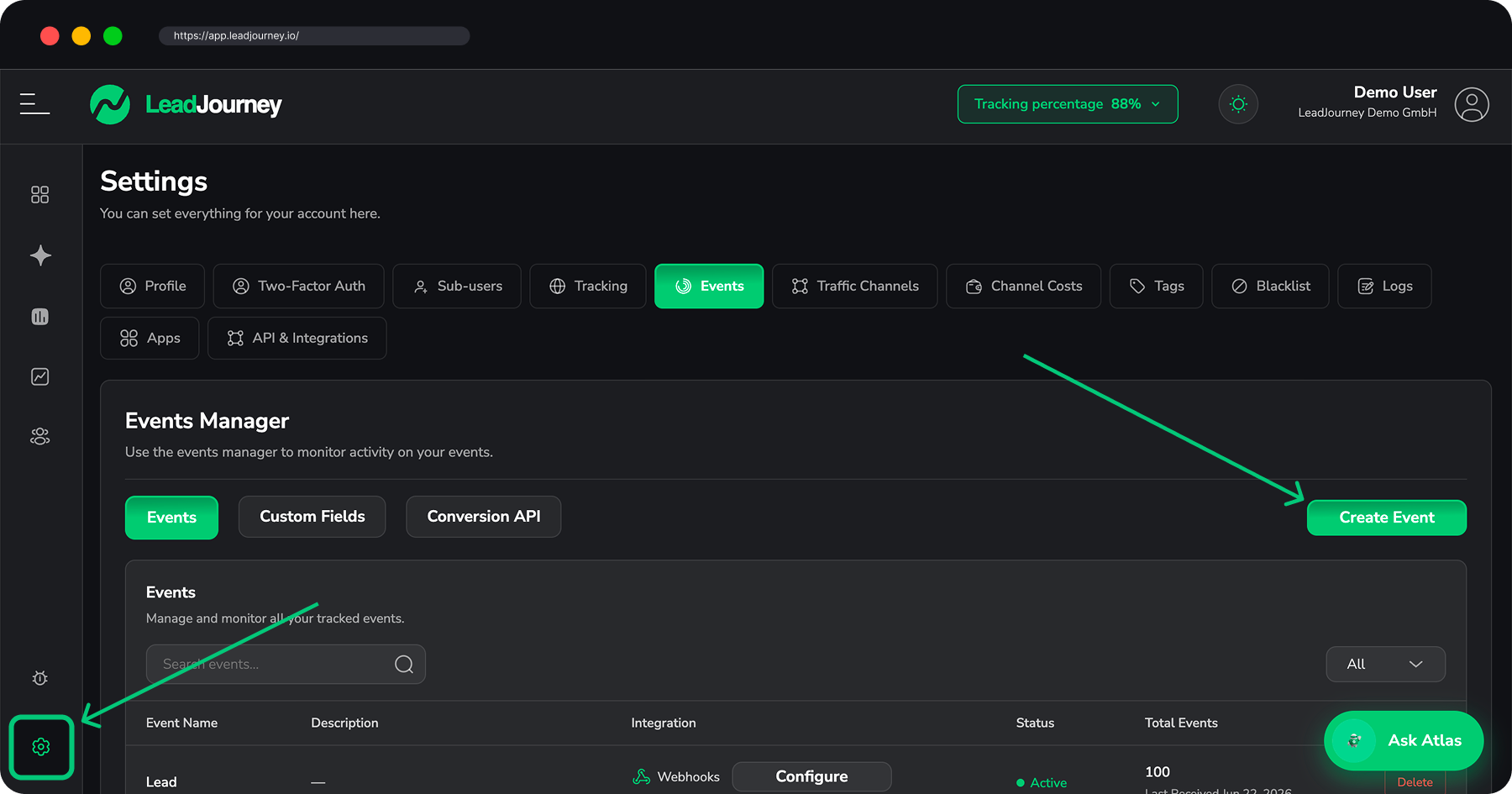
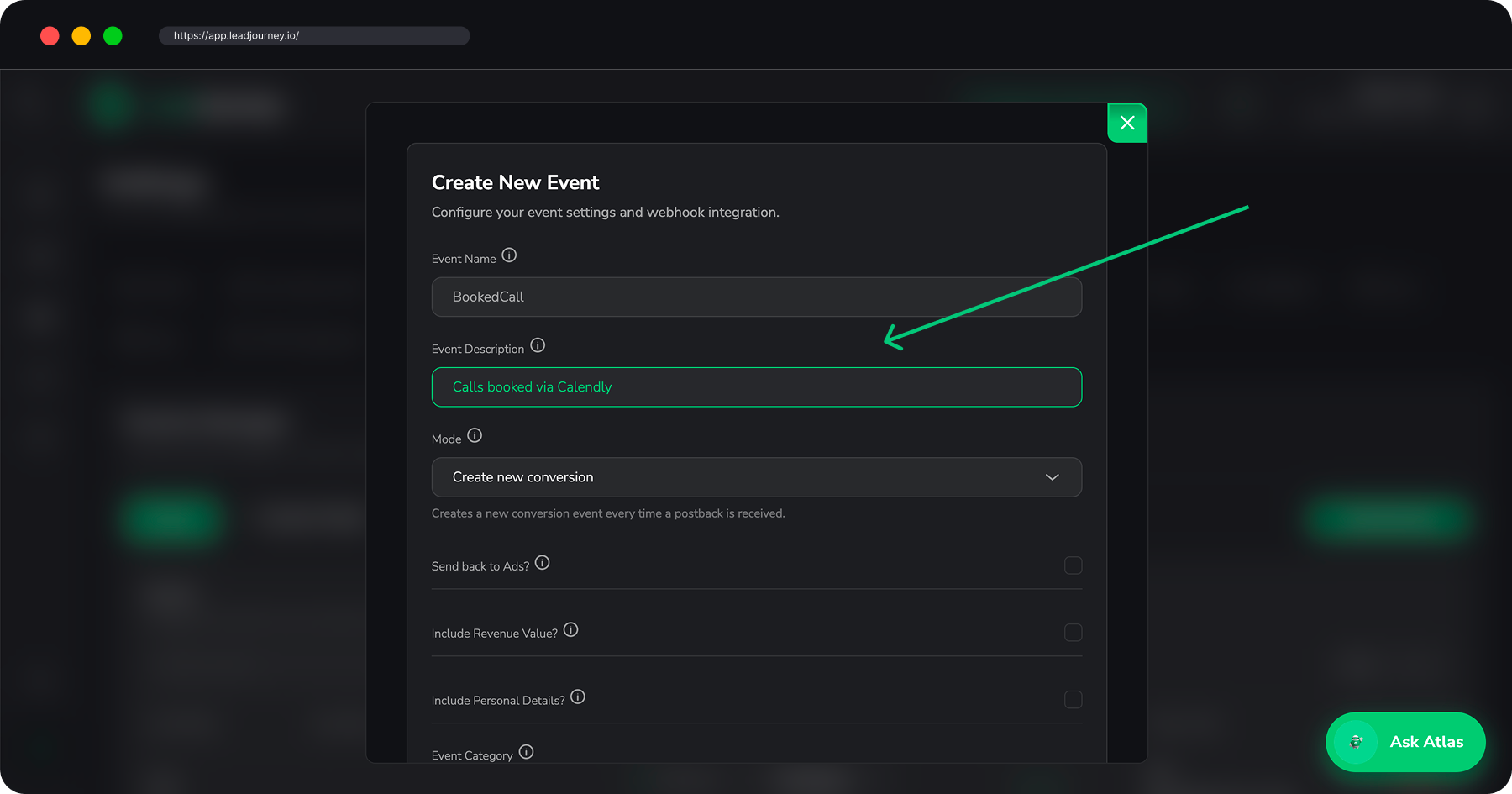
Name and describe it
Give the event a short, unique name (e.g. BookedCall) and an optional description
(e.g. "Calls booked via Calendly"). The name allows letters only – it's the type you'll
send in the webhook.
Choose a mode
The mode decides how repeated events for the same lead are handled:
| Mode | Behaviour |
|---|---|
| Create new conversion | Records a new event every time a webhook is received. |
| Ignore duplicate postbacks | Only the first event per lead is kept; later ones are ignored. |
| Edit conversion with new data | Updates the existing event with the latest data (e.g. revenue, status). |
| Keep original data, increment payout | Keeps the original event but adds the new revenue on top (WonClient only). |
Set the options
- Send back to Ads? – push this conversion back to your ad platforms (e.g. Meta via the Conversions API) so they can optimise toward it.
- Include Revenue Value? – expect a
revenuevalue in the payload. - Include Personal Details? – expect
email,phoneand name fields in the payload. - Category – an optional label (e.g. CRM, E-Commerce).
Save and connect your CRM
After saving, LeadJourney shows the Webhook URL and a copy-ready cURL example. Configure your CRM (or automation tool like Zapier / Make) to send that webhook whenever the action happens. From then on, the event shows up live in the Events tab.
How events are matched to a lead
For LeadJourney to attribute an event, it has to recognise which lead it belongs to. Send at least one identifier in the payload:
| Field | Required | Description |
|---|---|---|
type | Required | The event name (e.g. Lead, WonClient). |
click_id | Conditional | The lead's click ID. Required if email/phone absent. |
email | Conditional | The lead's email. Required if click_id/phone absent. |
phone | Conditional | The lead's phone. Required if click_id/email absent. |
revenue | Optional | Revenue value (required for WonClient events). |
cash_collected | Optional | Cash actually collected. |
first_name / last_name | Optional | The lead's name. |
At least one identifier
Send a click_id, an email or a phone with every event. Without one, LeadJourney has
no way to connect the event to the click that created the lead, and it can't be
attributed.
Related articles
4. UTM parameters & the UTM Builder
Tag every link – organic social, email, newsletters and any custom channel – with the right tracking parameters so LeadJourney attributes the click. Build those links in seconds with the free UTM Builder.
How attribution works
The concept behind LeadJourney – how a click becomes a tracked visitor, how that visitor becomes a lead, and how a later conversion is matched back to the exact ad that started it, using lj_ tracking parameters.