Getting Started
Affiliate setup guide
The complete walkthrough for affiliate marketers – set up a LeadJourney workspace, connect your ad platforms, add your networks, offers and campaigns, and see true ROI per campaign, offer and network.
This guide is for affiliate marketers: you drive paid (or organic) traffic to offers you don't own, and an affiliate network pays you a commission when a sale happens. LeadJourney ties the whole chain together – the click you paid for, the redirect to the offer, and the commission the network sends back – so you see true ROI per campaign, offer and network, not just clicks out.
Why affiliate setup is a little different
On a normal site you put a tracking script on your own pages. As an affiliate you usually can't add a script to the merchant's offer page, so two pieces do the heavy lifting instead: a redirect link that stamps each click with an ID, and a network postback that reports the commission back to LeadJourney. This guide walks you through both.
Before you start
Have these ready: your ad-account logins (Google, Meta, etc.), your affiliate network
logins and the affiliate links for the offers you promote, and – ideally – a subdomain
you can point at LeadJourney for a first-party tracking domain (e.g. go.your-site.com).
The big picture
You'll set things up in this order. Each step links to the full article if you want to go deeper.
Your affiliate funnel
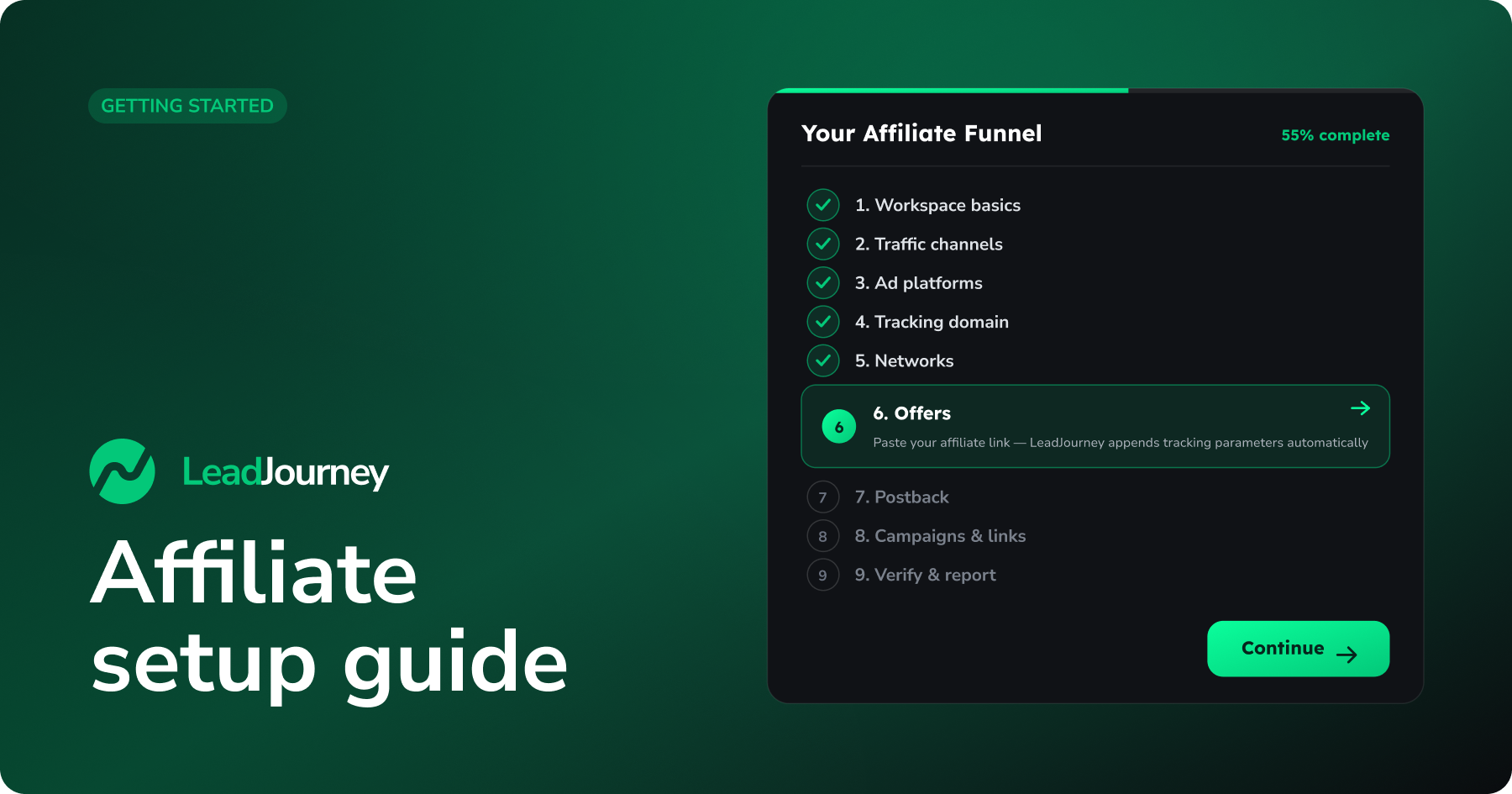
1. Workspace basics → 2. Traffic channels → 3. Ad platforms → 4. Tracking domain → 5. Networks → 6. Offers → 7. Postback → 8. Campaigns & links → 9. Verify & report
Step by step
Create your account & set workspace basics
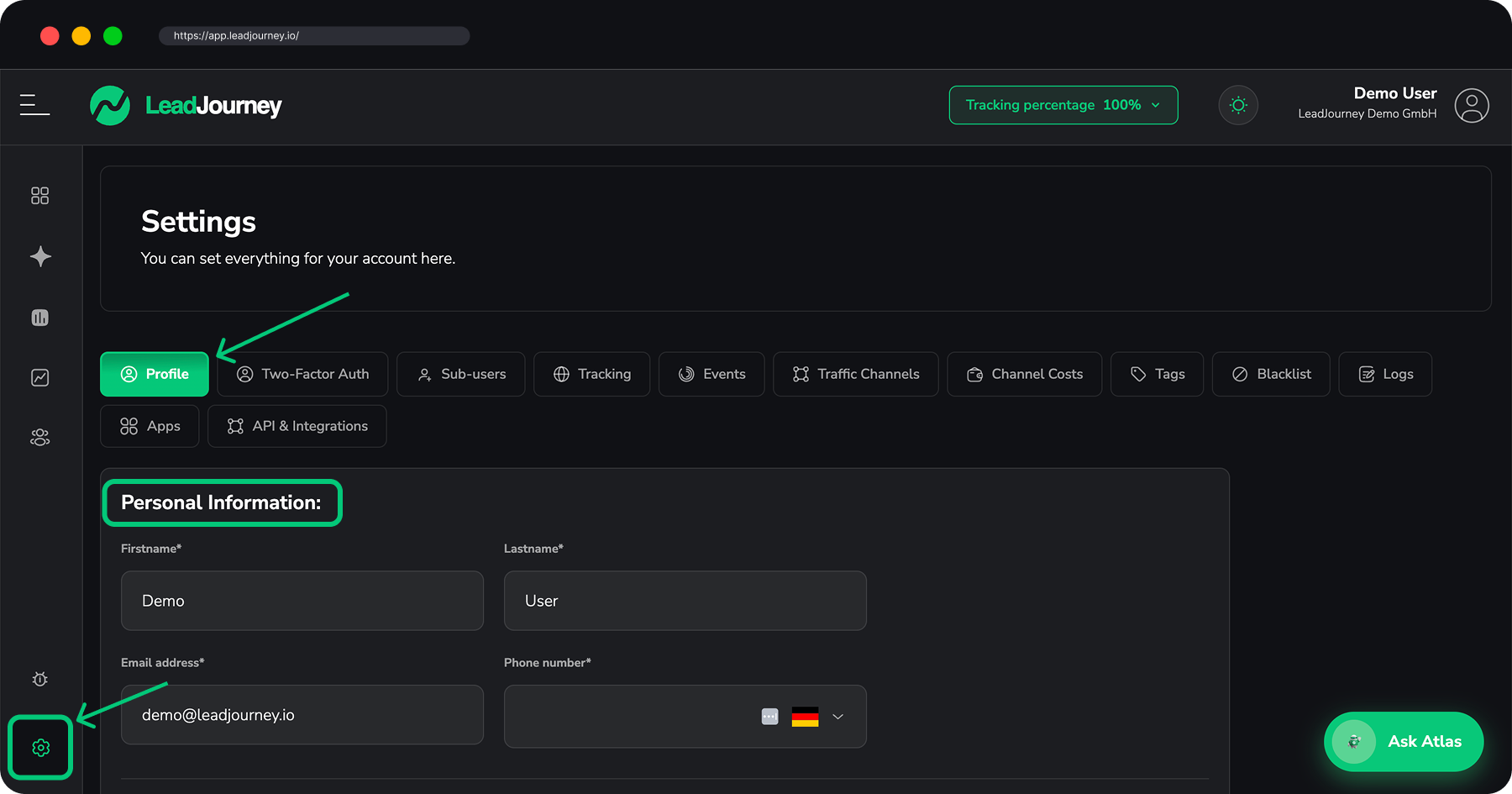
When you first sign in, LeadJourney runs a setup wizard you can leave and resume anytime – the Quickstart is the map of every step. Start by setting your company name, time zone, currency and date format, since these define how every report reads. You can change them later under Profile & account settings.
Choose your traffic channels
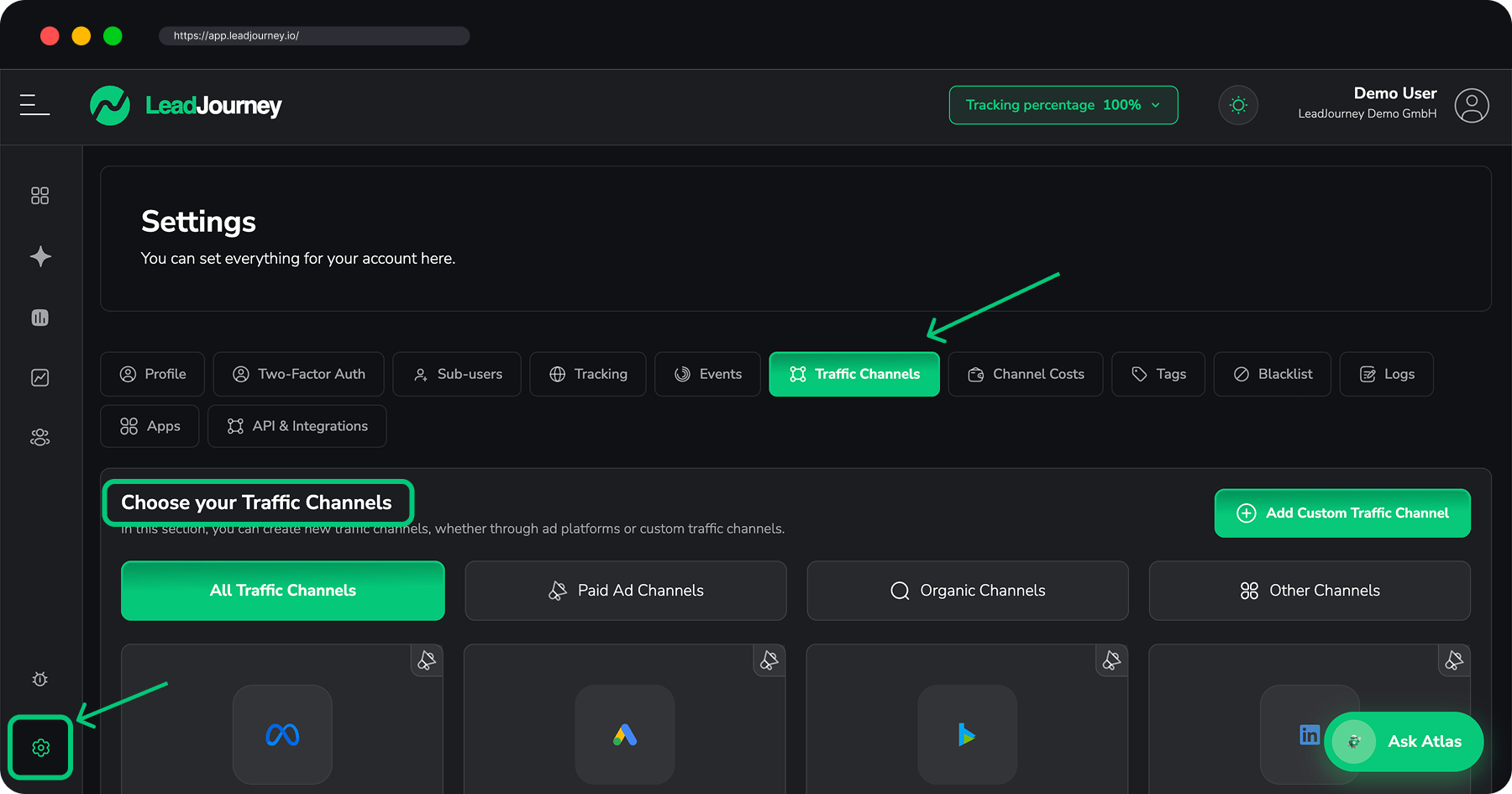
Pick the channels you'll run – paid platforms plus organic, social, referral and any custom channels. This is what every report can later be broken down by. See Traffic channels.
Connect your ad platforms
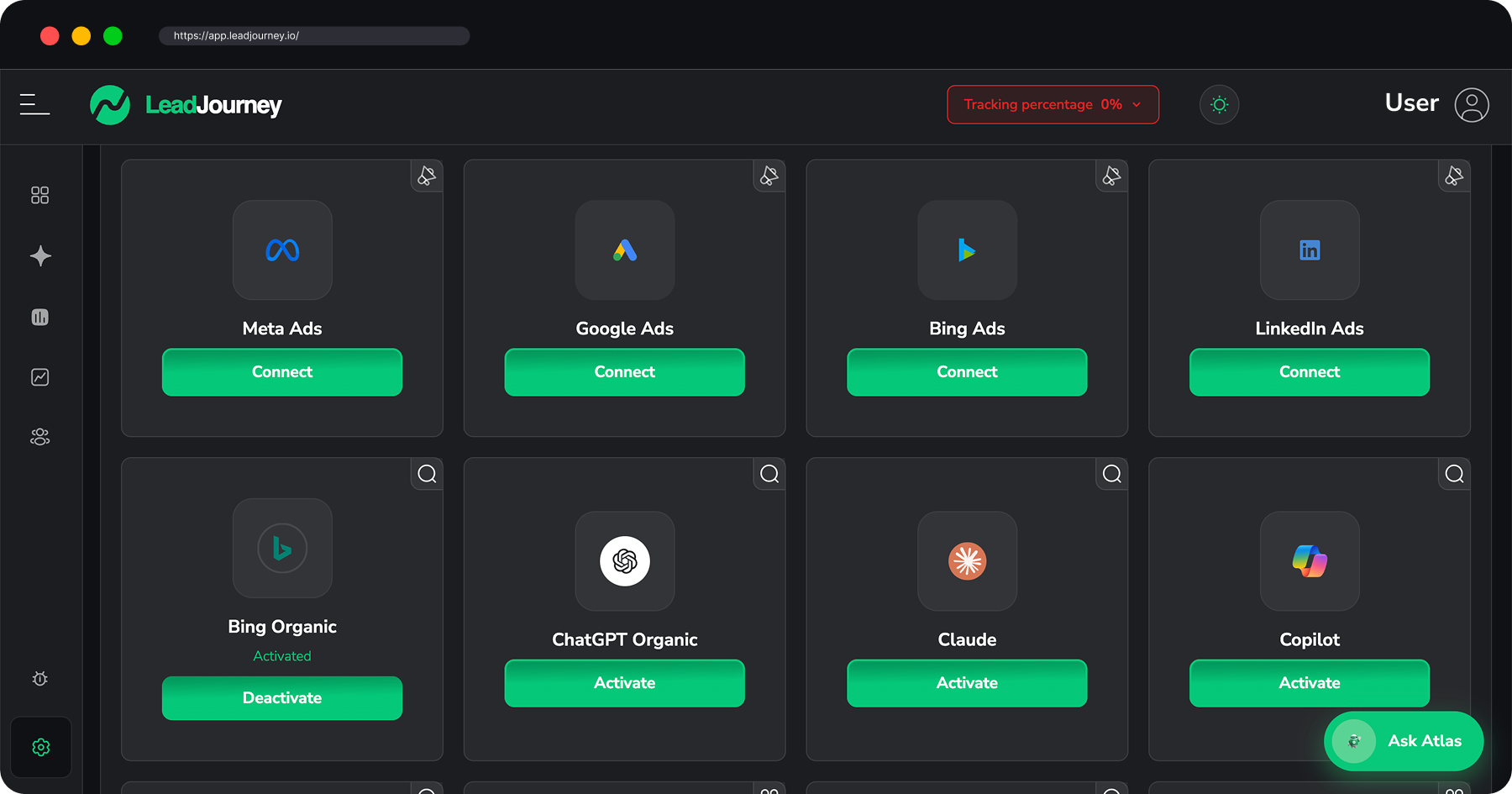
Connect the accounts you spend on so cost data syncs automatically – that's the "spend" half of your ROI:
Spend the API can't see
Native, email or solo-ad spend won't sync. Add it manually under Channel Costs so cost-per-lead and ROI stay complete.
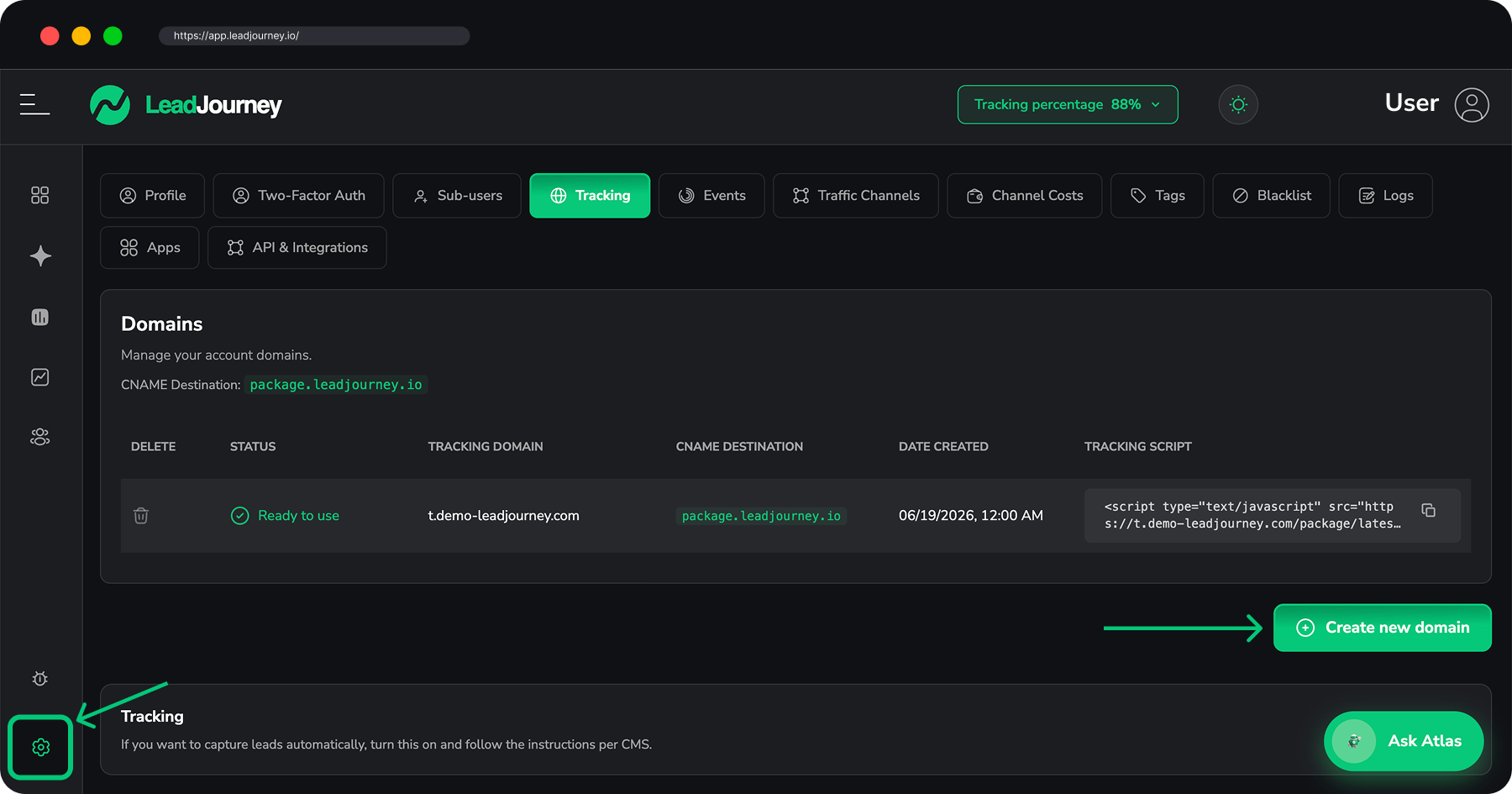
Set up a tracking domain
Add a first-party tracking domain (a CNAME on a subdomain like go.your-site.com). Your
redirect links run on this domain, which makes click tracking accurate and resilient. See
Set up a custom tracking domain – only
verified domains can be used by your campaigns.
Add your affiliate networks
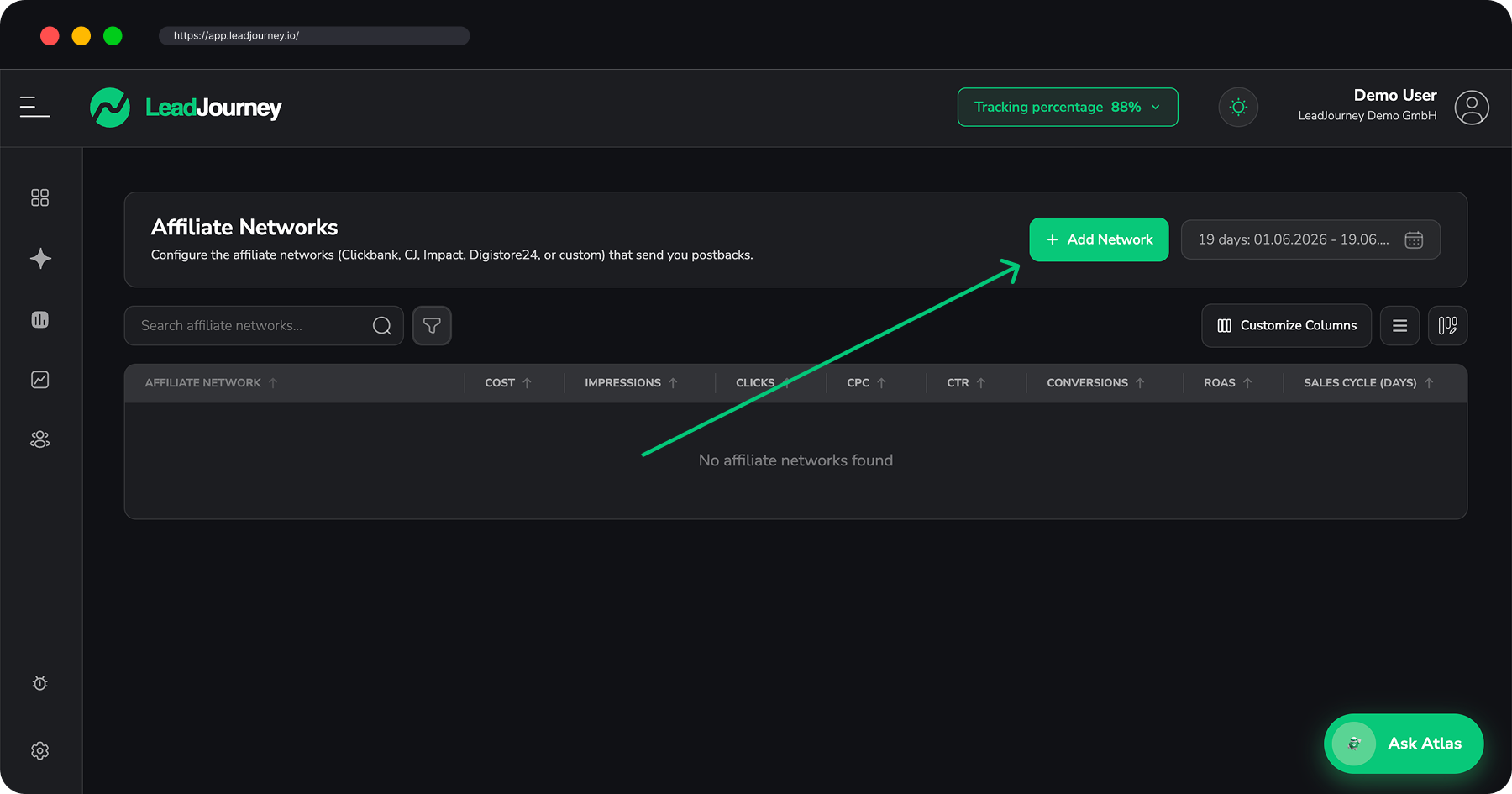
A network is whoever pays you (Clickbank, CJ, Impact, Digistore24 or a custom one). Adding it tells LeadJourney how to read the network's postback – which value is the click ID, which is the revenue, and so on. Use a ready-made template or create a custom one. Full details in Affiliate Networks.
Add the offers you promote
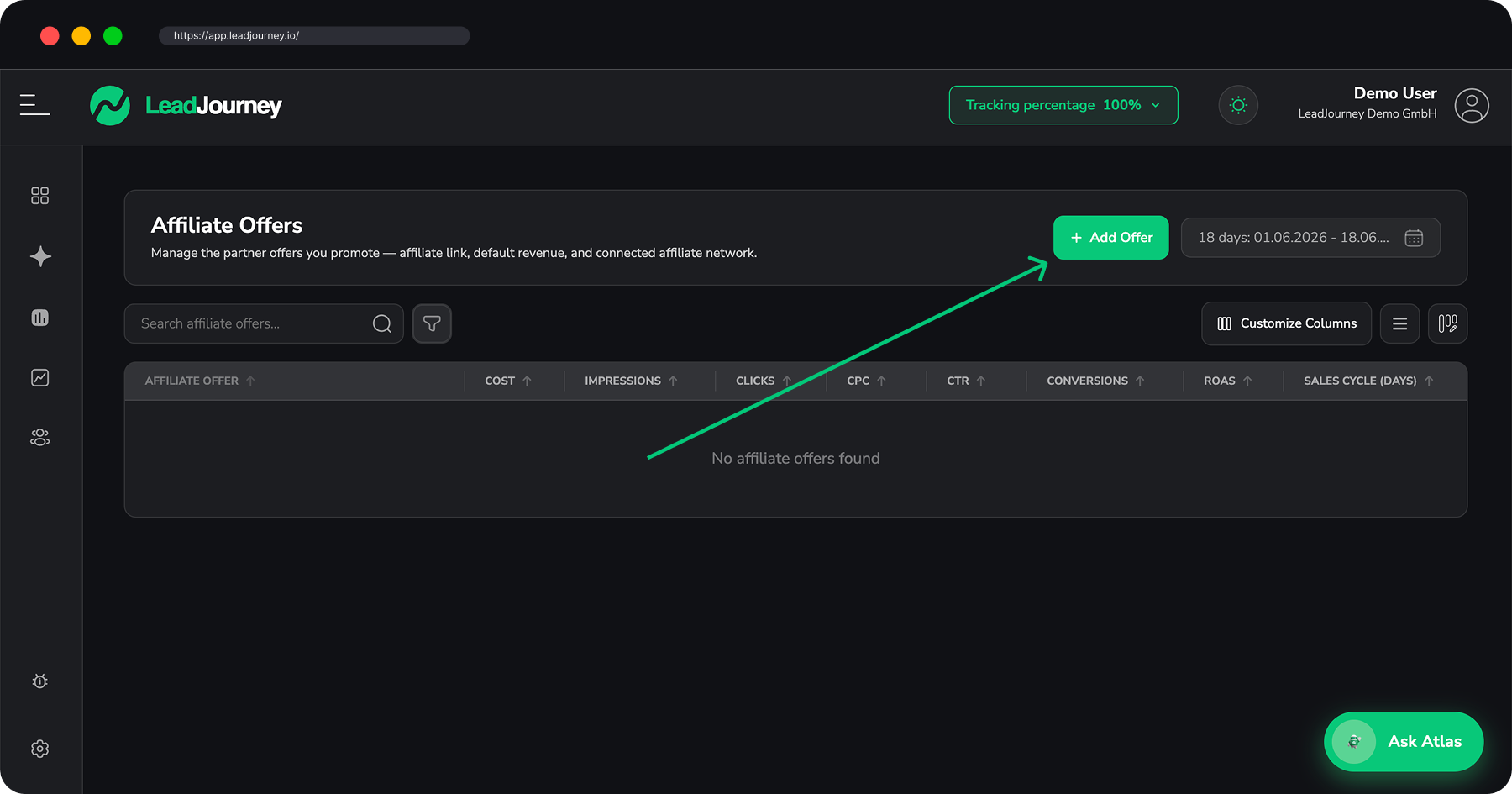
An offer is one product you push. Paste the affiliate link the network gave you (LeadJourney appends its tracking parameters automatically), set a default commission revenue, and optionally link it to the network from the previous step. See Affiliate Offers.
Wire up the postback so commissions come back
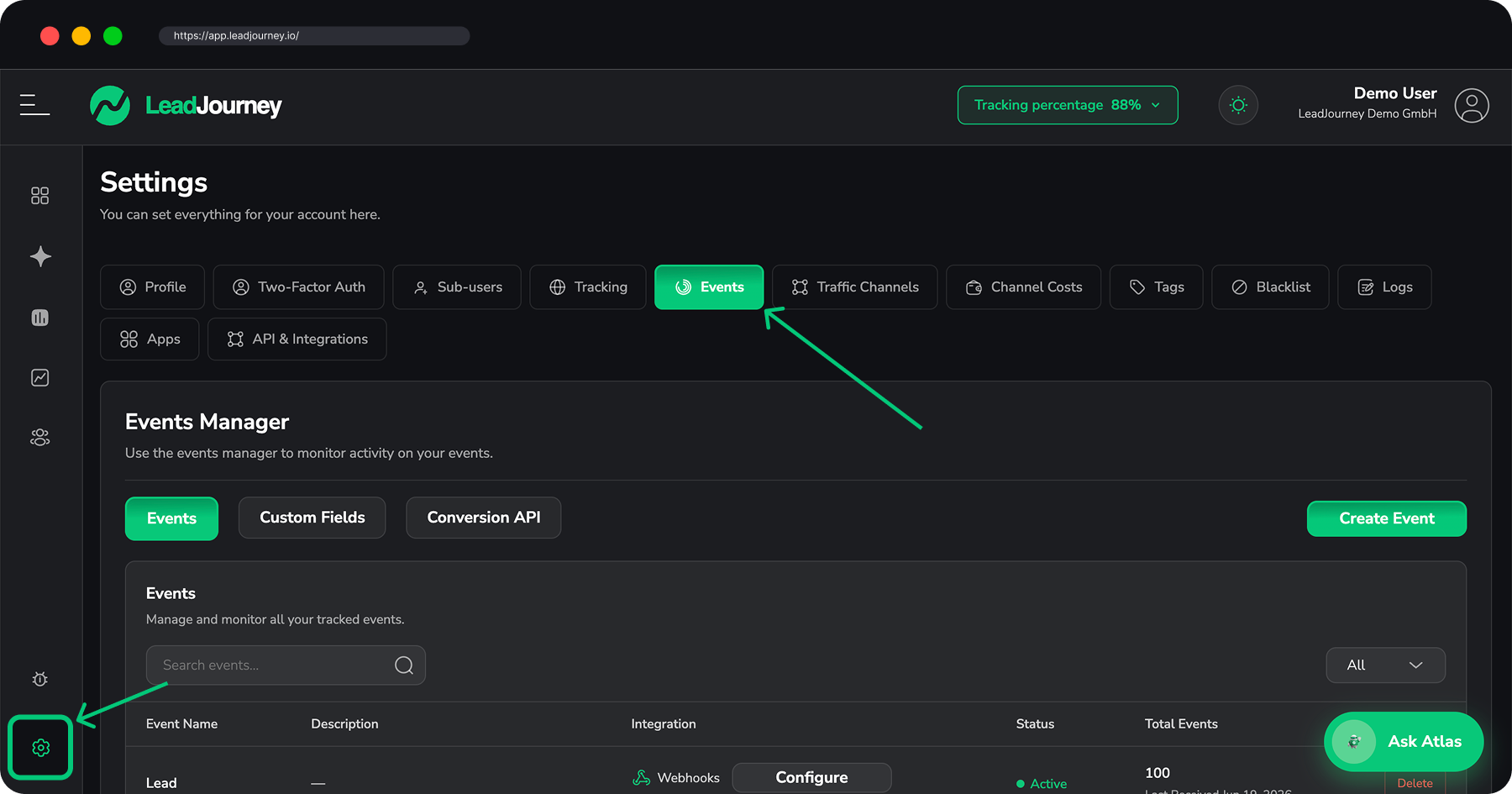
The postback URL is how a network tells LeadJourney a sale happened and how much you earned. It's
configured once for the whole workspace under Settings → Events – paste it into your
network's account-level postback field and append the macros you mapped in step 5. See
Events & the Events Manager. The lj_click_id is what matches a
commission back to the exact click you paid for – see
How attribution works.
Create campaigns & grab your tracking links
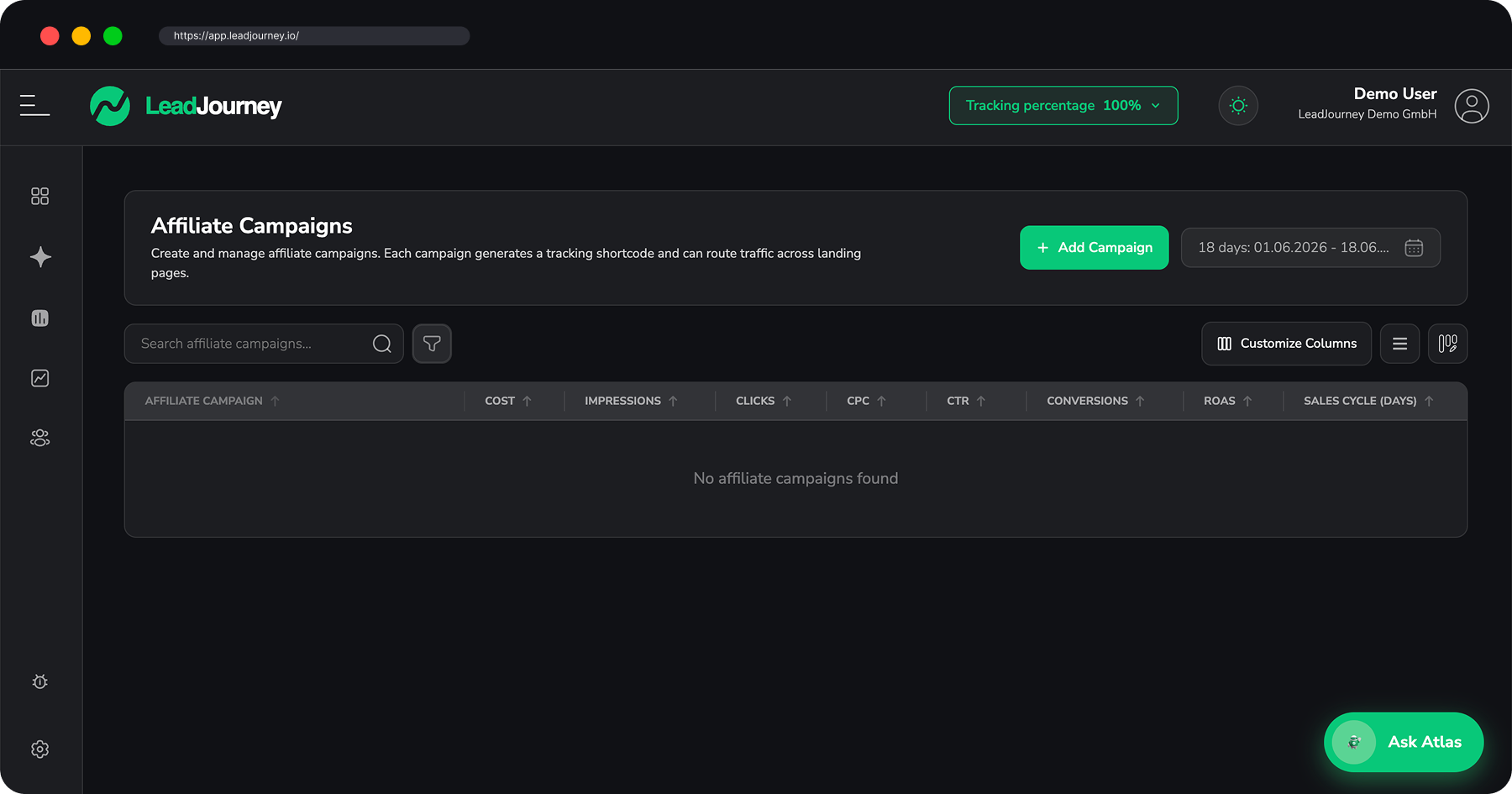
A campaign is the link you actually advertise. LeadJourney generates a short redirect URL per traffic channel – with the right platform macros baked in – that stamps a click ID and forwards the visitor to your offer. Pick a tracking method (Redirect Tracking when you can't add a script, or the tracking script if you control the landing page) and your verified tracking domain, then copy one ready-to-paste URL per channel. Full wizard in Affiliate Campaigns.
Running your own pre-lander or landing page?
If you send traffic through a page you control first, you can also install the tracking script there and capture extra events (form fills, opt-ins) with hidden fields. For organic, email or other non-paid affiliate links, tag them with the UTM Builder.
Verify & read your ROI
Run a test click through a campaign link and confirm it lands on the offer, then fire a test postback and check the commission shows up. Once data flows, your numbers live in the reports: prebuilt reports, the Campaign Report and Lead Overview. Slice by affiliate campaign, offer and network in the Report Builder and pin the views you watch to a Dashboard.
You're set up – what good looks like
Once everything's wired, every paid click carries an lj_click_id, every commission postback
matches back to that click, and your ad spend syncs automatically. That's when LeadJourney can show
real ROAS, ROI and profit per campaign, offer and network instead of guesswork.
Manage it as a team?
Promoting offers with partners or VAs? Invite them and control what each person sees under Add users to your workspace.
Related articles
Affiliate tracking
Networks, offers and campaigns in full detail.
Set up a custom tracking domain
The verified domain your redirect links run on.
Events & the Events Manager
The workspace postback URL networks send commissions to.
How attribution works
How the click ID ties paid clicks to commissions.
Quickstart
The general setup wizard, step by step.
Report Builder
Slice ROI by affiliate campaign, offer and network.
Quickstart
The fastest path from a fresh LeadJourney workspace to real attribution – set up your profile, connect your ad platforms, get tracking live, and start sending conversions. Follow the in-app setup wizard, step by step.
1. Set up your tracking domain
Create a custom tracking domain and point a CNAME to package.leadjourney.io – the foundation for first-party, server-side tracking.