Getting Started
4. UTM parameters & the UTM Builder
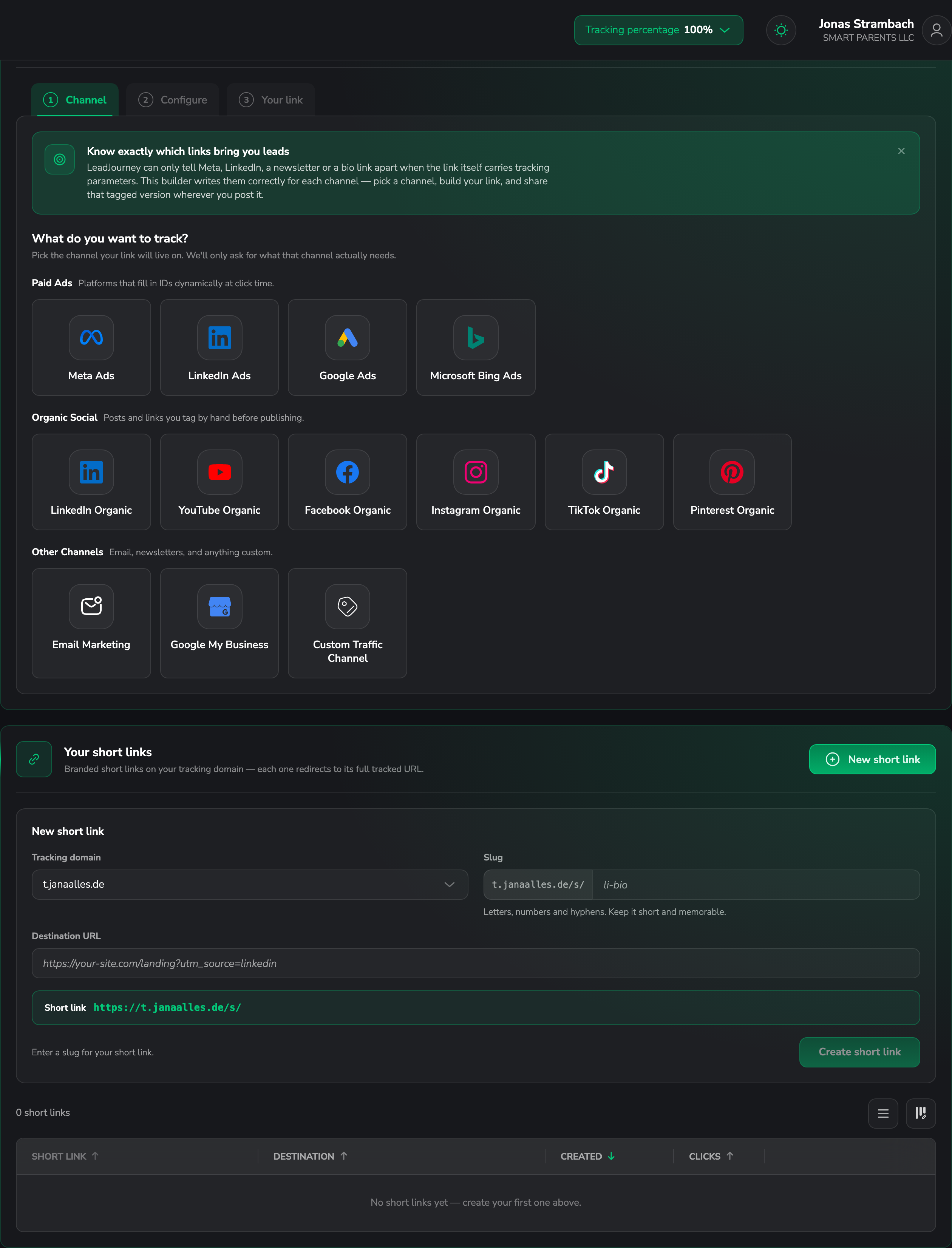
Tag every link – organic social, email, newsletters and any custom channel – with the right tracking parameters so LeadJourney attributes the click. Build those links in seconds with the free UTM Builder.
Your paid ad channels are tagged automatically once you connect them, but every other link you share – a LinkedIn post, a newsletter, a bio link, a partner placement – has to be tagged by hand, or LeadJourney can only file the visit under Direct / Unknown. The UTM Builder is a free tool that builds those tracked links for you, so organic and email traffic shows up in your reports with the same campaign, source and placement detail as your paid ads.
How LeadJourney reads a tracked link
Attribution runs on LeadJourney's own lj_* parameters on the destination URL – not on
standard utm_* tags. The tracking script reads them on the landing page and files the click
under the right channel, campaign, "ad set", "ad" and placement. The UTM Builder writes those
lj_* parameters for you (and can add the standard utm_* ones too, see
below). Tracking has to be live first – see
Install the tracking script.
When you need this
| Traffic | How it gets tagged |
|---|---|
| Paid ads (Google, Meta, LinkedIn, Bing) | Automatically, during the integration. The platform fills in the campaign/ad/placement at click time – you don't build links by hand. See the integration guides. |
| Organic social (LinkedIn, Instagram, YouTube, TikTok, Facebook, Pinterest…) | Manually. Build a tracked link with the UTM Builder and use it wherever you post. |
| Email & newsletters | Manually. Build one tracked link per send and drop it into your email tool. |
| Custom channels (partners, affiliates, QR codes, offline) | Manually. Build a tracked link for each placement. |
In short
If a link came from a channel LeadJourney can't tag for you – anything that isn't a connected ad platform – build it with the UTM Builder before you share it.
The parameters explained
A LeadJourney tracked link is just your URL with a lj_* query string appended:
https://yourdomain.com/landing?lj_channel=linkedin_organic&lj_c_id=spring_launch&lj_as_id=founder_post&lj_ad_id=carousel_v2&lj_placement=bio_linkEach parameter tells LeadJourney one thing about where the click came from:
| Parameter | Means | Organic / email example |
|---|---|---|
lj_channel | Which channel | linkedin_organic, email, your custom key |
lj_c_id | Campaign | spring_launch, q1_newsletter |
lj_as_id | Group within the campaign (the "ad set") | founder_post, weekly_digest |
lj_ad_id | The specific creative or variation | carousel_v2, subject_line_b |
lj_placement | Where the link sat | bio_link, post_body, story, email_footer |
You choose the values
For paid ads these slots are filled by the platform's macros. For organic and email there are
no macros – you pick short, consistent labels yourself. Use the same naming every time
(linkedin_organic, not LinkedIn-Organic one week and li_org the next) so your reports
group cleanly. Only lj_channel is required; add as many of the others as you want to track.
Build a link with the UTM Builder
Open the UTM Builder
Go to leadjourney.io/free-tools/utm-builder. Inside LeadJourney you'll also find it as Get UTM Tracking Parameter on Settings → Traffic Channels, and as Open UTM Generator when you add a custom channel.
Pick the channel
Choose where you're posting from the channel list – grouped into Paid Ads, Organic
Social (LinkedIn, YouTube, Facebook, Instagram, TikTok, Pinterest) and Other (Email
Marketing, Custom). This sets lj_channel to the matching key.
Fill in the details
Enter your landing-page URL and the campaign, content and placement labels (the lj_c_id /
lj_as_id / lj_ad_id / lj_placement slots from the table above). The builder assembles the
full tracked link as you type.
Copy and use it
Copy the finished link and paste it wherever the click will happen – your LinkedIn bio, a post, the button in a newsletter, a partner's site. Every visit through that link now carries its channel and campaign into LeadJourney.
Example: a LinkedIn organic post
Say you share a launch post from your founder profile and want to know it drove the lead:
https://yourdomain.com/demo?lj_channel=linkedin_organic&lj_c_id=spring_launch&lj_as_id=founder_post&lj_ad_id=carousel_v2&lj_placement=post_bodyIn your reports that click lands under LinkedIn (organic) → spring_launch → founder_post,
with the placement post_body – so you can tell the post itself apart from the same link in
your bio (lj_placement=bio_link).
Also add standard UTM tags
LeadJourney attributes on its lj_* parameters, but the builder can append the standard
utm_source, utm_medium, utm_campaign, utm_content and utm_term tags to the same link.
Switch that on when you want other tools – Google Analytics, your CRM, your email platform –
to recognise the link too. The two sets sit side by side and don't interfere with each other.
Tips
- Tag the link, not a redirect. The
lj_*parameters have to arrive on the page that runs the tracking script, so put them on the final landing-page URL. - Keep a naming convention. Decide your channel keys and campaign labels once and reuse them – consistent values are what make the channel and campaign reports useful.
- One link per placement. Building a separate link for the bio, the post and the newsletter is what lets you compare which placement actually converts.
- Add a custom channel for sources that aren't in the list. Create it under Settings → Traffic Channels, then tag its links with the builder.
Related articles
3. Capture leads automatically
Turn on one toggle and the tracking script captures every form submission on your site as a Lead – no hidden fields, no per-form setup. The easiest way to track form submissions, with Exclusions for the pages you want to skip.
5. Events & the Events Manager
Events are the meaningful actions in your sales pipeline – Lead, Booked Call, Won. Learn what events are, how the Events Manager works, and how they map your CRM pipeline stages into LeadJourney.