Account & Security
Set up Two-Factor Authentication (2FA)
Add a second layer of security to your LeadJourney account with an authenticator app – enable 2FA, verify it and store your recovery codes.
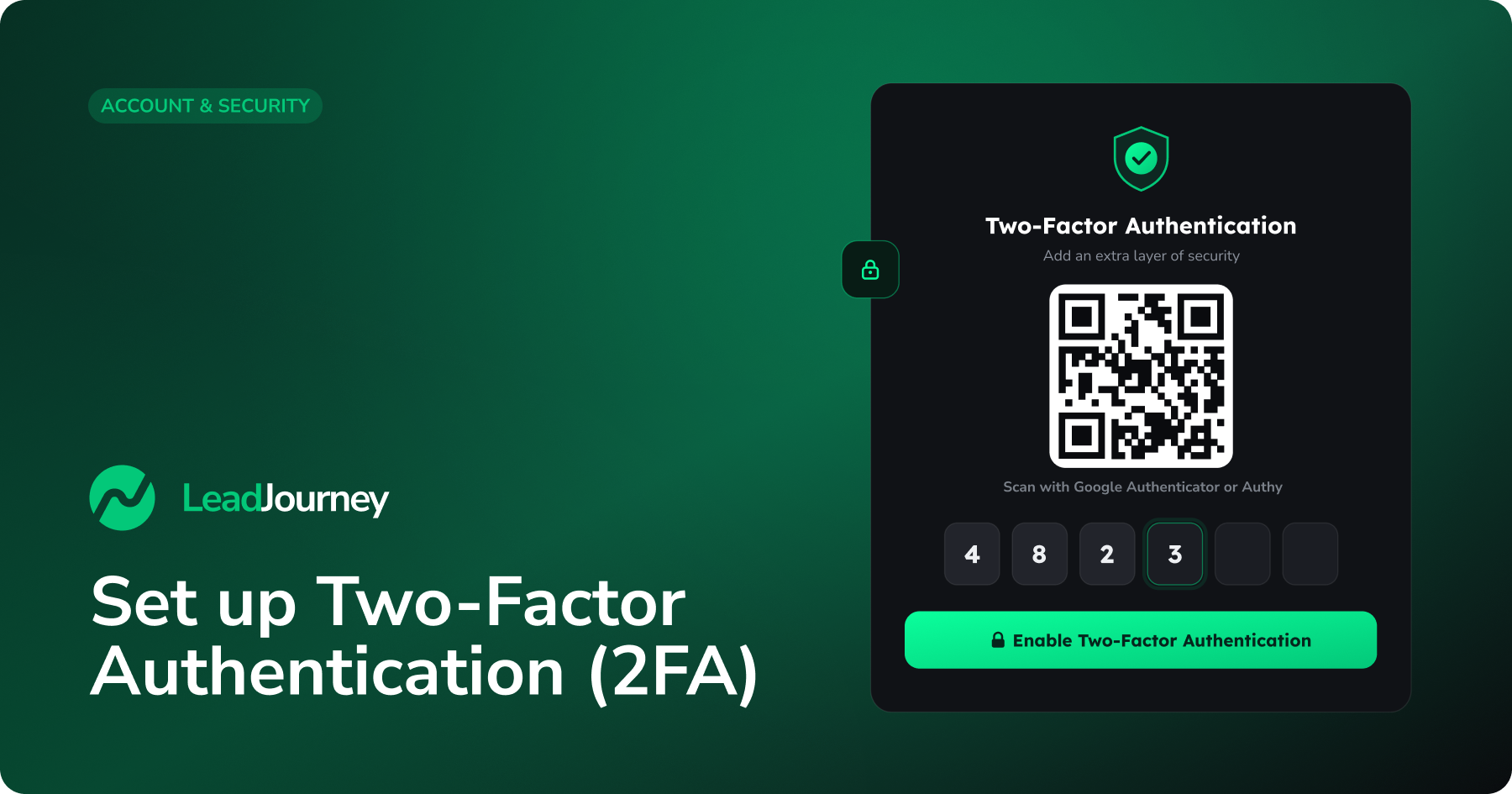
Two-factor authentication (2FA) adds a second step to your login. On top of your password, you enter a short, time-based code from an authenticator app on your phone. Even if someone learns your password, they can't get into your account without that code.
Before you start
You'll need access to your LeadJourney account and a smartphone with an authenticator app such as Google Authenticator, Microsoft Authenticator, Authy, 1Password or Bitwarden.
Where to find it
In LeadJourney, open Settings → Two-Factor Authentication, or go straight to app.leadjourney.io/settings?slug=two-factor.
Step by step
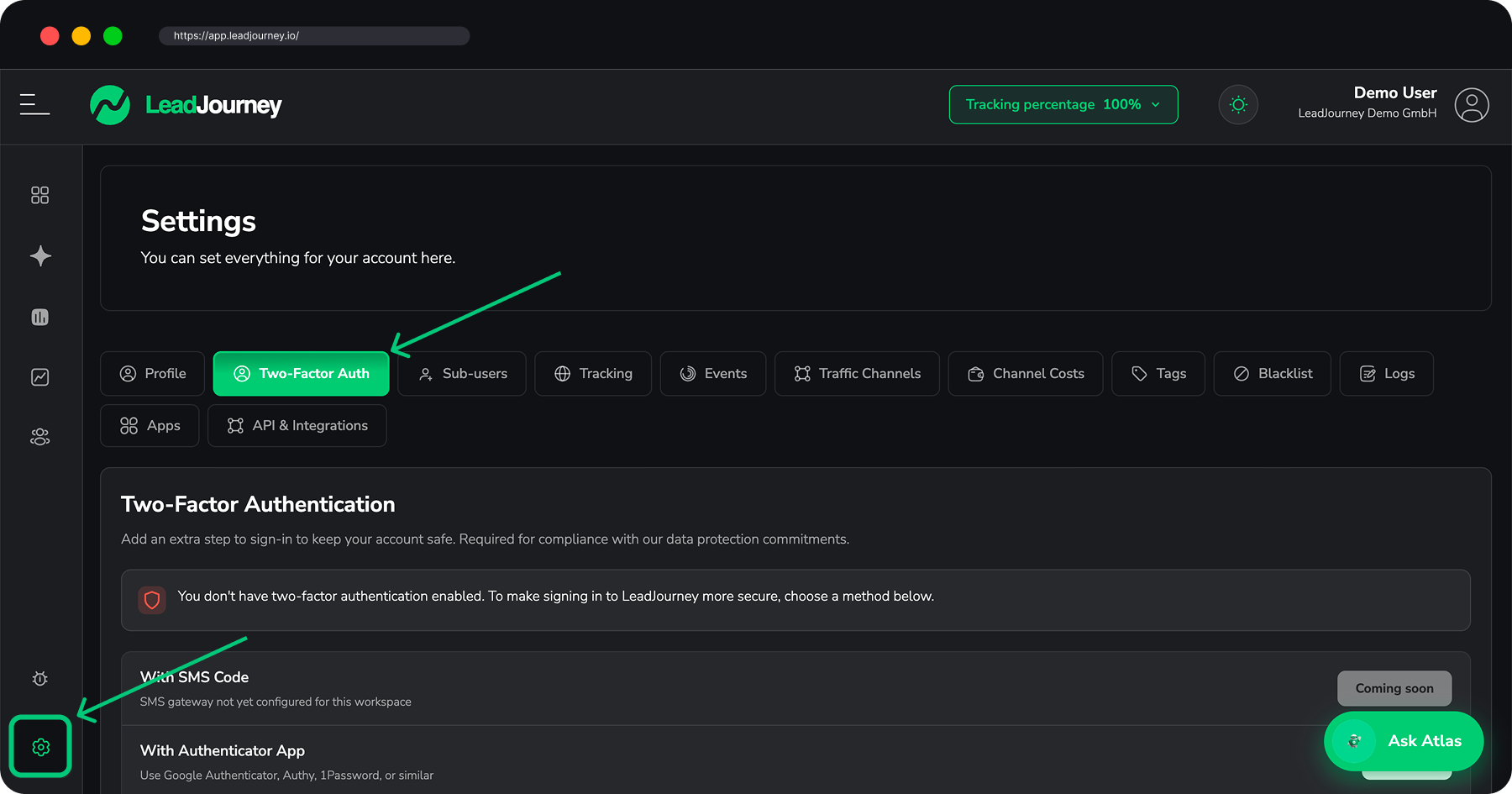
Open the Two-Factor Authentication settings
Go to Settings → Two-Factor Authentication and click Enable two-factor authentication. LeadJourney shows a QR code and a setup key.
Add LeadJourney to your authenticator app
Open your authenticator app and choose Add account → Scan QR code, then point your phone at the QR code on screen.
Can't scan it? Choose Enter a setup key in your app instead and type in the key shown next to the QR code. The app now generates a fresh 6-digit code for LeadJourney every 30 seconds.
Verify the code
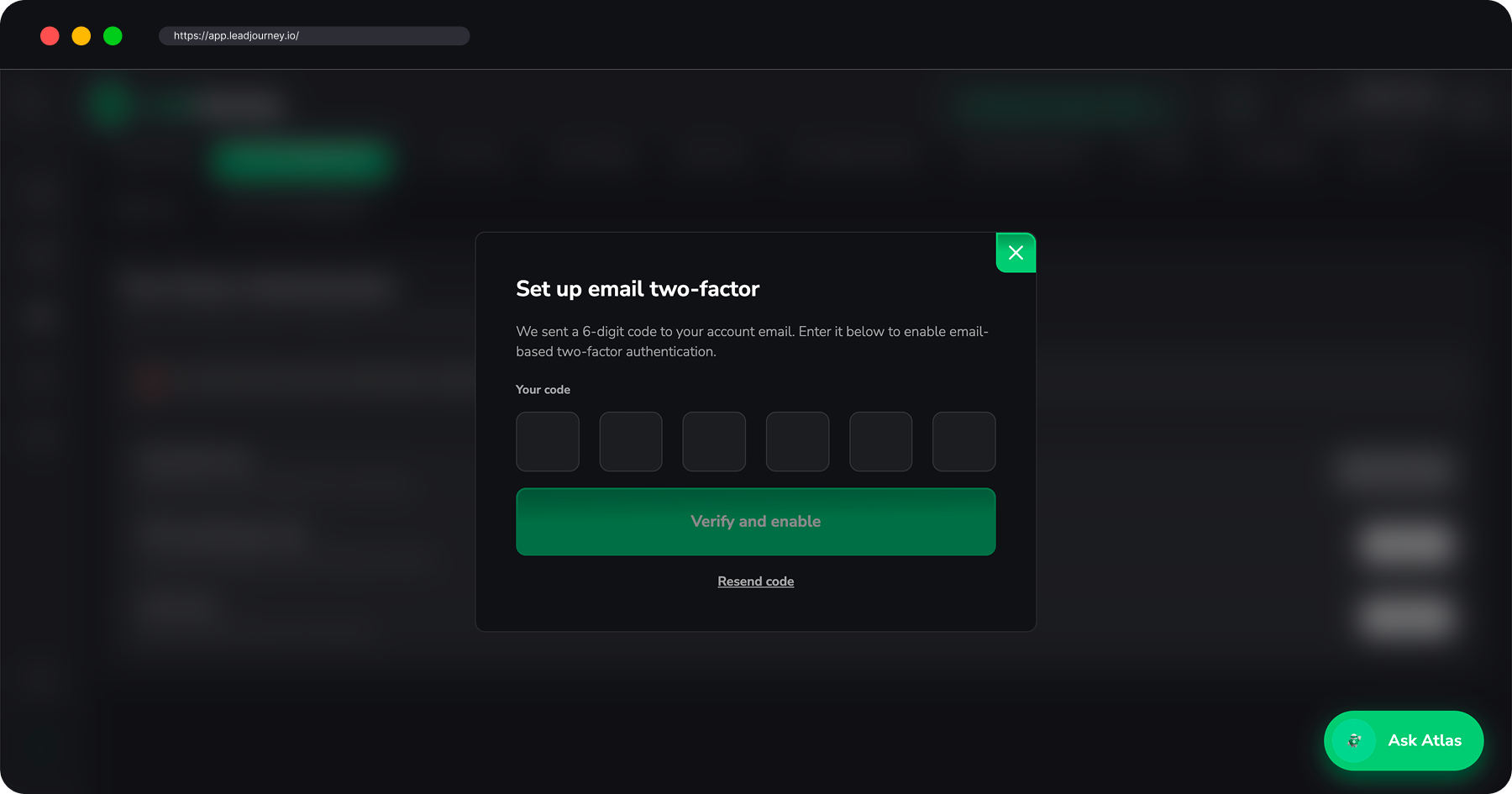
Back in LeadJourney, enter the current 6-digit code from your authenticator app to confirm everything is linked, then click Verify (or Confirm).
Save your recovery codes
LeadJourney shows a set of recovery codes. Store them somewhere safe – a password manager or printed and locked away. They're your backup if you ever lose access to your phone.
Don't skip this
Recovery codes are shown only once. Each code works a single time. Without them, a lost or wiped phone can lock you out of your account.
Two-factor authentication is now active. From your next sign-in onward, LeadJourney will ask for a 6-digit code after your password.
Logging in with 2FA
- Enter your email and password as usual.
- When prompted, open your authenticator app and type in the current 6-digit code.
- You're in. The code refreshes every 30 seconds, so use the one showing at that moment.
Lost your phone? Use a recovery code
If you can't reach your authenticator app, click Use a recovery code on the login screen and enter one of the codes you saved. Each recovery code works once.
Running low on recovery codes?
After signing in, return to Settings → Two-Factor Authentication to regenerate a fresh set. Generating new codes invalidates the old ones.
Turn off 2FA
Open Settings → Two-Factor Authentication and click Disable two-factor authentication. You may be asked to confirm with your password or a current code. We recommend keeping 2FA on – it's one of the most effective ways to protect your account.
Troubleshooting
Code keeps getting rejected?
Almost always a clock issue. Authenticator codes are time-based, so your phone's clock must be accurate. Enable automatic / network-provided time in your phone's date & time settings, then try the newest code. Also double-check you're reading the code for LeadJourney if your app holds several accounts.
Related articles
Manage multiple workspaces (agencies)
Run a separate LeadJourney workspace for each client – create new client workspaces, switch between them in one click, and set each one up from the Agency area.
Billing & subscription
How billing works at LeadJourney – plans are purchased through a secure checkout, and changes to your subscription, invoices or cancellation are handled by the LeadJourney team rather than inside the dashboard.