Logs
API Postbacks
The history of postbacks LeadJourney sent out to your traffic sources — confirm an event was reported, check its status, inspect the raw payload and retry failures.
API Postbacks is the history of postbacks LeadJourney sent out to your traffic sources (Meta, Google, an affiliate network, …) to report conversions back. Open it from Settings → Logs → API Postbacks, or go straight to app.leadjourney.io/settings?slug=logs.
Use it to confirm an event was actually reported to the ad network, see whether it succeeded, and debug the ones that didn't.
What a postback row records
Each row is one outbound postback:
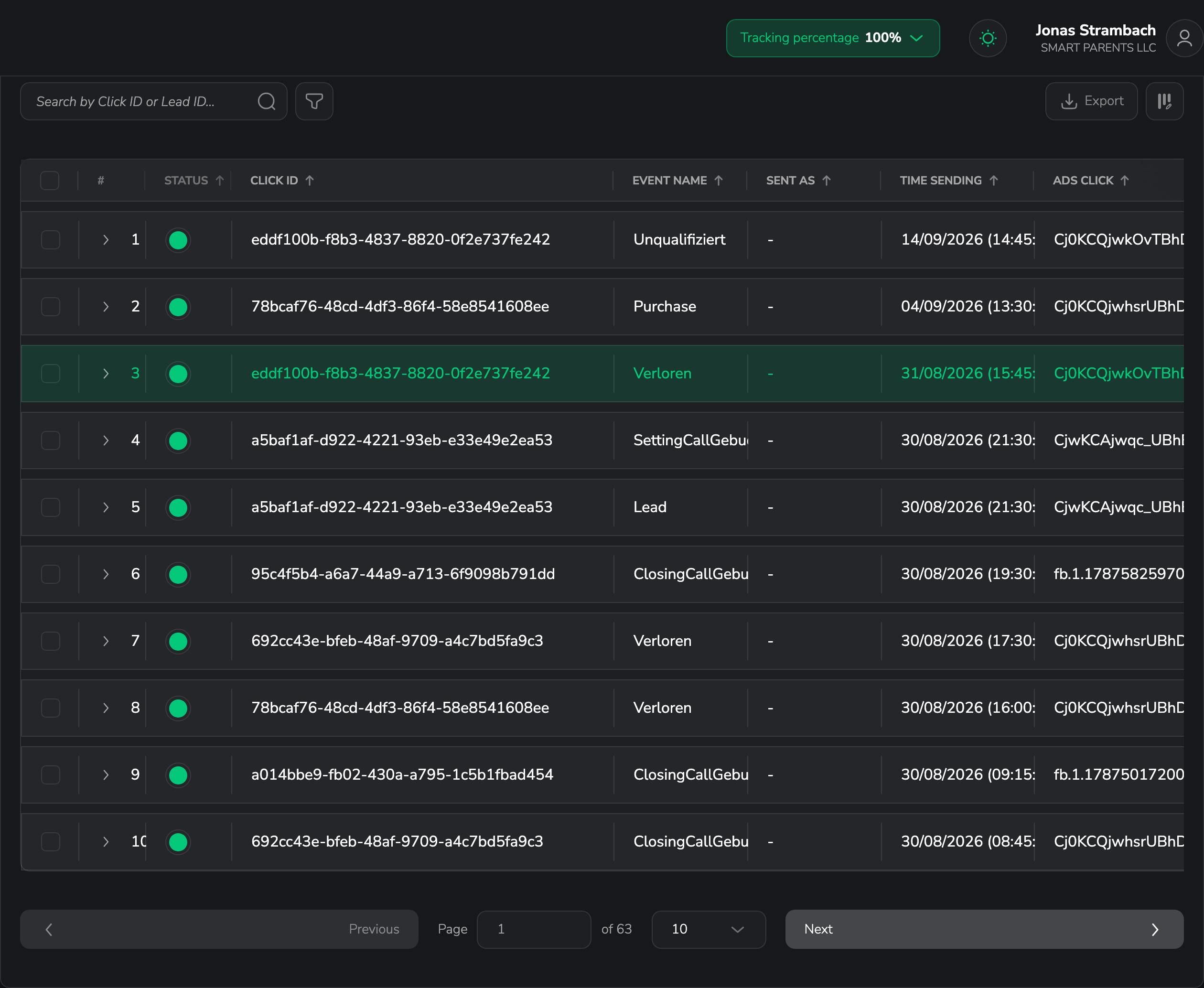
- Status – whether the postback succeeded or errored. Mandatory and always visible.
- Click ID – the click the reported event belongs to.
- Event Name – the event that was sent to the traffic source.
- Time Sending – when LeadJourney sent the postback, in your workspace time zone.
- Ads Click – the ad-network click identifier the event was tied to.
- Campaign and Traffic Channel – where the click originated.
Every row can be expanded to reveal the full raw payload that was sent – useful when a traffic source rejects an event and you need to see exactly what LeadJourney delivered.
You can show, hide, reorder and resize every column except Status – see Customize the columns.
Timestamps
Time Sending follows your workspace time zone. See Change your workspace time zone.
Filters specific to API Postbacks
On top of the shared filters, API Postbacks adds:
- Campaign – narrow to a single campaign.
- Traffic channel – filter to one channel (single-select).
- Search by Click ID – jump straight to the postback(s) for a specific click.
- Advanced filters – build AND/OR rules across any postback column, for example Status is Errored.
Retry failed postbacks
When you tick one or more rows, a bulk-action bar appears. On API Postbacks it offers Retry all Errored Postbacks – LeadJourney re-sends the postbacks that previously failed to reach the traffic source. Check the Status column afterwards to confirm they went through.
Related articles
Conversions Logs
One row per conversion event — a sale, signup or lead — attributed back to a click, with revenue, cash collected and the lead's contact details.
Cost Updates
The cost and spend records imported from your traffic channels — the data LeadJourney uses to calculate ROAS and profit, with the campaign, spend amount and when each record was created.