Logs
Conversions Logs
One row per conversion event — a sale, signup or lead — attributed back to a click, with revenue, cash collected and the lead's contact details.
Conversions Logs holds one row per conversion event – a sale, signup, lead, and so on – that LeadJourney attributed back to a click. Open it from Settings → Logs → Conversions Logs, or go straight to app.leadjourney.io/settings?slug=logs.
Use it to confirm a conversion was recorded, see the revenue behind it, and check which click (and therefore which campaign) it was attributed to.
What a conversion row records
Each row links a conversion to the click that earned it:
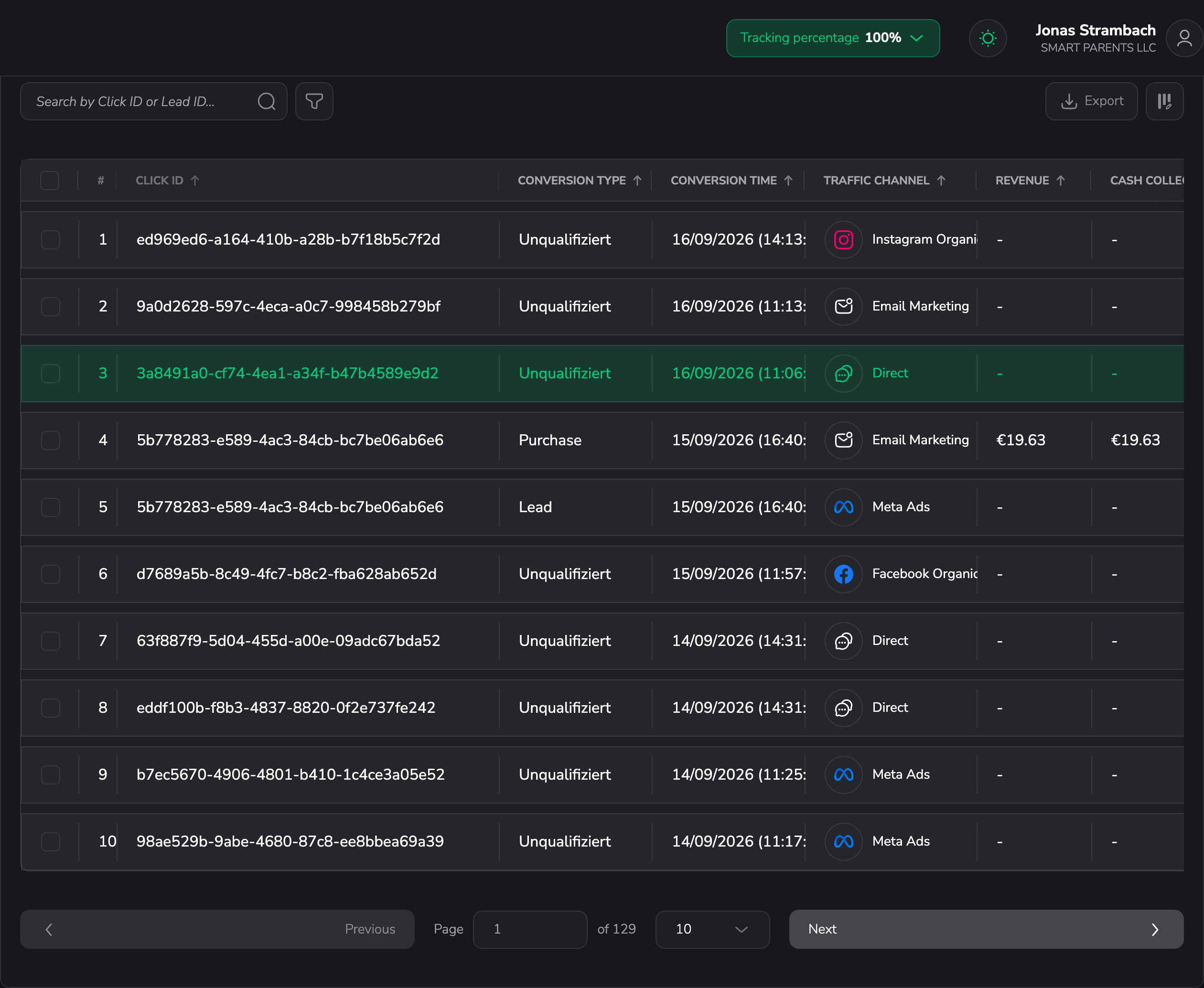
- Click ID – the click this conversion was attributed to. Mandatory and always visible.
- Conversion Type – which event fired (sale, signup, lead, …).
- Conversion Time – when it happened, in your workspace time zone.
- Traffic Channel – the channel of the originating click, shown with its icon.
- Revenue and Cash Collected – the money values for the conversion, in your workspace currency.
- Email, Phone and Full Name – the lead's details where available.
You can show, hide, reorder and resize every column except Click ID – see Customize the columns.
Timestamps and currency
Revenue and Cash Collected use your workspace currency, and Conversion Time follows your workspace time zone. See Change your workspace currency and Change your workspace time zone.
Filters specific to Conversions Logs
On top of the shared filters, Conversions Logs adds:
- Conversion Type – show a single conversion type.
- Traffic channel – filter to one channel (single-select).
- Search by Click ID – jump straight to the conversion for a specific click.
- Advanced filters – build AND/OR rules across any conversion column.
Clean up test conversions
When you tick one or more rows, a bulk-action bar appears. On Conversions Logs you can Delete the selected rows, and you can also delete a single row from its row menu.
Deleting conversions can't be undone
Deleting conversions is permanent and will change the revenue and ROAS in your reports. Only delete rows that were created for testing or that you know contain incorrect data.
Related articles
Clicks Logs
One row per inbound click redirected through LeadJourney's tracking — visitor IP, location, device, the traffic channel and the full campaign attribution behind every click.
API Postbacks
The history of postbacks LeadJourney sent out to your traffic sources — confirm an event was reported, check its status, inspect the raw payload and retry failures.