Affiliate
Affiliate Offers
Manage the partner offers you promote – paste the affiliate link, set a default commission revenue, connect a network, and control the tracking parameters LeadJourney appends to your link.
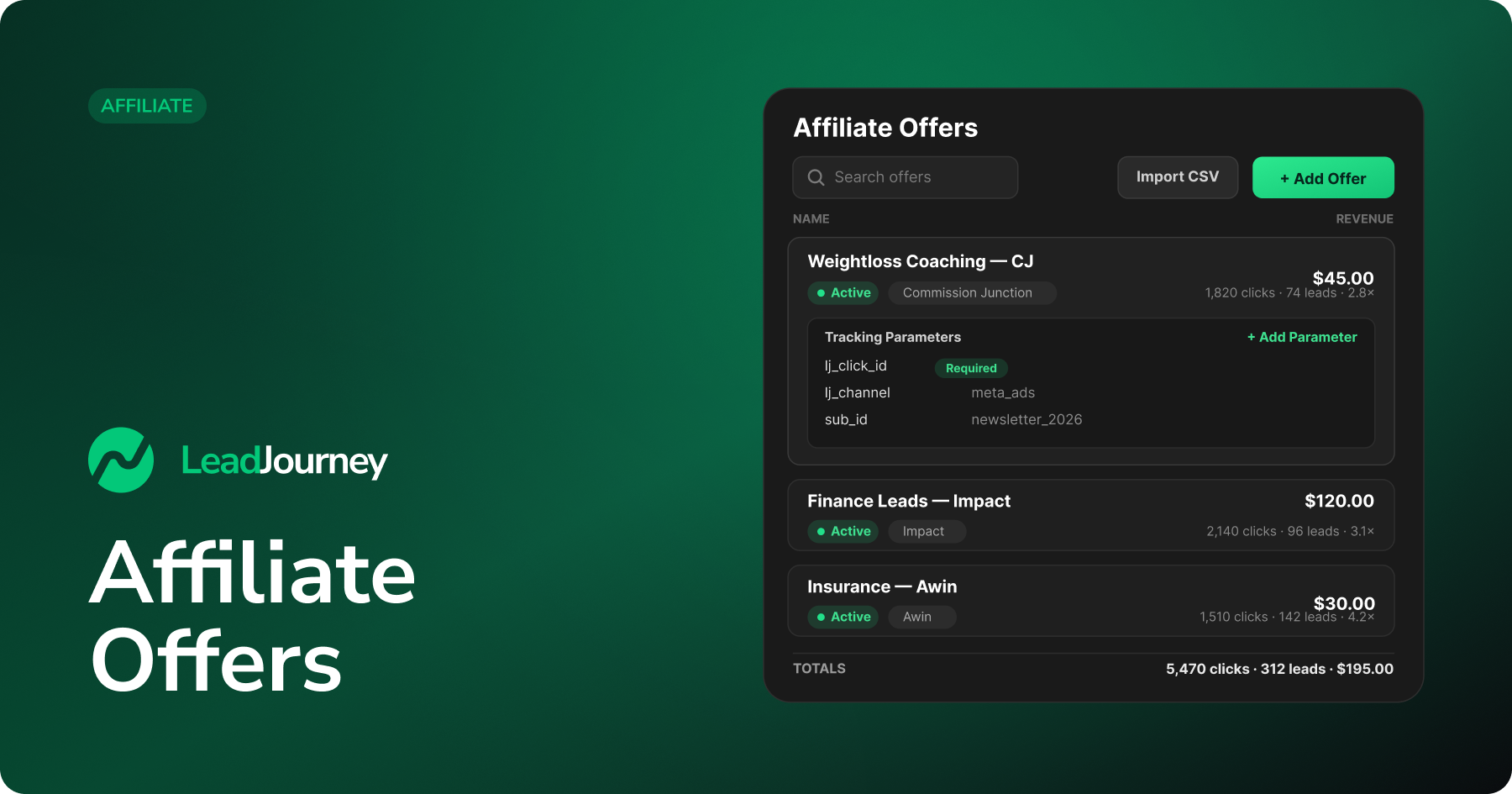
An affiliate offer is one product you promote. You paste the affiliate link the network gave you, and LeadJourney appends its tracking parameters automatically – so every click can later be matched back to a commission, with no script needed on the partner's page.
Connect a network
An offer can connect to an Affiliate Network so postbacks fire through that network's postback URL. You can also create the offer unlinked and wire postbacks up later. New to all this? Start with the Affiliate setup guide.
Where to find it
Open Affiliate → Offers in the sidebar, or go to app.leadjourney.io/?slug=affiliate-offers. Click + Add Offer to start, or Import CSV to add offers in bulk.
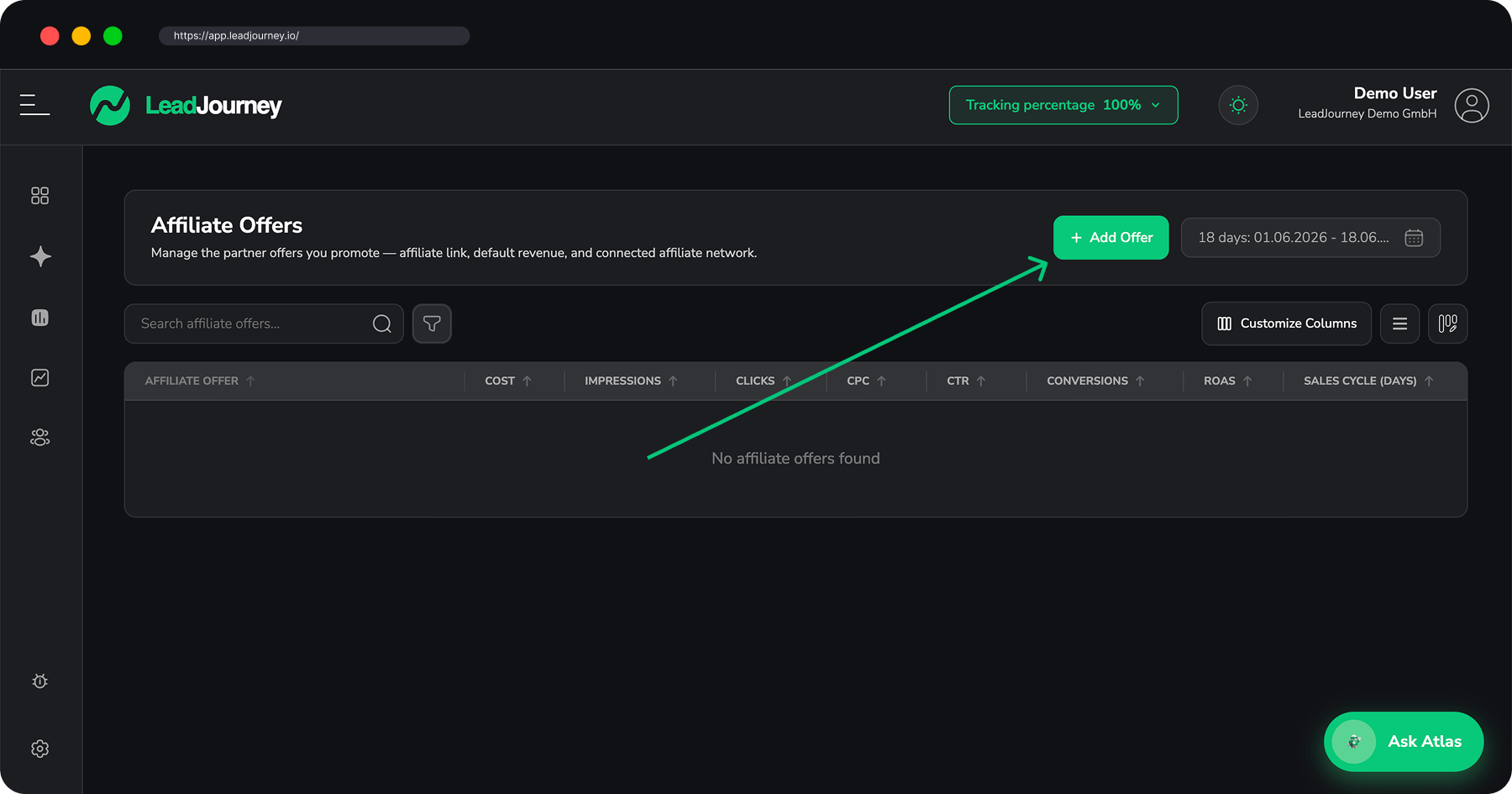
Add an offer
The wizard has three steps:
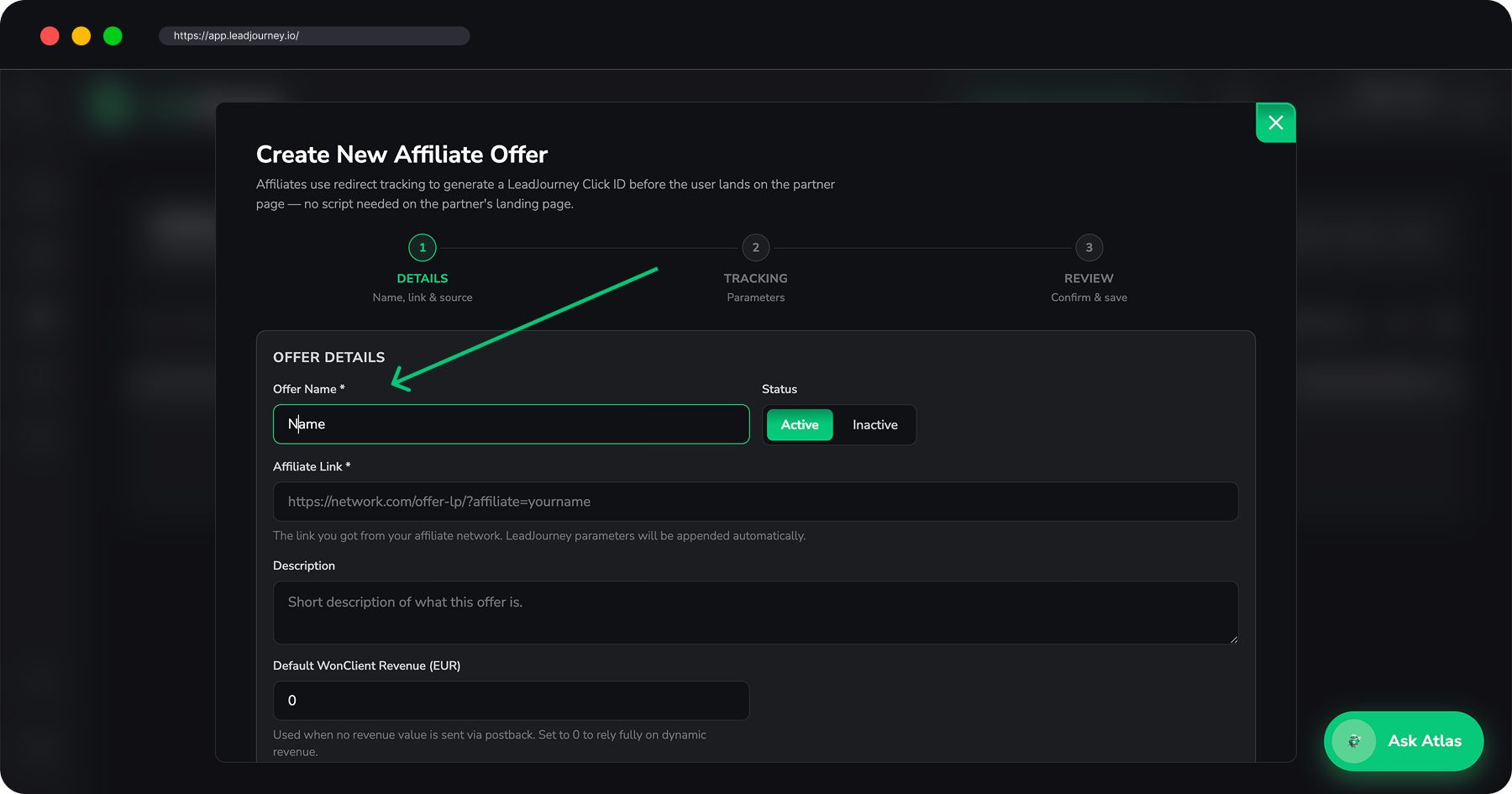
Details
Give the offer a name, set its status (Active / Inactive), and paste the Affiliate Link you got from the network – LeadJourney's tracking parameters are appended automatically. Then, optionally:
- Default WonClient Revenue – used when a postback carries no revenue value. Set it to
0to rely fully on the dynamic revenue the network sends. - Countries the offer is approved for (with region presets like Europe, US, Asia).
- Tags to group offers (e.g.
GEO=US,vertical=health,network=CJ). - Notes – private, only visible to you.
You can also connect an Affiliate Network in this step so postbacks fire automatically through that network's postback URL.
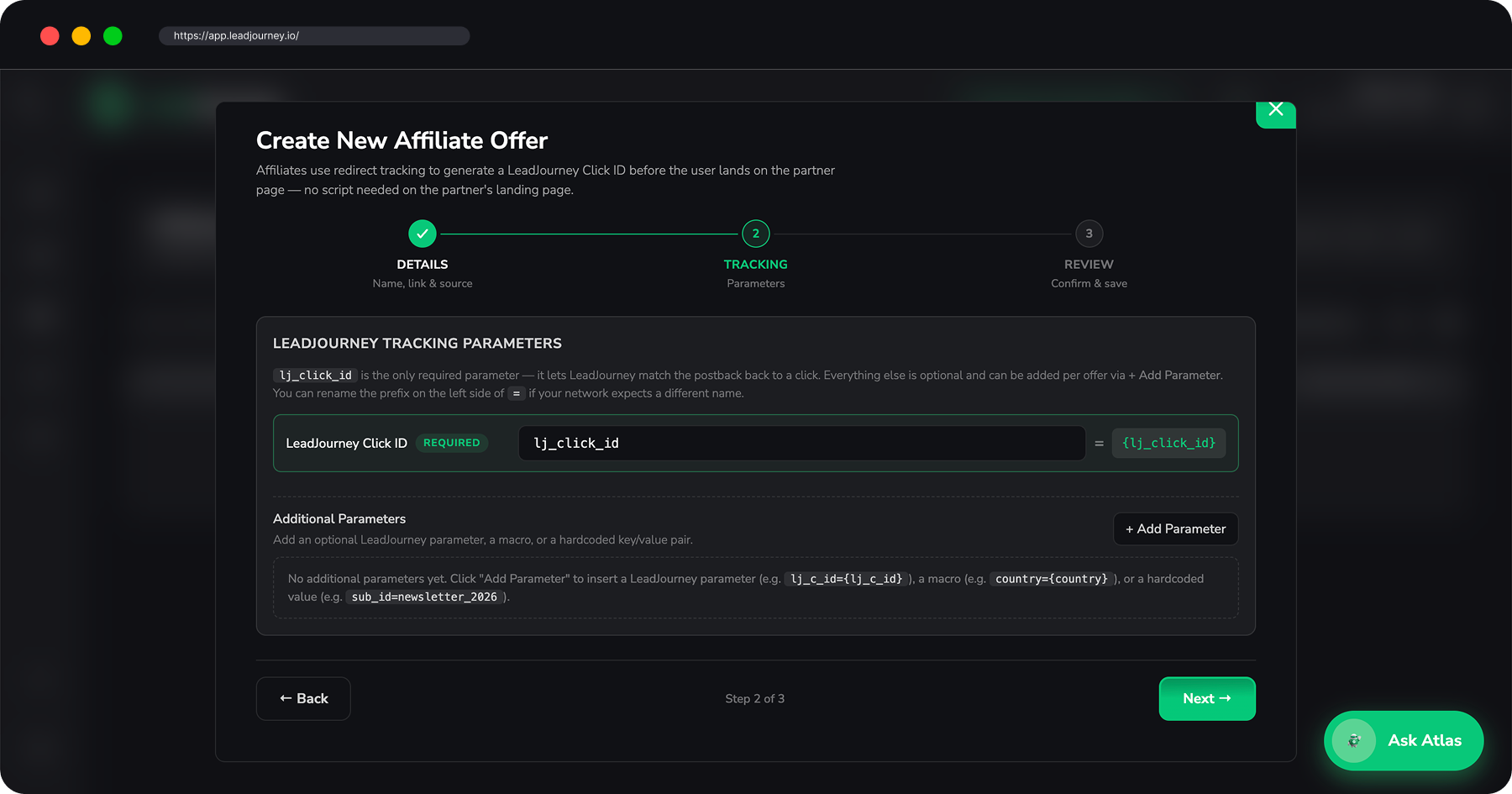
Tracking parameters
lj_click_id is the only required parameter – it's how a postback is matched back to the
click. Everything else is optional: use + Add Parameter to add other LeadJourney parameters,
macros (e.g. country={country}) or hardcoded key/value pairs (e.g.
sub_id=newsletter_2026). You can rename the prefix on the left of = if your network expects a
different name.
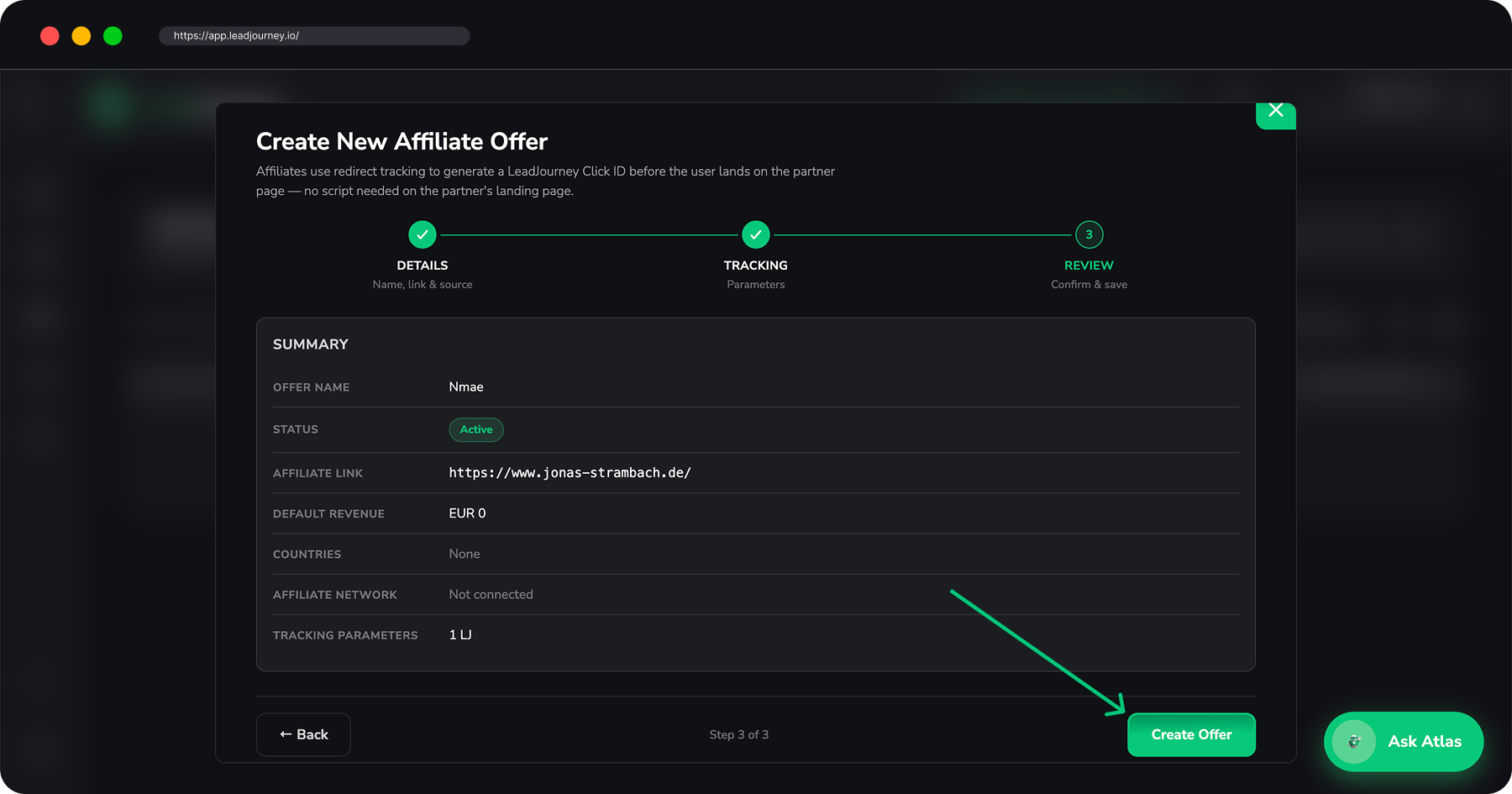
Review
Check the summary – name, link, default revenue, countries, connected network and parameter count – then save.
Where the commission value comes from
When a network's postback includes a revenue value, that's what's recorded. When it doesn't, the Default WonClient Revenue is used instead. See Events for how postbacks are received.
Offers as a report
The Offers tab is also a report: clicks, leads, won clients, revenue and ROAS per offer, expandable by traffic channel.
Related articles
Affiliate Networks
Add the affiliate networks that pay you commissions – start from a ready-made template (Clickbank, CJ, Impact.com, Digistore24) or build a custom one, and map each network's postback macros to LeadJourney fields.
Affiliate Campaigns
Create the click-tracked links you actually advertise – pick a tracking method and verified domain, choose the offer and split traffic across landing pages, then copy one ready-made redirect URL per traffic channel.