Getting Started
Install the tracking script on Framer
Add the LeadJourney tracking script to a Framer site site-wide via Custom Code, then publish – so every page view and form lead is tracked.
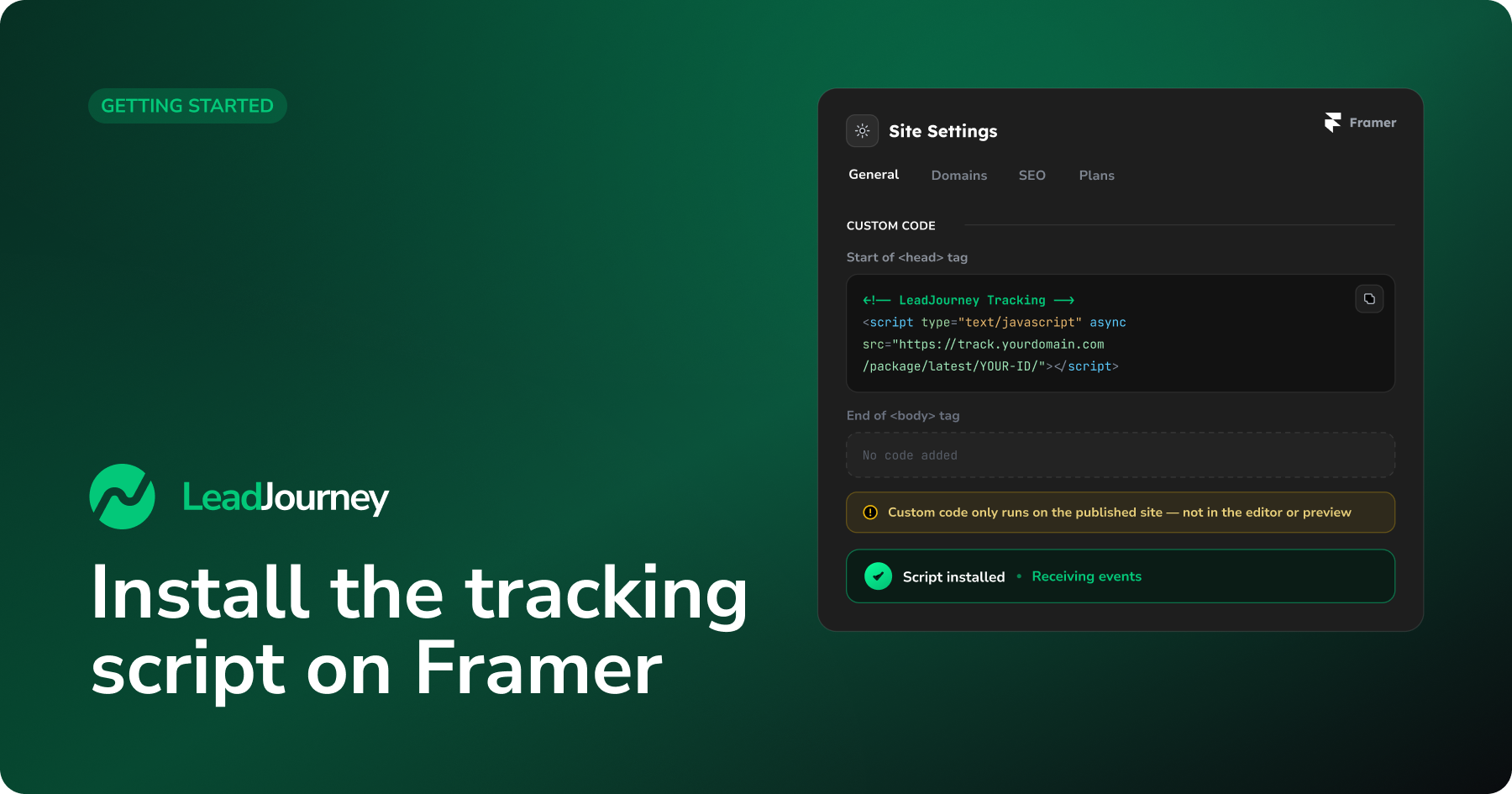
This guide shows you how to add the LeadJourney tracking script to a Framer site.
Framer has a built-in place for <head> code, so no developer is needed – you paste the
snippet once at the site level and publish.
Prerequisites
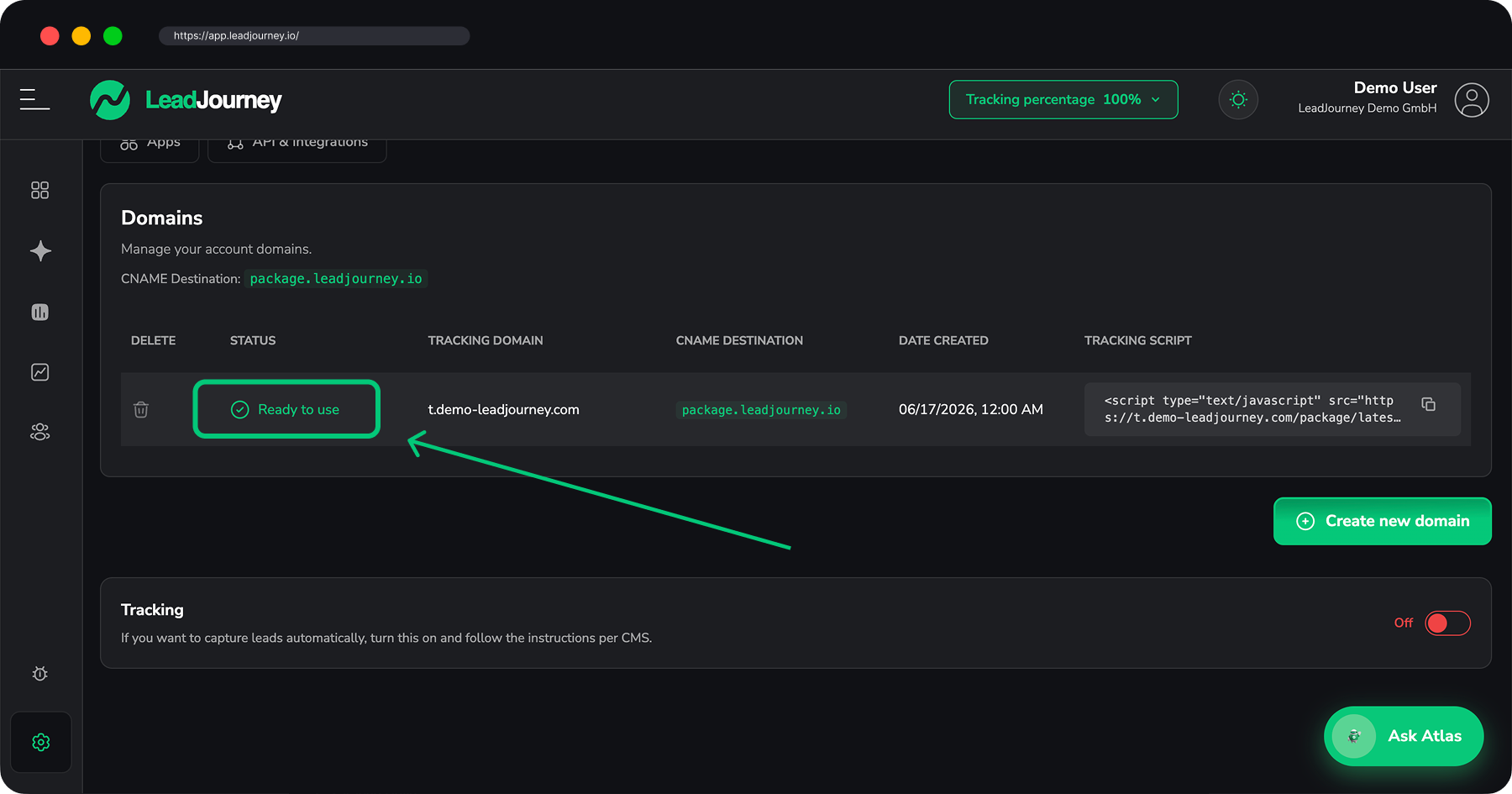
A tracking domain that shows Ready to use and your personal snippet from Settings → Tracking. If you haven't set those up yet, start with Set up your tracking domain and Install the tracking script.
Custom code needs a paid Site plan
Framer only outputs custom <head> code on sites with a paid Site plan. Custom code
also runs only on the published site, not inside the Framer editor or the preview – so
always verify on your live URL.
Step by step
Copy your snippet
Open Settings → Tracking and copy the snippet from the Tracking Script column. It contains your tracking domain and workspace ID and looks like this:
<!-- LeadJourney Tracking -->
<script type="text/javascript" async
  src="https://track.yourdomain.com/package/latest/YOUR-WORKSPACE-ID/"></script>
Use your own snippet
Always copy the snippet straight from your settings – the domain and workspace ID are unique to your account. The example above is just for illustration.
Open the site-wide Custom Code
In the Framer editor, open Site Settings (the gear icon, top-left) and go to the General tab. Scroll down to the Custom Code section.
You'll see two boxes: Start of <head> tag and End of <body> tag.
Site-wide for every page
The Custom Code in Site Settings applies to every page of your site, which is exactly what you want – so the script loads on all landing pages, your checkout and your thank-you page.
Paste into "Start of <head> tag"
Paste your snippet into the Start of <head> tag box. Framer saves it automatically –
there's no separate save button in this dialog.
Publish
Custom code only goes live when you publish. Click Publish (top-right), then Update (or Publish for the first time) and confirm your domain.
The editor and preview don't run custom code
The script won't appear in the Framer editor or the share/preview link – only on the published site. If you paste the snippet but don't publish, nothing is tracked.
Verify tracking
Open your published Framer site in a new browser tab, then return to Settings → Tracking. Once the first page views arrive, LeadJourney confirms the script is live.
Do Framer forms fire a Lead?
Yes. When a Framer form is submitted, the script detects the submission and fires a
Lead event automatically – no extra setup. Framer pages are a single-page app, so
navigation between pages happens without a full reload; the script's built-in
MutationObserver handles those route changes for you, and the formless-click fallback
still catches custom or embedded forms. See Track
events to fine-tune what counts as a lead.
Troubleshooting
Tracking not detected?
Check that your tracking domain is Ready to use, that you pasted your own snippet
(correct domain + workspace ID) into Start of <head> tag (not End of <body> tag),
and that you published the site afterwards. Open the live page, view source
(Ctrl/Cmd + U) and search for package/latest to confirm the snippet is on the page.
Also make sure a cookie-consent tool isn't blocking it.
Related articles
Install the tracking script on Webflow
Add the LeadJourney tracking script to a Webflow site site-wide via Custom Code, then publish – so every page view and form lead is tracked.
Install the tracking script on Wix
Add the LeadJourney tracking script to a Wix site site-wide via Custom Code, then publish – so every page view and form lead is tracked.