Getting Started
Install the tracking script on WordPress
Add the LeadJourney tracking script to a WordPress site – via a header/footer plugin, Elementor, Divi, your theme settings or a child theme.
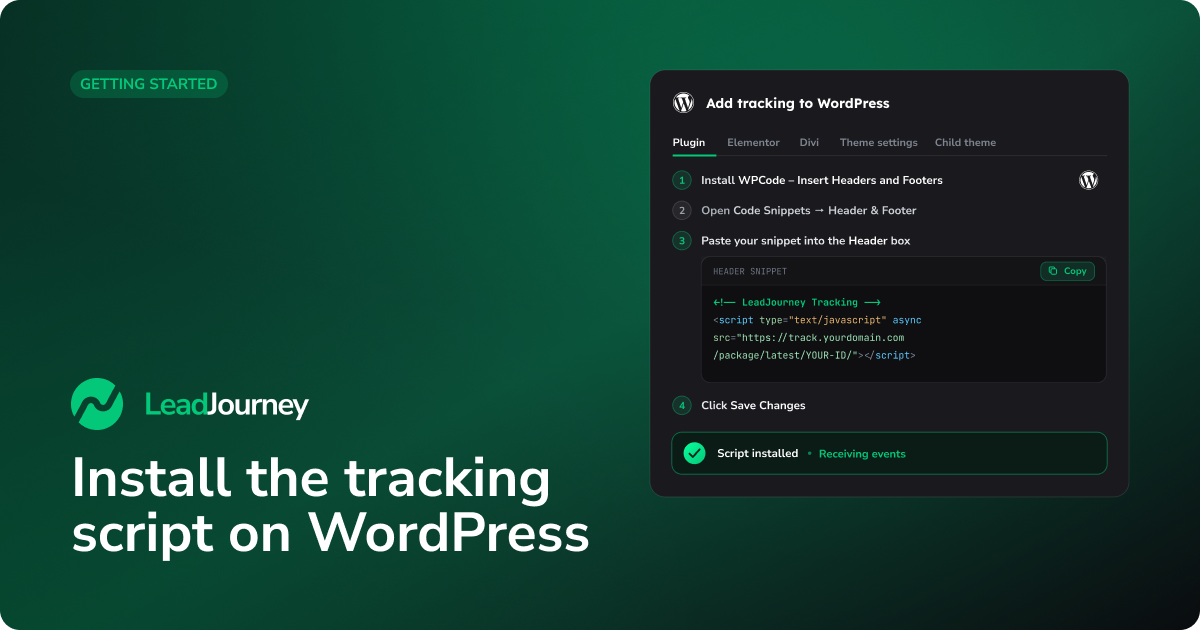
This guide shows you how to add the LeadJourney tracking script to a WordPress site so every page view and lead is recorded. WordPress doesn't have a single "paste your code here" box, so we cover the most common ways – pick the one that matches your setup.
Prerequisites
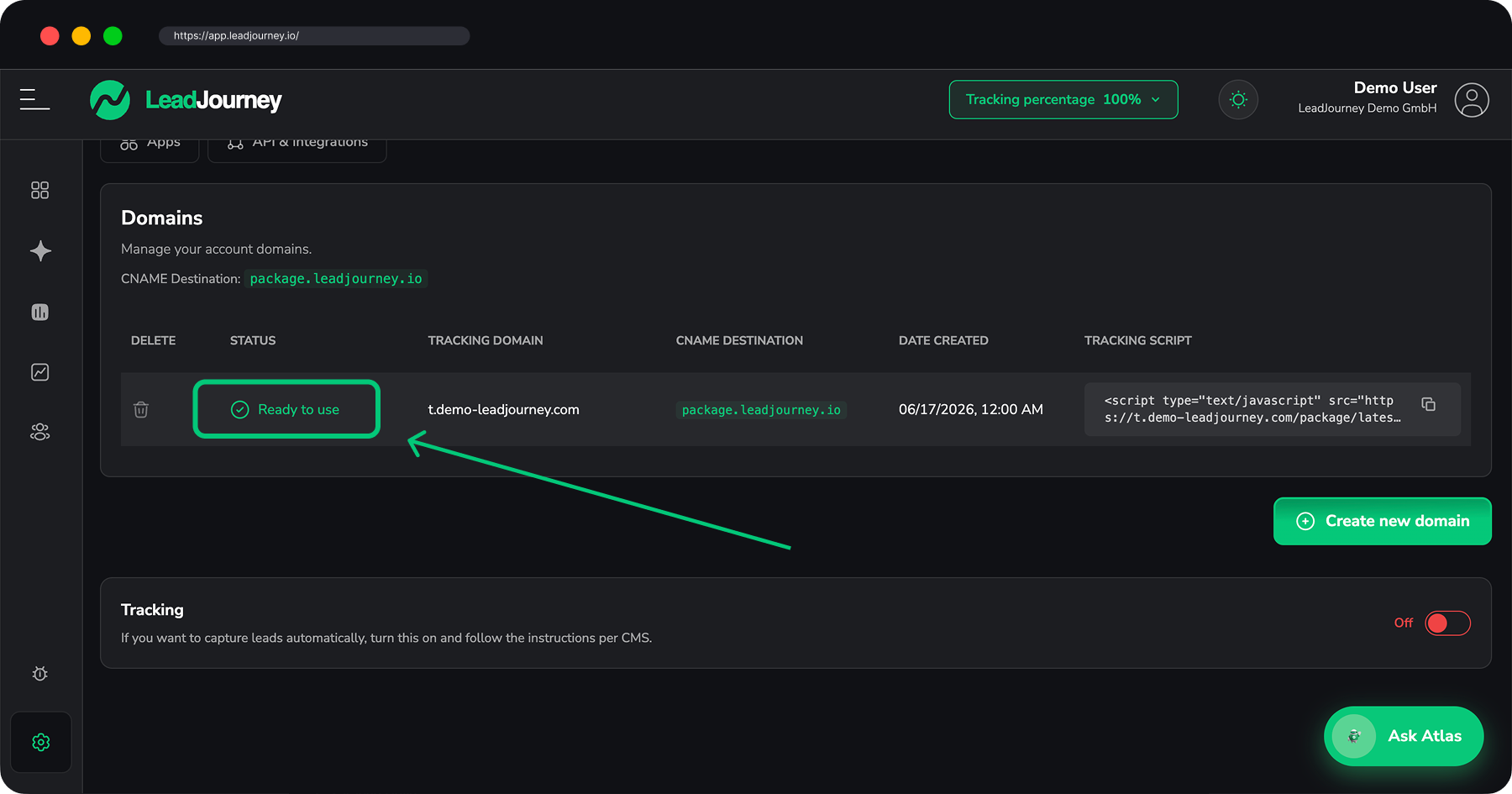
A tracking domain that shows Ready to use and your personal snippet from Settings → Tracking. If you haven't set those up yet, start with Set up your tracking domain and Install the tracking script.
Step by step
Copy your snippet
Open Settings → Tracking and copy the snippet from the Tracking Script column. It contains your tracking domain and workspace ID and looks like this:
<!-- LeadJourney Tracking -->
<script type="text/javascript" async
  src="https://track.yourdomain.com/package/latest/YOUR-WORKSPACE-ID/"></script>
Use your own snippet
Always copy the snippet straight from your settings – the domain and workspace ID are unique to your account. The example above is just for illustration.
Add it to the <head> – pick one method
You only need one of the methods below. A plugin is the simplest and works on every theme; the others are handy if you already use that page builder or theme.
Works with any theme, including block themes / Full Site Editing.
- In WordPress go to Plugins → Add New Plugin and install WPCode – Insert Headers and Footers + Custom Code Snippets (or any "Insert Headers and Footers" plugin), then Activate it.
- Open Code Snippets → Header & Footer.
- Paste your snippet into the Header box.
- Click Save Changes.
The Header box is injected into the <head> of every page automatically – exactly
what LeadJourney needs.
Requires Elementor Pro.
- In the WordPress admin, open Elementor → Site Settings (or click the hamburger menu inside the editor → Site Settings).
- Go to Custom Code → Add Custom Code.
- Give it a name (e.g.
LeadJourney), paste your snippet, and set Location to<head>. - Set the condition to Entire Site, then Publish.
Built into the Divi theme – no plugin needed.
- Go to Divi → Theme Options → Integration.
- Enable Add code to the
<head>of your blog. - Paste your snippet into the Add code to the
<head>of your blog box. - Save Changes.
Many modern themes (Astra, GeneratePress, Kadence, Blocksy, OceanWP …) have a built-in header-scripts field.
Look under Appearance → Customize or the theme's own settings panel for a section
called Custom Code, Header/Footer Scripts, Hooks or Code Insertion. Paste
the snippet into the header / <head> field and save.
Field names differ per theme. If you can't find a header-scripts option, use the Plugin method instead – it works everywhere.
For developers – edit theme files directly. Use a child theme so updates don't wipe your change.
Add this to your child theme's functions.php, pasting your real snippet inside:
add_action('wp_head', function () {
  ?>
  <!-- LeadJourney Tracking -->
  <script type="text/javascript" async
    src="https://track.yourdomain.com/package/latest/YOUR-WORKSPACE-ID/"></script>
  <?php
});
The wp_head hook outputs the script in the <head> of every page.
Clear your cache
WordPress caching plugins (WP Rocket, W3 Total Cache, LiteSpeed Cache) and host- or CDN-level caches can serve the old page without your script. Purge all caches after saving so the snippet goes live.
Don't let optimisers strip the script
If you use a "combine / defer / delay JavaScript" or "remove unused JS" feature, exclude
the LeadJourney script (match track.yourdomain.com or package/latest). Delaying it
until interaction can cause early page views and leads to be missed.
Verify tracking
Open your WordPress site in a new browser tab, then return to Settings → Tracking. Once the first page views arrive, LeadJourney confirms the script is live.
Do WordPress forms fire a Lead?
Yes. The script automatically detects standard form submissions – including Contact Form 7,
WPForms, Gravity Forms, Elementor and Divi forms – and fires a Lead event, with a
formless-click fallback for builders that don't submit a real <form>. See Track
events to fine-tune what counts as a lead.
Troubleshooting
Tracking not detected?
Check that your tracking domain is Ready to use, that you pasted your own snippet
(correct domain + workspace ID) into the header field (not the footer or body), that
you purged all caches, and that a cookie-consent plugin or JS-optimiser isn't blocking
or delaying the script. Open the live page, view source (Ctrl/Cmd + U) and search for
package/latest to confirm the snippet is actually on the page.
Related articles
2. Install the tracking script
Add the LeadJourney tracking script to every landing page, domain and subdomain – step by step.
Install the tracking script on Webflow
Add the LeadJourney tracking script to a Webflow site site-wide via Custom Code, then publish – so every page view and form lead is tracked.