Getting Started
Install the tracking script on Wix
Add the LeadJourney tracking script to a Wix site site-wide via Custom Code, then publish – so every page view and form lead is tracked.

This guide shows you how to add the LeadJourney tracking script to a Wix site. Wix has a built-in Custom Code area in your dashboard, so no developer is needed – you add the snippet once to the Head on All pages and publish.
Prerequisites
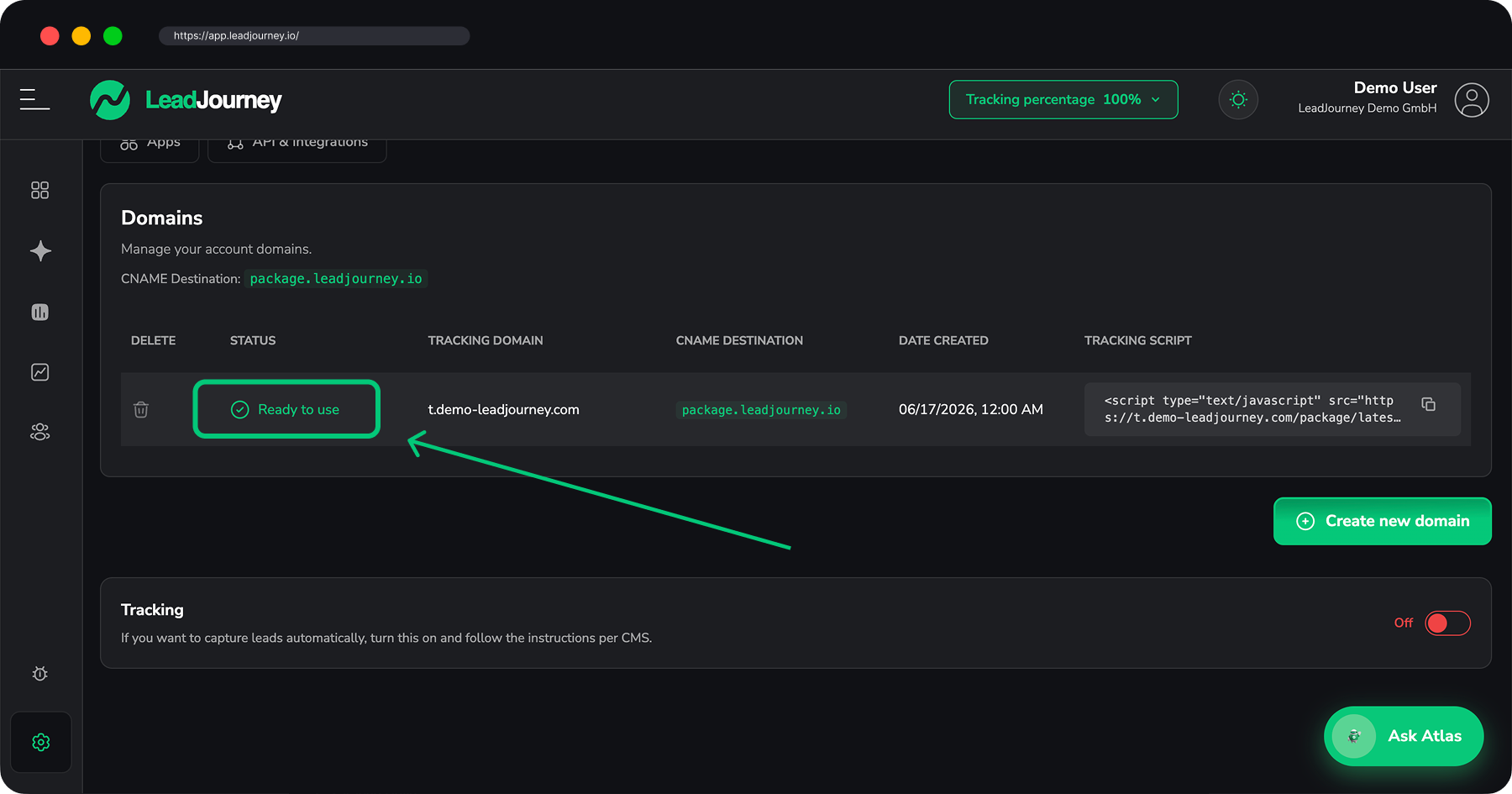
A tracking domain that shows Ready to use and your personal snippet from Settings → Tracking. If you haven't set those up yet, start with Set up your tracking domain and Install the tracking script.
Custom Code needs a published site on a connected domain
Wix only runs Custom Code on a published site with a connected domain (a paid Premium
plan). On the free *.wixsite.com URL or in the editor preview the script may not load –
publish to your real domain to verify.
Step by step
Copy your snippet
Open Settings → Tracking and copy the snippet from the Tracking Script column. It contains your tracking domain and workspace ID and looks like this:
<!-- LeadJourney Tracking -->
<script type="text/javascript" async
  src="https://track.yourdomain.com/package/latest/YOUR-WORKSPACE-ID/"></script>
Use your own snippet
Always copy the snippet straight from your settings – the domain and workspace ID are unique to your account. The example above is just for illustration.
Open Custom Code
In your Wix dashboard, go to Settings → Custom Code (under Development & integrations), then click + Add Custom Code in the top-right.
Paste the snippet and set Head + All pages
Paste your snippet into the code box and give it a name (e.g. LeadJourney Tracking). Then set:
- Add Code to Pages → All pages, with the load option Load code on each new page
- Place Code in → Head
Click Apply.
All pages, Head, every page view
All pages also covers pages you create later. Load code on each new page makes sure the script runs on each page a visitor opens, not just the first one. And Head is the right place for a tracking script.
Publish
Custom code only goes live when you publish. Click Publish (top-right of the dashboard / editor) so the change reaches your connected domain.
Saving isn't enough
Custom Code is only served on the published site on your real domain. If you apply the code but don't publish, the script won't appear on your live pages.
Verify tracking
Open your published Wix site in a new browser tab, then return to Settings → Tracking. Once the first page views arrive, LeadJourney confirms the script is live.
Do Wix forms fire a Lead?
Wix Forms often show an inline success message without changing the page, so a Lead
may not fire from the submission itself. The reliable way to count leads is to set the form's
submit action to go to a thank-you page – that page carries the All-pages snippet, so its
page view becomes your lead. The built-in formless-click fallback still catches many
submissions. See Track events to fine-tune what counts as
a lead.
Troubleshooting
Tracking not detected?
Check that your tracking domain is Ready to use, that you pasted your own snippet
(correct domain + workspace ID), that you set Place Code in → Head and Add Code to
Pages → All pages (not Body), and that you published to your connected domain (not the
*.wixsite.com preview). Open the live page, view source (Ctrl/Cmd + U) and search for
package/latest to confirm the snippet is on the page. Also make sure a cookie-consent tool
isn't blocking it.
Related articles
Install the tracking script on Framer
Add the LeadJourney tracking script to a Framer site site-wide via Custom Code, then publish – so every page view and form lead is tracked.
Install the tracking script on OnePage
Add the LeadJourney tracking script to a OnePage (onepage.io) project site-wide via Site Code, then publish – so every page view and form lead is tracked.