Getting Started
Install the tracking script on GoHighLevel
Add the LeadJourney tracking script to a GoHighLevel funnel or website via the Head Tracking Code, then publish – so every page view and lead is tracked.

This guide shows you how to add the LeadJourney tracking script to a GoHighLevel (HighLevel) funnel or website. HighLevel has a built-in Head Tracking Code field, so no developer is needed – you paste the snippet once at the funnel / website level so it loads on every step.
Prerequisites
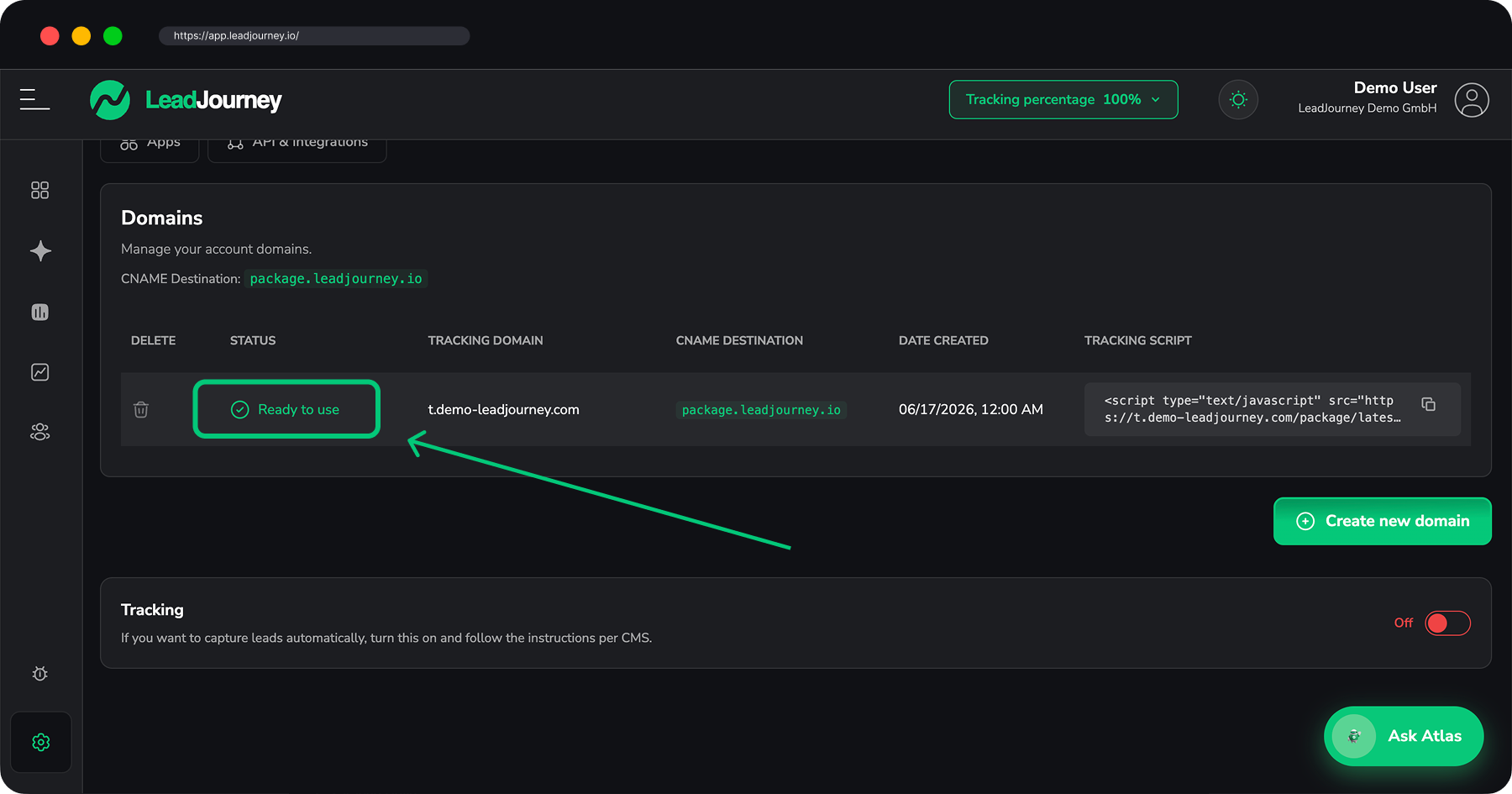
A tracking domain that shows Ready to use and your personal snippet from Settings → Tracking. If you haven't set those up yet, start with Set up your tracking domain and Install the tracking script.
Add it to each funnel and website
In HighLevel the Head Tracking Code applies to one funnel or website. If your campaign spans several funnels or sites, repeat these steps in each of them so no step is left untracked.
Step by step
Copy your snippet
Open Settings → Tracking and copy the snippet from the Tracking Script column. It contains your tracking domain and workspace ID and looks like this:
<!-- LeadJourney Tracking -->
<script type="text/javascript" async
  src="https://track.yourdomain.com/package/latest/YOUR-WORKSPACE-ID/"></script>
Use your own snippet
Always copy the snippet straight from your settings – the domain and workspace ID are unique to your account. The example above is just for illustration.
Open the Tracking Code – pick one scope
In HighLevel you can add the snippet to a whole funnel/website at once, or to a single page. Use the funnel / website level so the script loads on every step.
- Go to Sites and open your Funnel or Website.
- Click Settings (the funnel/website settings, not a single step).
- Find the Head Tracking Code field.
- Paste your snippet and click Save.
The Head Tracking Code is injected into the <head> of every step of that funnel /
website – exactly what LeadJourney needs.
Only use this if you want to track one page. Open the funnel, hover the step and click its ⋯ → Edit / Settings, open the Tracking Code section and paste the snippet into the Header box, then save.
Per-step code only applies to that one page. If you add or duplicate a step later, you'll have to paste the snippet again – which is why the funnel/website level is recommended.
Publish
Tracking code only goes live on the published page that's served on your connected domain. Click Save/Publish in the builder, and make sure the funnel/website is on its live domain (not just the editor preview).
Verify tracking
Open your published HighLevel page in a new browser tab, then return to Settings → Tracking. Once the first page views arrive, LeadJourney confirms the script is live.
HighLevel forms submit inside an iframe
HighLevel renders its forms and surveys in an <iframe>, so the submit happens inside
the embedded frame – the script on the parent page can't see it, and a Lead event
won't fire from the submission itself. The reliable way to count leads is to set the form to
redirect to a thank-you step (or the next funnel step) after submission: that step
carries the script, so its page view becomes your lead signal. See Track
events to turn that thank-you page view into a conversion.
Troubleshooting
Tracking not detected?
Check that your tracking domain is Ready to use, that you pasted your own snippet
(correct domain + workspace ID) into the Head Tracking Code (not the footer/body), and
that you opened the page on its live domain (not the editor preview). Open the live
page, view source (Ctrl/Cmd + U) and search for package/latest to confirm the snippet is
on the page. Remember the Head Tracking Code is per funnel/website – a step in a
different funnel won't have it unless you added it there too. Also make sure a cookie-consent
tool isn't blocking it.
Related articles
Install the tracking script on Perspective
Add the LeadJourney tracking script to a Perspective funnel via each step's Tracking Code, then publish – so every page view and lead is tracked.
Install the tracking script on a custom-coded website
Add the LeadJourney tracking script to a hand-coded site – static HTML, server-rendered templates, single-page apps, Next.js or Nuxt.