Features
Atlas Settings
Tune the Atlas AI assistant for your workspace – give it your marketing goals, choose which model it uses, and connect it to MCP clients and Slack.
Atlas Settings is where you configure the Atlas AI assistant for your workspace – the same Atlas you talk to in Ask Atlas and that powers your AI Agents. The more context you give it here, the more relevant its answers.
Where to find it
Open Reports → Ask Atlas → Settings, or go to app.leadjourney.io/?slug=atlas-settings. The header reads Atlas Settings – "Configure your Atlas AI integrations and preferences."
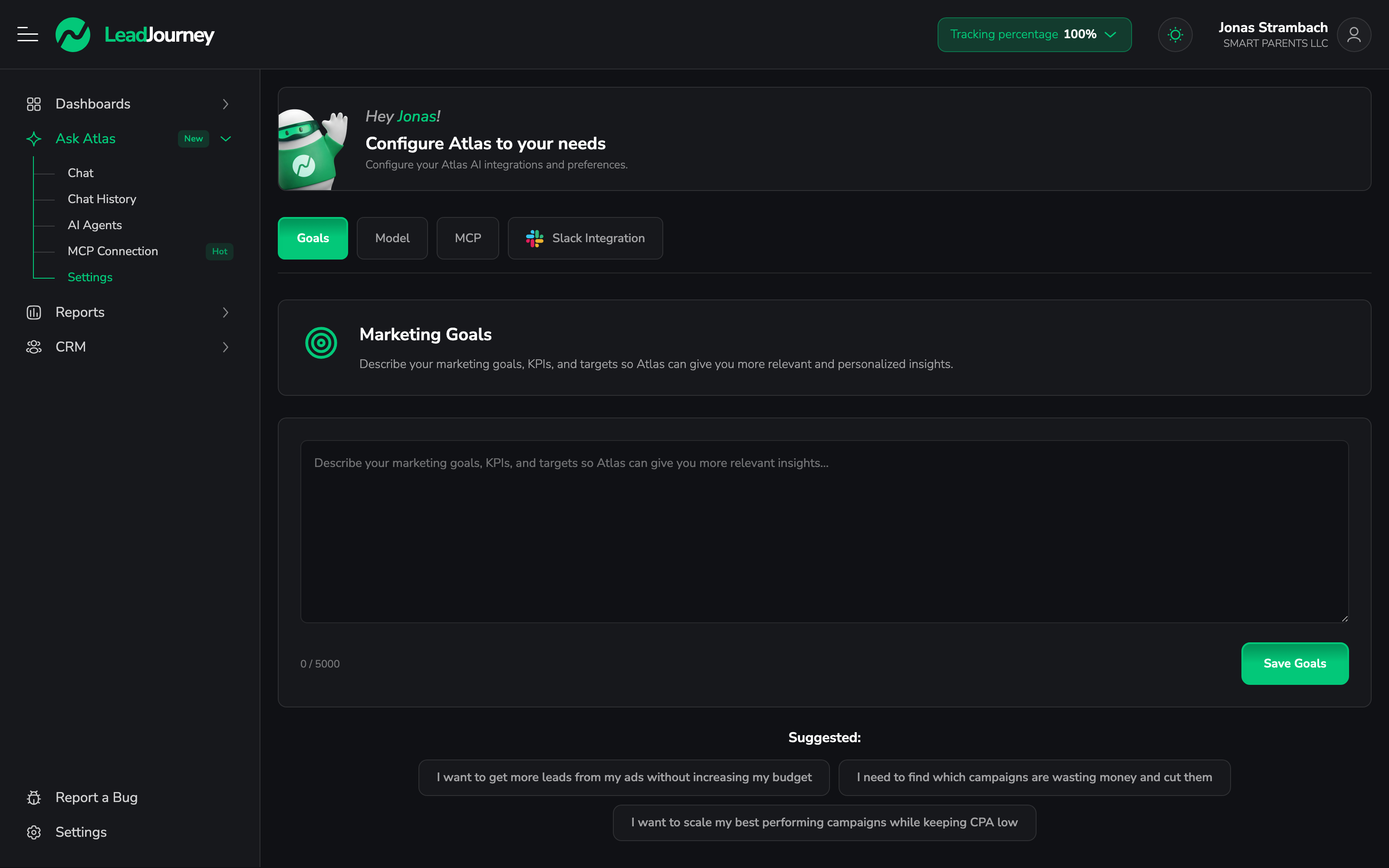
There are four tabs: Goals, Model, MCP and Slack.
Goals
Tell Atlas what you're trying to achieve so its analysis is tailored to you. Under Marketing Goals, write your objectives, KPIs and targets in the text box (up to 5,000 characters) and click Save Goals.
Not sure what to write? Pick one of the suggestions to start from, for example:
- I want to get more leads from my ads without increasing my budget
- I need to find which campaigns are wasting money and cut them
- I want to scale my best performing campaigns while keeping CPA low
Goals shape every answer
Your goals are added as context to Atlas across the chat and your agents. Be specific – mention your target CPL/ROAS, your main channels, and what "good" looks like for you.
Model
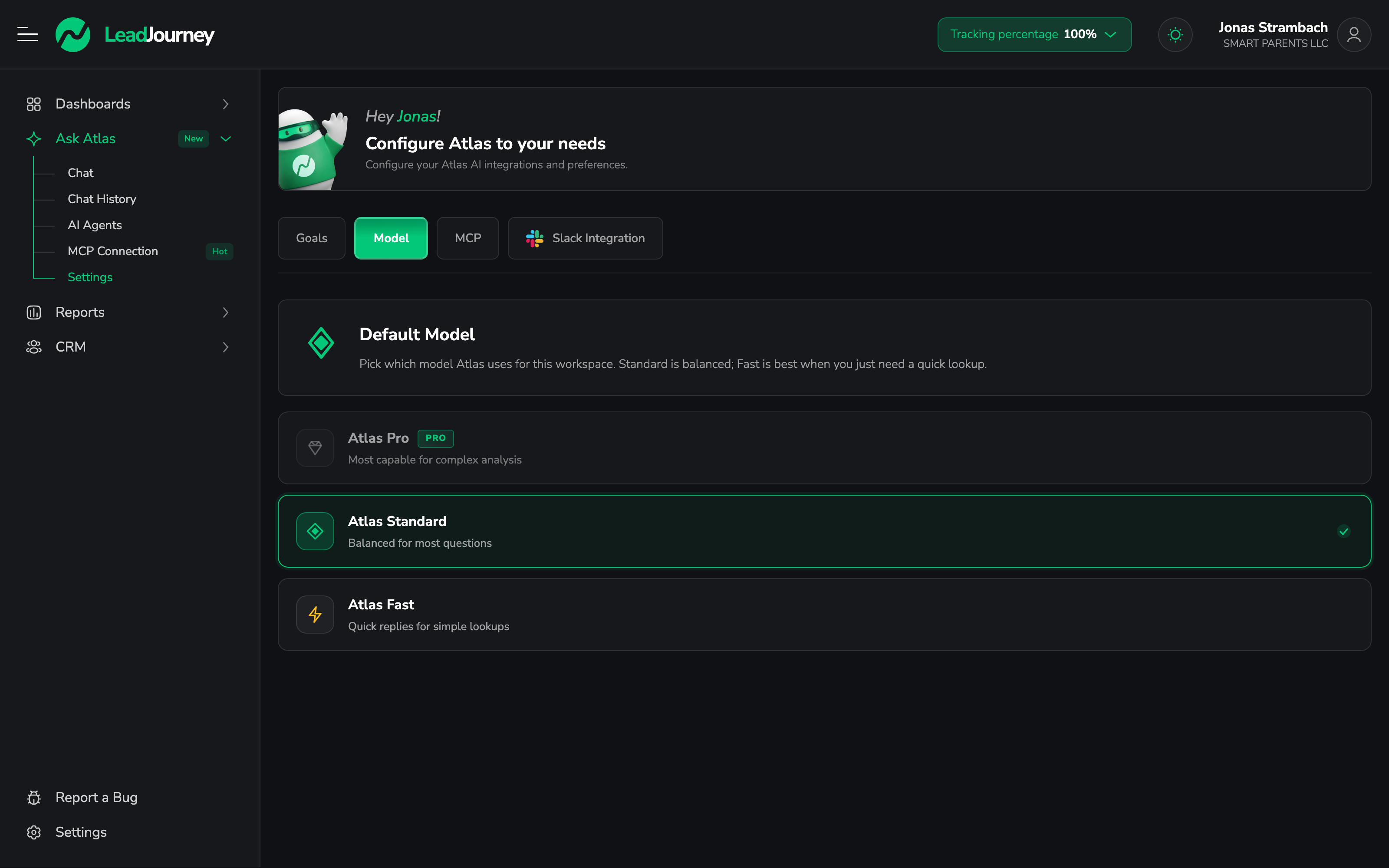
Pick which model Atlas uses for this workspace:
| Model | Best for |
|---|---|
| Atlas Pro | The most capable model, for complex analysis (premium). |
| Atlas Standard | Balanced – the right default for most questions. |
| Atlas Fast | Quick replies for simple lookups. |
Standard is the default. Fast is best when you just need a quick number; Pro is for deeper analysis where reasoning quality matters most.
MCP
The Model Context Protocol tab lets you connect Claude, Cursor or any MCP-compatible client so it can query your LeadJourney workspaces, reports and leads. You'll find the Server URL to copy, step-by-step setup instructions, and a Connected applications list where you can Revoke any client at any time. Access is granted per application via OAuth.
For the full walkthrough, see Connect via MCP.
Slack
Connect Atlas to Slack so your team can @mention it to ask about leads, campaigns and
performance right inside a channel. Install the Slack app, then manage your Connected
Workspaces and Connected Channels here – add or disconnect either at any time.
For the full walkthrough, see Connect Slack.
Related articles
AI Agents
Atlas AI Agents automate your reporting – they pull a report on a schedule, write an analysis with Atlas, and deliver it to email, Slack or a webhook. Build one from a one-line description or configure every step yourself.
Report Builder
Build custom reports from any metric, dimension, date range and filter – then visualise them as a chart or table and pin them to a dashboard. LeadJourney's flexible reporting tool.