Features
Ask Atlas (AI chat)
Atlas is the AI assistant built into LeadJourney. Ask about your campaigns, leads and traffic in plain English – Atlas reads your workspace data and answers with numbers, tables and follow-ups. Use the full Chat page or the floating widget on any screen.
Atlas is the AI assistant built into LeadJourney. Instead of clicking through reports and filters, you ask a question in plain English – "Which Meta Ads campaigns are performing best?" – and Atlas reads your workspace data and answers, often with a ready-made data table. You can keep the conversation going with follow-up questions, just like ChatGPT.
In short
Atlas turns your LeadJourney data into answers. Type (or speak) a question, get back numbers, tables and explanations – then ask a follow-up. No report-building required.
Where to find it
There are two ways to talk to Atlas, and they share the same brain and the same chat history:
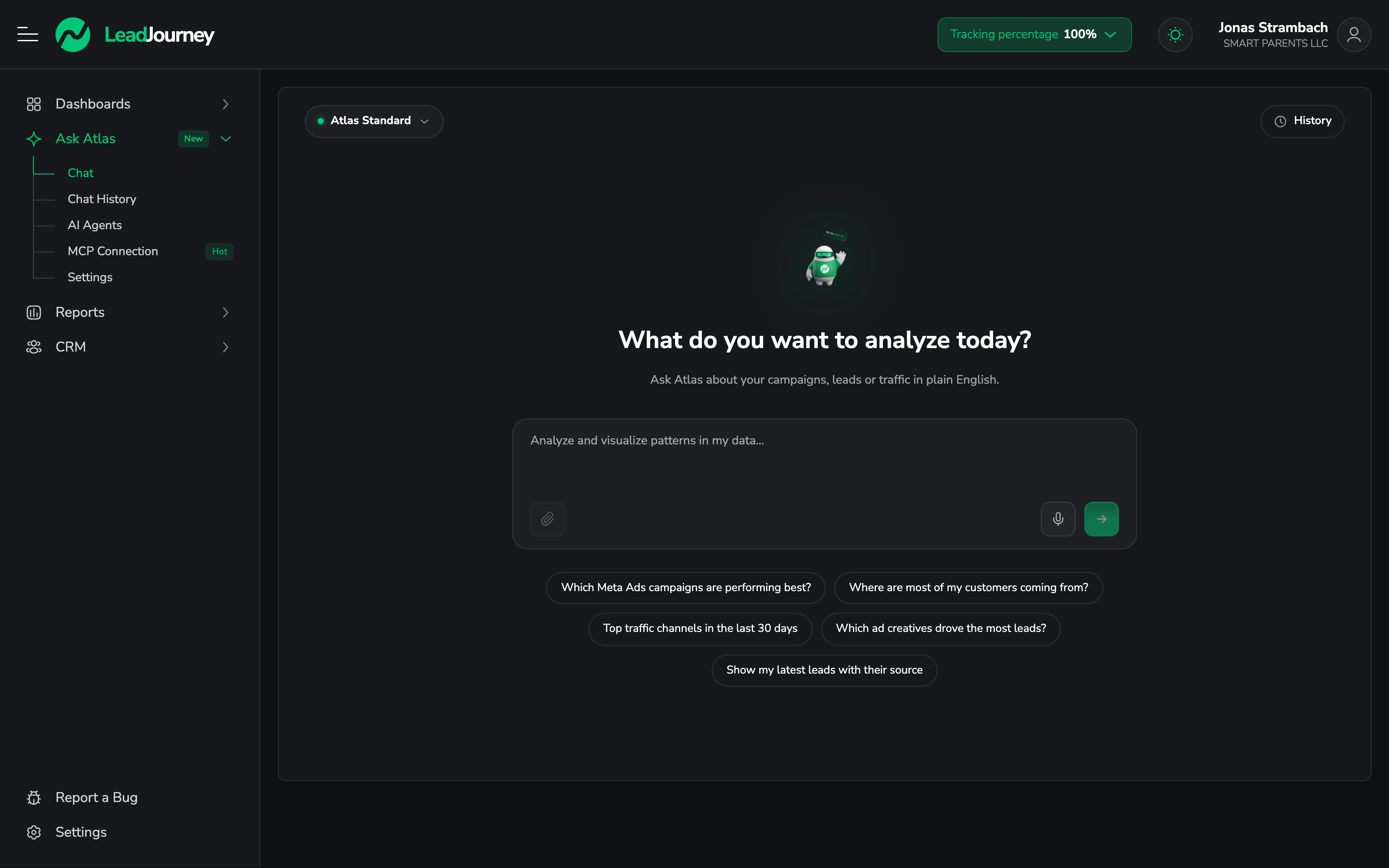
- The full Chat page – the focused, full-screen chat. Open Ask Atlas → Chat in the left sidebar, or go straight to app.leadjourney.io/?slug=chat.
- The floating widget – the Ask Atlas button in the bottom corner of every screen. Click it to drop a chat panel on top of whatever report you're viewing, without leaving the page.
The floating widget knows where you are
Open the Ask Atlas widget while you're on a report and it picks up the active page and the filters you've applied (for example the date range) – shown in the panel header. That way a question like "why did this drop?" is answered in the context of what's on screen.
The welcome screen
When you open the Chat page with no conversation yet, Atlas greets you with:
- A prompt: "What do you want to analyze today?"
- A large input box – type your question, or paste one in (up to 1,000 characters).
- Suggestion pills you can click to start instantly:
- Which Meta Ads campaigns are performing best?
- Where are most of my customers coming from?
- Top traffic channels in the last 30 days
- Which ad creatives drove the most leads?
- Show my latest leads with their source
- A model selector (top-left) and a History button (top-right).
Ask a question
Type your question
Write what you want to know in plain English. Press Enter to send, or Shift + Enter to add a new line. You can also click a suggestion pill to drop a ready-made question into the box.
Watch Atlas think
While Atlas works, it shows its progress – Analyzing campaign data → Looking at your campaigns → Crunching the numbers → Comparing time periods → Spotting patterns. This is normal; a typical answer takes a few seconds.
Read the answer
Atlas replies in the chat. Answers are formatted (headings, bold, bullet lists, code) and, when the question is about numbers, Atlas often attaches a data table right inside the reply – campaigns, channels, leads and so on, laid out so you can scan them.
Ask a follow-up
The reply turns the screen into a threaded chat. Keep going – "now break that down by country", "and compare it to last month" – in the "Ask a follow-up question…" box at the bottom. Atlas remembers the earlier messages in the same conversation.
Talk to Atlas with your voice
Don't feel like typing? Use the microphone button next to the input.
Start recording
Click the mic to begin. Your browser will ask for microphone permission the first time. A countdown shows the time left – recordings are capped at 30 seconds.
Stop and transcribe
Click again to stop (or let the timer run out). Atlas shows "Voice ready" with two options: Transcribe turns your recording into text, or the ✕ discards it.
Review, then send
The transcribed text lands in the input box. Read it over, edit if needed, and send it like any other message. Nothing is sent until you do.
Pick a model
The model selector (the pill at the top of the chat) lets you choose how much horsepower Atlas uses. Your choice is remembered per workspace and stays in sync across the full Chat page, the floating widget and Atlas Settings.
| Model | Best for | Notes |
|---|---|---|
| Atlas Standard | Most questions – the balanced default | Selected unless you change it. |
| Atlas Fast | Quick, simple lookups where speed matters | The fastest, lightest tier. |
| Atlas Pro | The most complex, multi-step analysis | Premium – upgrade to unlock. |
Standard is the default
New workspaces start on Atlas Standard. Switch to Fast for snappy one-off lookups, or upgrade for Pro when you need the most thorough analysis. Atlas Pro shows a PRO badge and is locked until your plan includes it.
Manage your conversations
- New Chat – the New Chat button (in chat mode) clears the screen and starts a fresh conversation. The old one is saved, not lost.
- History – the History button opens Chat History (app.leadjourney.io/?slug=chat-history), where you can reopen and manage every past conversation with Atlas.
- Shareable link – once a chat starts, its ID is added to the page URL, so you can come back to the same conversation later.
Each conversation is automatically given a short title based on your first question, so it's easy to find again in History.
What Atlas can answer
Atlas answers from your workspace's LeadJourney data – the same numbers behind your reports. That includes:
- Campaigns across your connected ad platforms (Meta, Google, LinkedIn, Bing).
- Traffic channels – where your visitors and customers come from.
- Ad creatives – which ads and creatives drove leads.
- Leads – your latest leads and the source each came from.
- Time periods – comparisons across days, weeks and months.
Atlas only sees the data you've connected
Atlas is only as complete as your setup. If an ad account isn't connected or the tracking script isn't installed, that data won't be in its answers. To get the full picture, first install the tracking script and connect your ad platforms.
Need a human?
Inside the floating Ask Atlas widget there's a "Talk to live support" hand-off. Click it and Atlas steps aside so you can chat with a real person on the support team – then you're back to Atlas via its button whenever you need it.
Tips for better answers
- Be specific about the timeframe – "in the last 30 days", "this month vs. last month".
- Name the channel or platform when you mean one in particular – "Meta Ads", "Organic Search".
- Ask follow-ups instead of restarting – Atlas keeps the context of the current conversation, so refining beats re-asking from scratch.
- Use the floating widget on a report – it already knows the page and filters you're looking at, so you can ask shorter questions.
Common questions
Related articles
Event Match Quality (Matching Score)
Understand Meta's Event Match Quality score, what a good score looks like and how LeadJourney automatically raises it by sending rich, hashed customer data back through the Conversions API.
AI Agents
Atlas AI Agents automate your reporting – they pull a report on a schedule, write an analysis with Atlas, and deliver it to email, Slack or a webhook. Build one from a one-line description or configure every step yourself.