Features
Lead Overview
Every lead in one table, with first- and last-touch source, CRM status, tags, revenue and full journey. Click any lead to see its complete timeline of clicks, conversions and sales – the person behind the numbers.
Lead Overview is the person-level view of your data. Where reports aggregate, Lead Overview lists every individual lead – who they are, where they came from (first and last touch), what stage they're at, what they're worth, and their complete journey across every click and conversion.
In short
Reports tell you which campaign works. Lead Overview tells you who it brought in and the exact path they took to get there.
Where to find it
Open Reports → Lead Overview, or go to app.leadjourney.io/?slug=lead-overview. You can also reach a pre-filtered view by clicking the leads/sales icon on any row in the prebuilt reports.
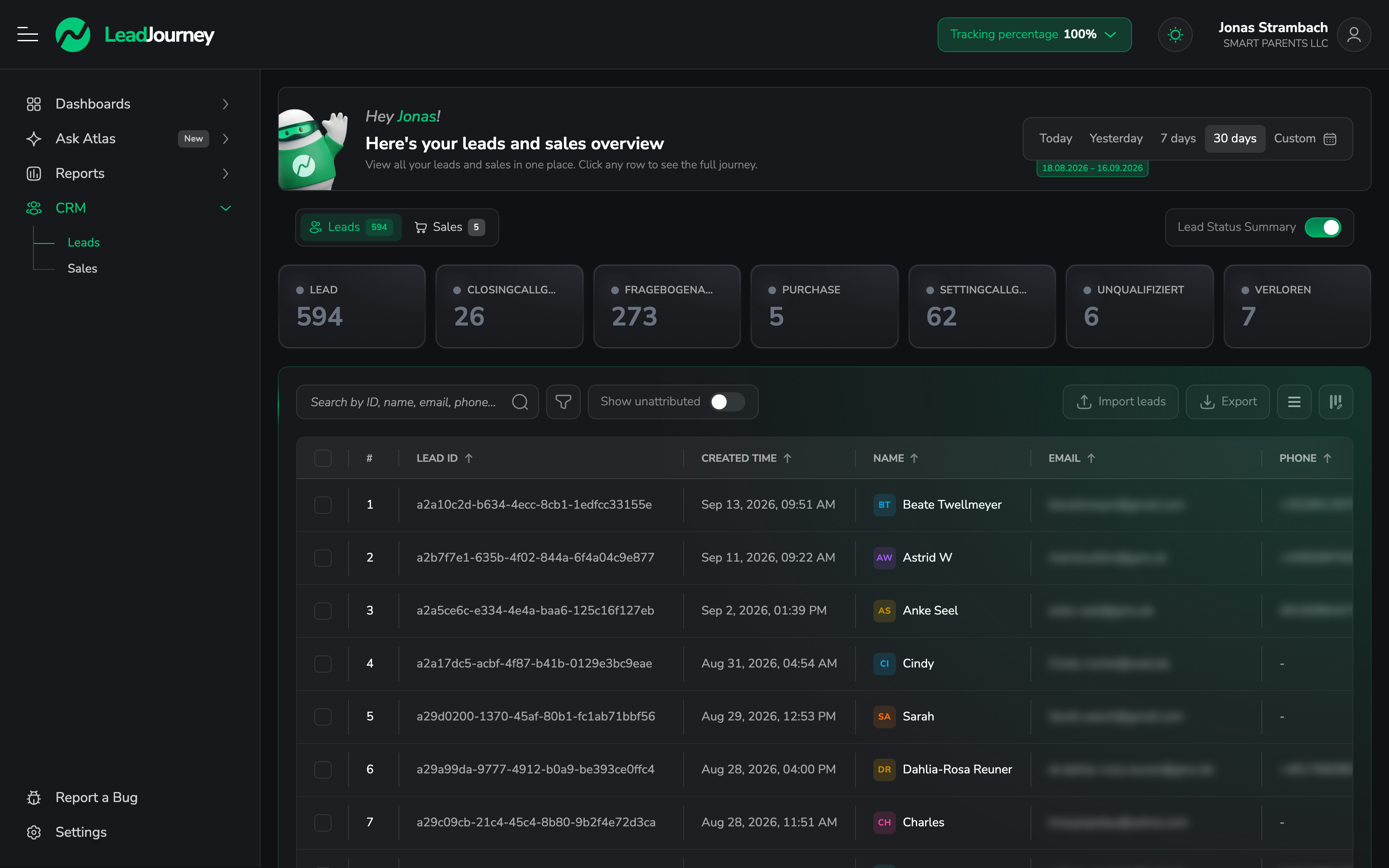
Two tabs sit at the top: Leads (everyone) and Sales (only leads who became won clients).
The leads table
Each row is one lead. Columns include the Lead ID, created time, name, email and phone (with a +N when there are several), latest CRM status, tags, the first and last source / campaign / ad group / ad, first and last click time, total revenue, cash collected, touchpoints (total clicks) and any custom fields you've set up.
You can:
- Search by Lead ID and open the status summary for a breakdown by CRM stage.
- Apply advanced filters (field / operator / value, combined with AND or OR).
- Sort, reorder columns (drag), toggle column visibility, and set row density – all remembered for you.
- Switch attribution (Last Click / First Click) and page through results (10–250 per page).
Open a single lead
Click any row to open the lead's detail, organised into tabs:
| Tab | What it shows |
|---|---|
| Journey | The full timeline – every click, conversion milestone, sale and IP, newest first. |
| Info | Name, all emails/phones, CRM status, tags (editable) and custom fields. |
| Clicks | Every click with source, campaign, ad group and ad/keyword. |
| Sales | Revenue events (postbacks) with amount, date and order ID. |
| CRM Milestones | Each conversion event (Lead, WonClient, custom) with timestamps. |
| IPs | IP addresses linked to the lead. (Partially masked for privacy – see below.) |
| Attribution | The first and last click before conversion, with full detail. |
One person, one lead
LeadJourney resolves multiple emails and phone numbers to the same lead, so a contact who used two emails still shows as one journey – not two half-attributed records.
Actions on leads
- Per lead (row menu): view journey, add a tag, or delete the lead.
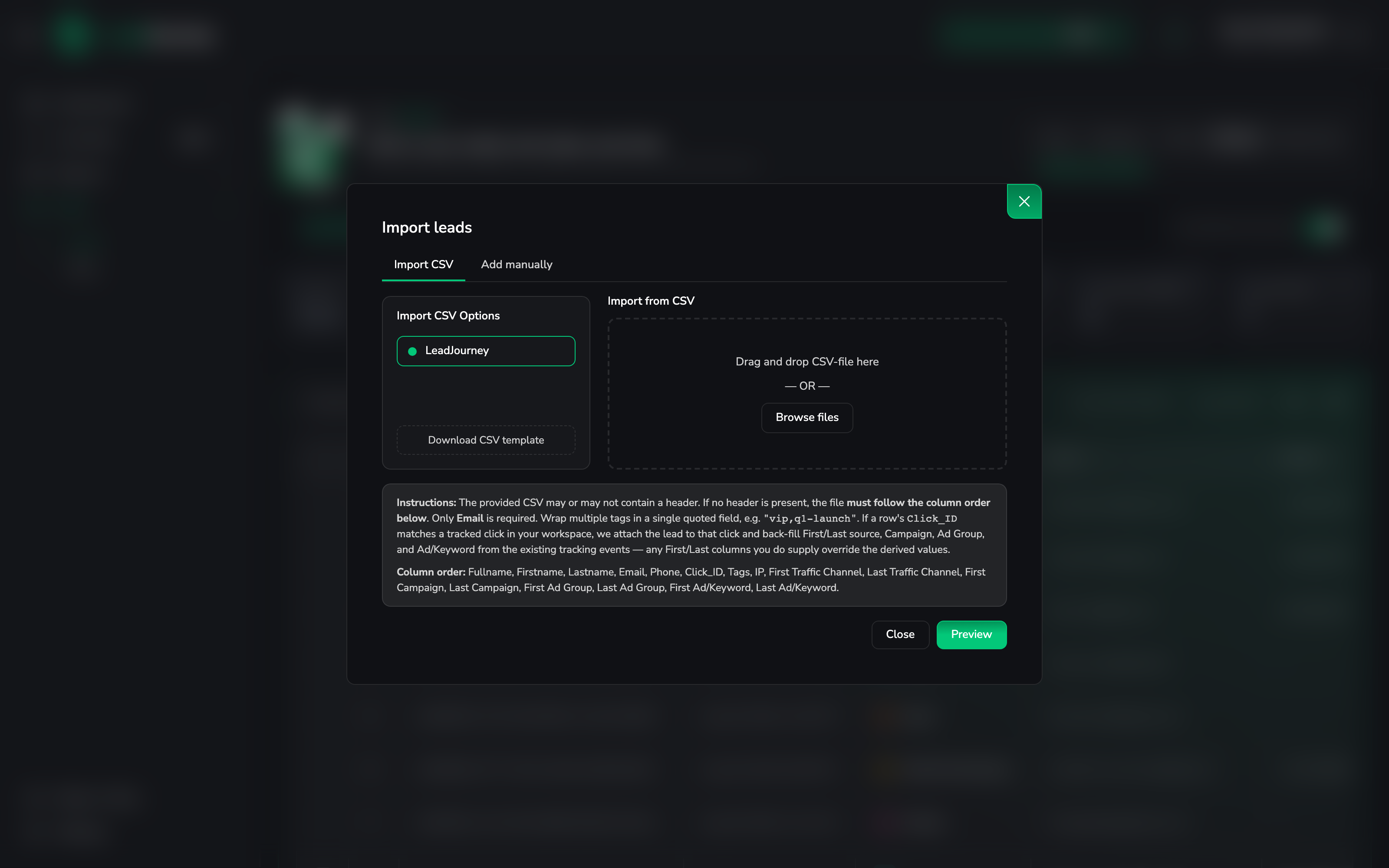
- In bulk (select rows): assign a tag, delete, export to CSV, or merge two or more leads into one.
Merging can't be undone
Merging combines selected leads into a single record and is not reversible. Use it to clean up genuine duplicates, not to experiment.
Privacy note
IP addresses are partially masked in the interface for GDPR compliance; full IP data is available via the API with the right permissions. See Privacy & GDPR.
Related articles
Conversion Path Report
The complete multi-touch journeys your leads take before they convert – which channels open, assist and close, how many touches it takes and how long it lasts. The report that shows how your channels work together instead of judging each one alone.
How dynamic number insertion works
The technical explanation of LeadJourney's call tracking – how a visitor gets their own number, what the script actually changes on your page, how many numbers a pool needs, and what it means for your NAP consistency and SEO.