Integrations
Connect Slack (Atlas AI)
Install the Atlas AI Slack app and connect channels so your team can @mention Atlas in Slack to ask about leads, campaigns, and marketing performance.
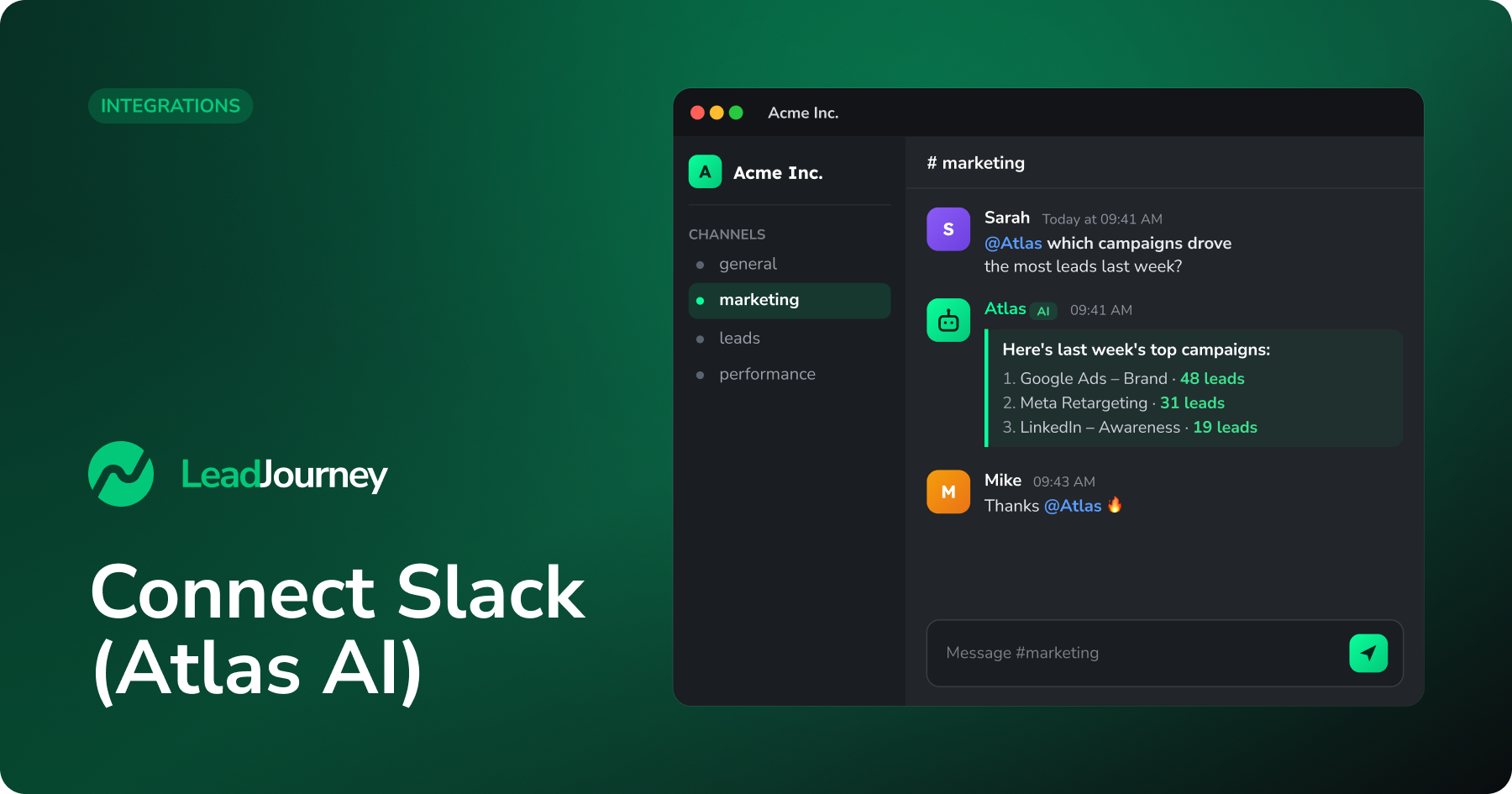
The Slack integration brings Atlas AI into your Slack workspace. Once it's set up, anyone on your team can @mention Atlas in a connected channel and ask about your leads, campaigns, and marketing performance – the answer comes straight from your LeadJourney data, right inside Slack.
Setup has two parts: install the Atlas AI Slack app in your workspace (once), then connect the channels where you want Atlas to listen and reply.
Before you start
You'll need an active LeadJourney workspace and permission to add an app to your Slack workspace. If your Slack requires admin approval for new apps, ask a Slack admin to approve the install.
Where to find it
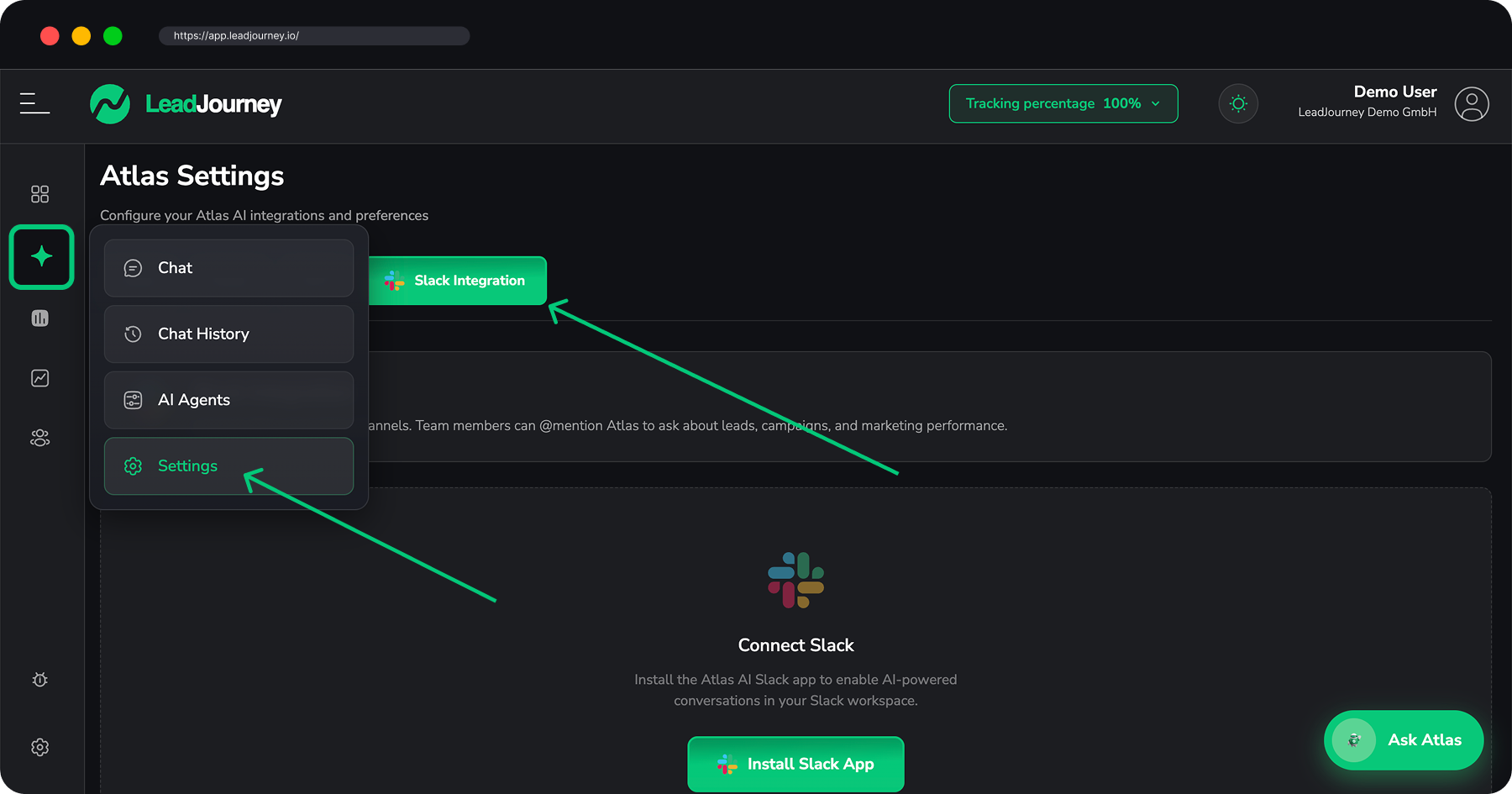
In LeadJourney, open Atlas Settings → Slack Integration. The tab shows your connected workspaces, your connected channels, and the buttons to add more.
Step by step
Install the Atlas AI Slack app
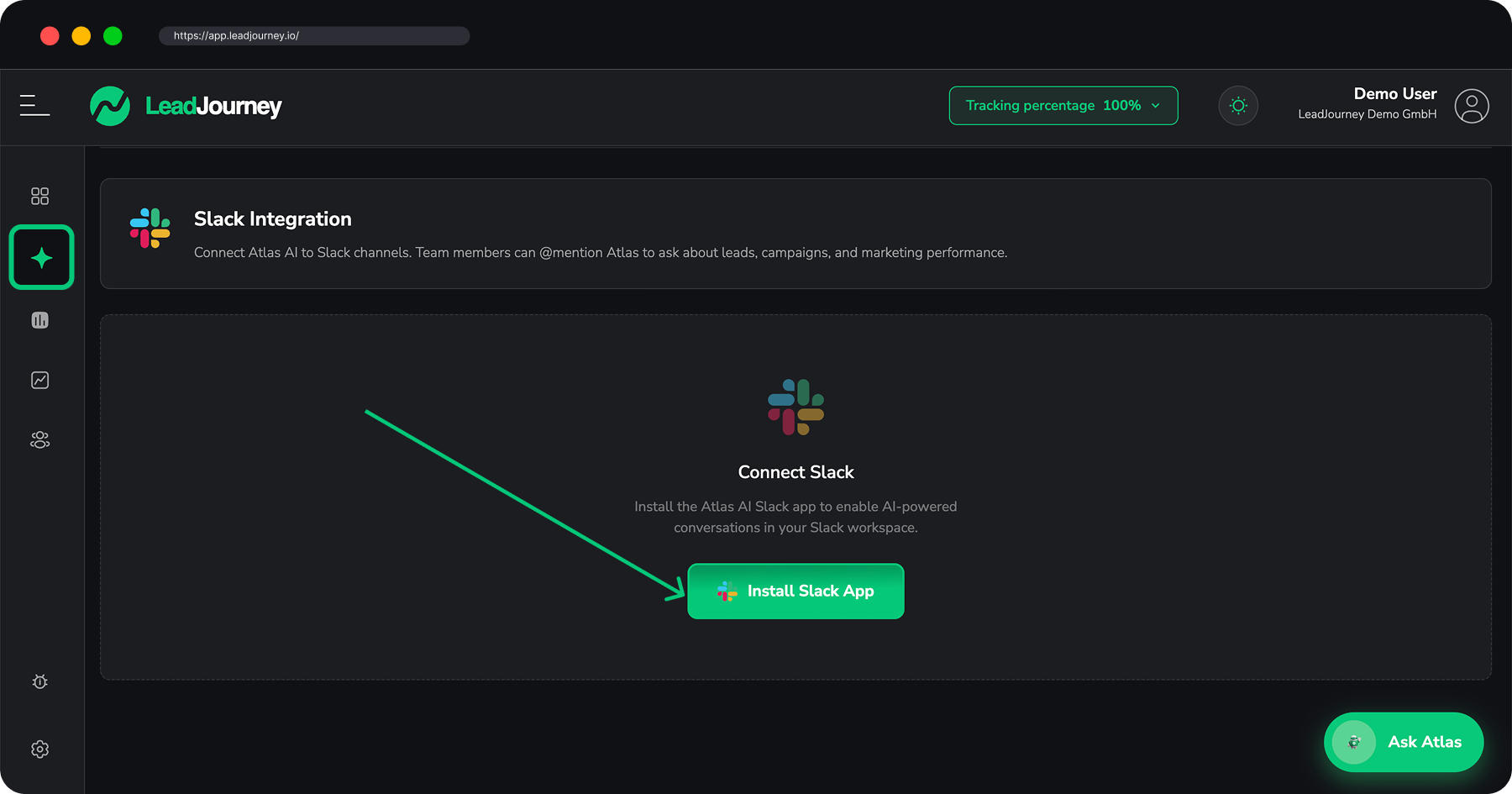
If you haven't connected Slack yet, you'll see a Connect Slack card. Click Install Slack App. You'll be redirected to Slack to authorize the Atlas AI app for your workspace.
After you approve it, Slack sends you back to LeadJourney and you'll see a “Successfully connected” confirmation. Your workspace now appears under Connected Workspaces with the install date.
Manage more than one Slack workspace? Use + Add Another Workspace to install Atlas in each one. You connect channels per workspace in the next step.
Connect a channel
Under Connected Channels, click + Connect Channel. In the Connect Slack Channel dialog:
- Slack Workspace – pick the workspace where the channel lives (auto-selected if you only have one).
- Channel ID – paste the channel's ID. It starts with
Cfor a channel (orDfor a direct message), followed by letters and numbers, e.g.C01234567. - Channel Name (optional) – a friendly label like
#marketingso the channel is easy to recognize in the dashboard.
Click Connect Channel to finish.
Where to find the Channel ID
In Slack, right-click the channel → View channel details, then scroll to the bottom – the Channel ID is shown there. You can also copy it from the channel's link.
Add Atlas to the channel and start asking
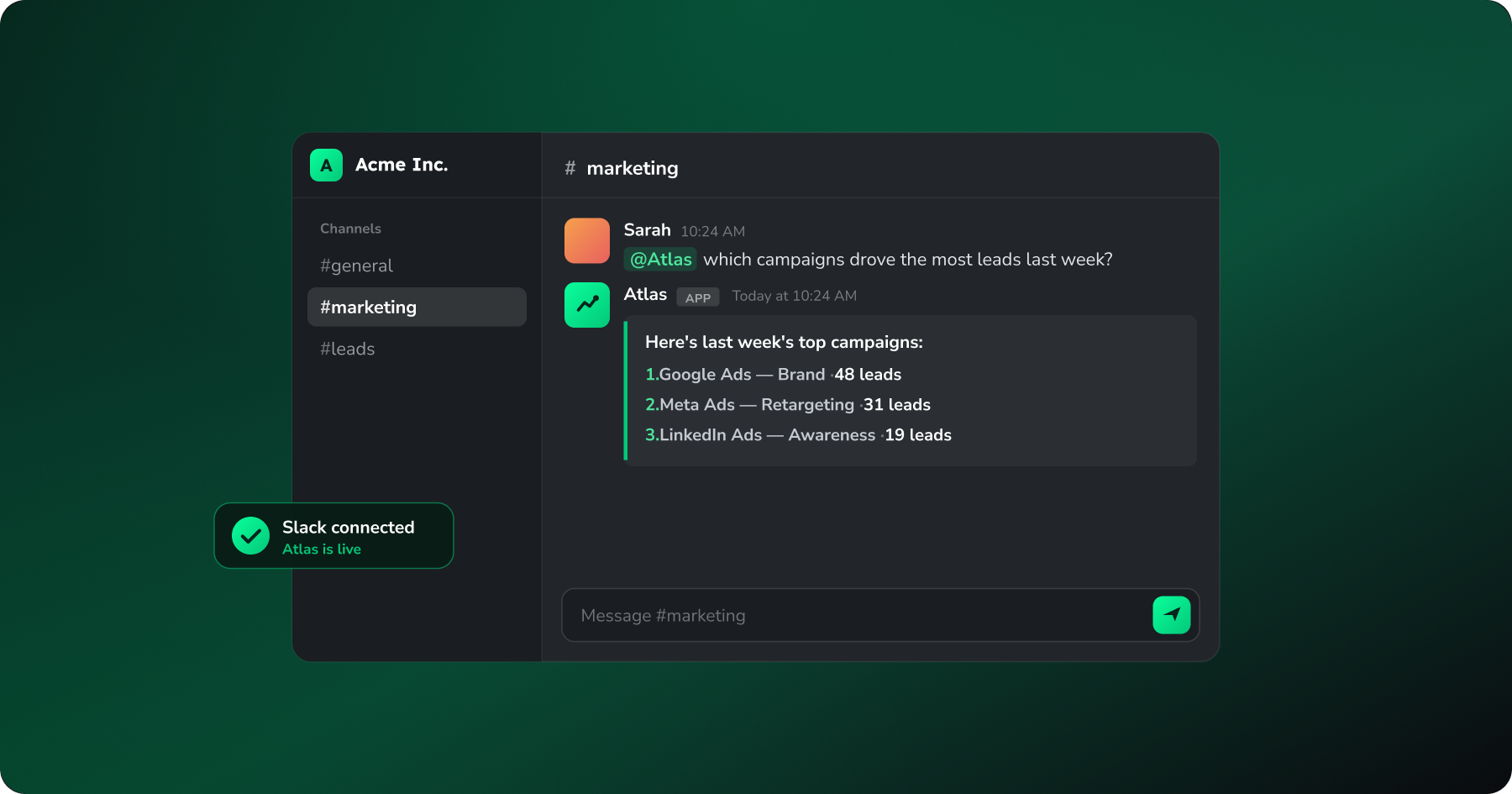
In Slack, open the connected channel and @mention Atlas – for example:
@Atlas which campaigns drove the most leads last week?If Atlas isn't in the channel yet, Slack will offer to add it when you mention it (or
type /invite @Atlas). From then on, anyone in the channel can ask Atlas about leads,
campaigns, and performance, and get answers from your live LeadJourney data.
Better answers from Atlas
Atlas uses your workspace's Marketing Goals and model settings (set on the other tabs of Atlas Settings) to tailor its replies. Filling in your goals, KPIs, and targets helps Atlas give more relevant insights.
Managing the integration
- Connect more channels – repeat + Connect Channel for each channel Atlas should answer in. A channel can only be connected to one LeadJourney workspace at a time.
- Disconnect a channel – click Disconnect next to it. Atlas AI will no longer respond to messages in that channel; other channels keep working.
- Disconnect a whole workspace – click Disconnect next to a workspace under Connected Workspaces. This removes the Atlas app from that Slack workspace, and Atlas stops responding everywhere in it.
Troubleshooting
Atlas isn't replying in a channel?
Check that (1) the channel is listed under Connected Channels, (2) the Atlas app is in
the channel (mention it or run /invite @Atlas), and (3) you're @mentioning Atlas in
your message – it only responds when mentioned.
“Invalid channel ID” or “already connected”?
The Channel ID must start with C or D followed by letters/numbers (e.g.
C01234567) – copy it from View channel details in Slack. If you see already
connected or connected to another workspace, that channel is already linked; disconnect
it there first, or pick a different channel.
Related articles
Connect via MCP (Model Context Protocol)
Connect Claude, Cursor, ChatGPT, VS Code, or any MCP-compatible client to LeadJourney over the Model Context Protocol, so you can query your workspaces, reports, and leads in plain language. Per-app OAuth, revoke any time.
Meta Ads
Send LeadJourney offline conversions back to your Meta Pixel so Meta can optimise toward real outcomes – qualified leads, booked calls and won deals – instead of raw form fills.