Features
Set up call tracking
The complete setup, step by step: top up credits, buy tracking numbers, choose between static and dynamic numbers, set forwarding, build a pool, install the script and verify that numbers swap on your website.
Call tracking tells you which campaign, ad and keyword made the phone ring, the same way form tracking does for leads. This guide covers the whole setup, from buying your first number to seeing the first attributed call. The video walks through the same steps.
The setup in two steps
- Numbers & pools: buy tracking numbers, set where calls ring, and group website numbers into a pool.
- Website script: switch on dynamic number insertion, tell the pool which number on your site to replace, and verify it.
Both live under Call Tracking → Setup. You usually do this once.
Static or dynamic numbers?
Before you buy anything, decide where the number will be used. LeadJourney asks this for every number you buy, and it changes how calls are attributed.
Numbers from a pool are swapped onto your website. Every visitor sees their own number, so each call is matched to that visit: campaign, ad, keyword and the full customer journey.
One fixed number per channel, printed on a flyer or spoken in a radio spot. It never changes, so every call to it is attributed to the traffic source you assign to that number.
| Dynamic (online) | Static (offline) | |
|---|---|---|
| Where | Your website, through the tracking script | Flyers, business cards, vehicles, radio, TV, billboards |
| How many numbers | A pool of at least 4, more with more traffic | One per channel or campaign you want to tell apart |
| Attribution | Per visitor: campaign, ad, keyword, journey | Per number: the traffic source you assign |
| Needs the script | Yes | No |
Before you start
- Call Tracking is switched on per workspace. If you don't see Call Tracking in the sidebar, contact us and we'll enable it.
- For dynamic numbers you need the tracking script on your site. If you already use LeadJourney for form tracking, it's installed. Call tracking runs through the same script.
- Some countries need paperwork. Germany, Austria and many other European countries only issue numbers to a registered company with a local address and a proof document. Allow a few days for approval the first time.
Step 1: Top up credits
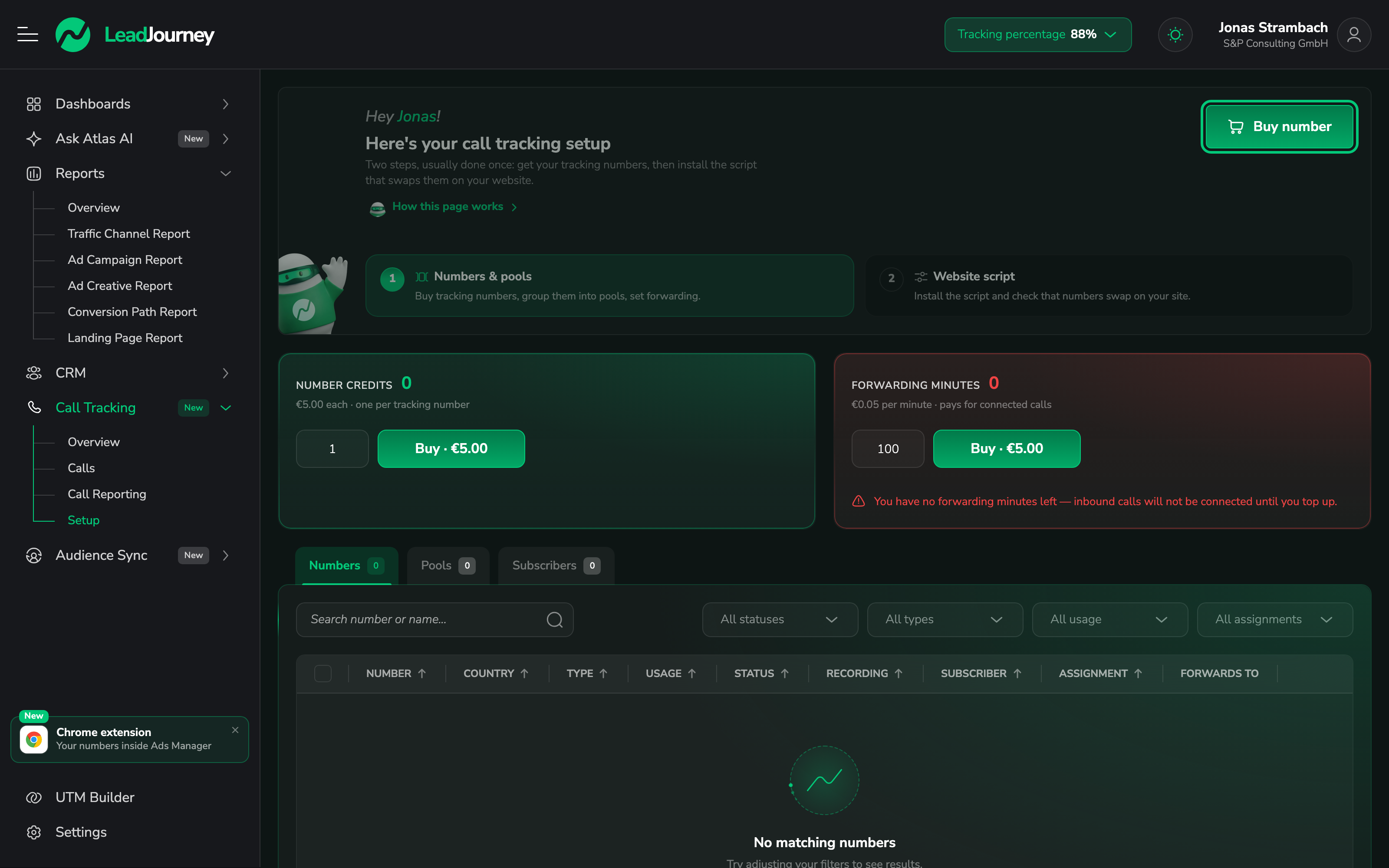
Open Call Tracking → Setup. Above the number list are two prepaid balances:
- Number credits: one credit buys and holds one tracking number.
- Forwarding minutes: pay for the calls your numbers connect to your phone.

Enter a quantity and click Buy. Payment goes through Stripe Checkout, and the balance updates when you return.
No minutes, no calls
If your forwarding minutes run out, incoming calls are not connected until you top up. Under Website script → Email notifications you can choose who gets an email when minutes run low.
Step 2: Buy your tracking numbers
Click Buy number at the top right of the setup page. A wizard walks you through seven short steps. Nothing is bought until you click Purchase in the last one.
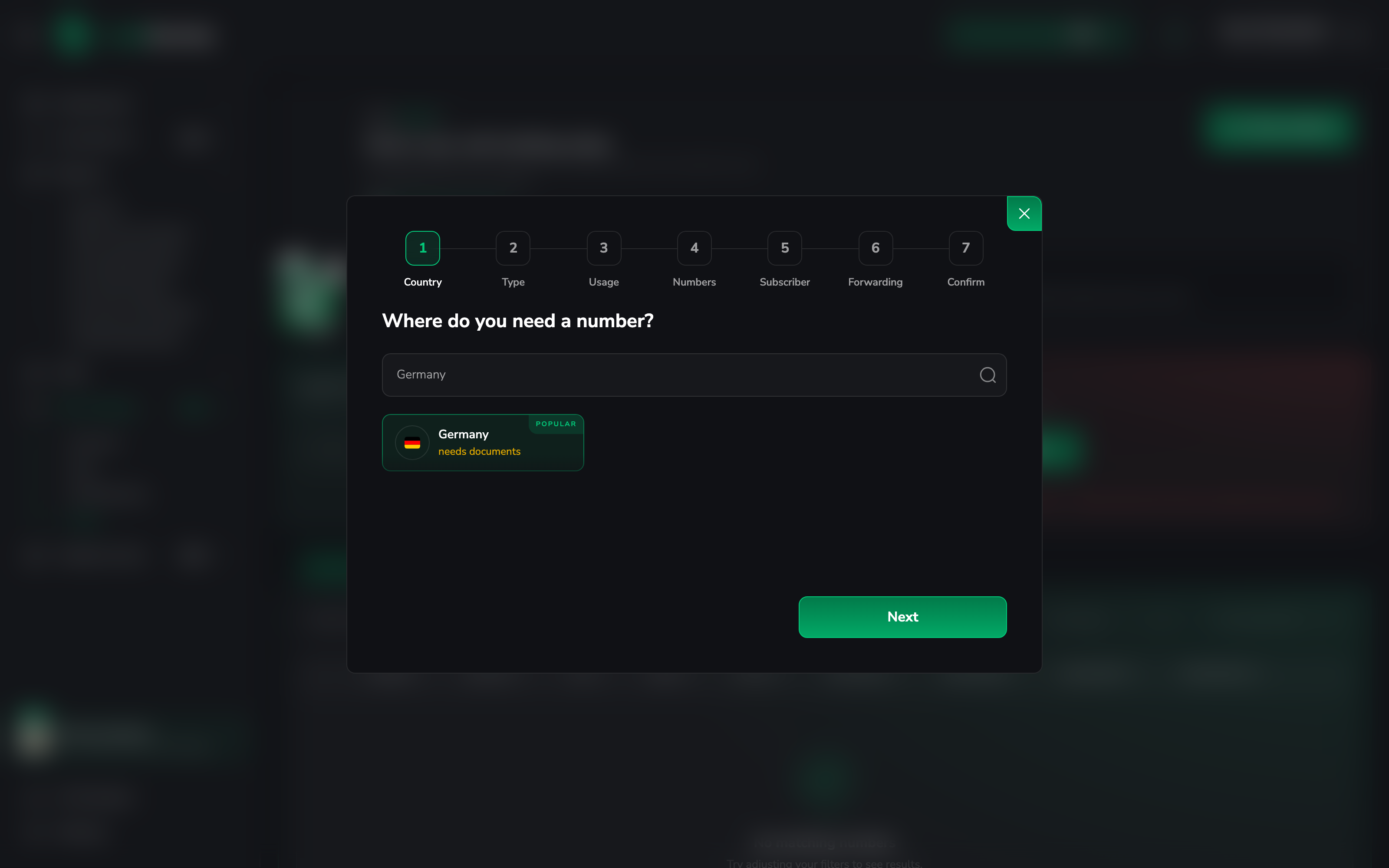
Country
Search for the country your callers are in and select it. Countries marked needs documents require a registered subscriber (see the Subscriber step below).
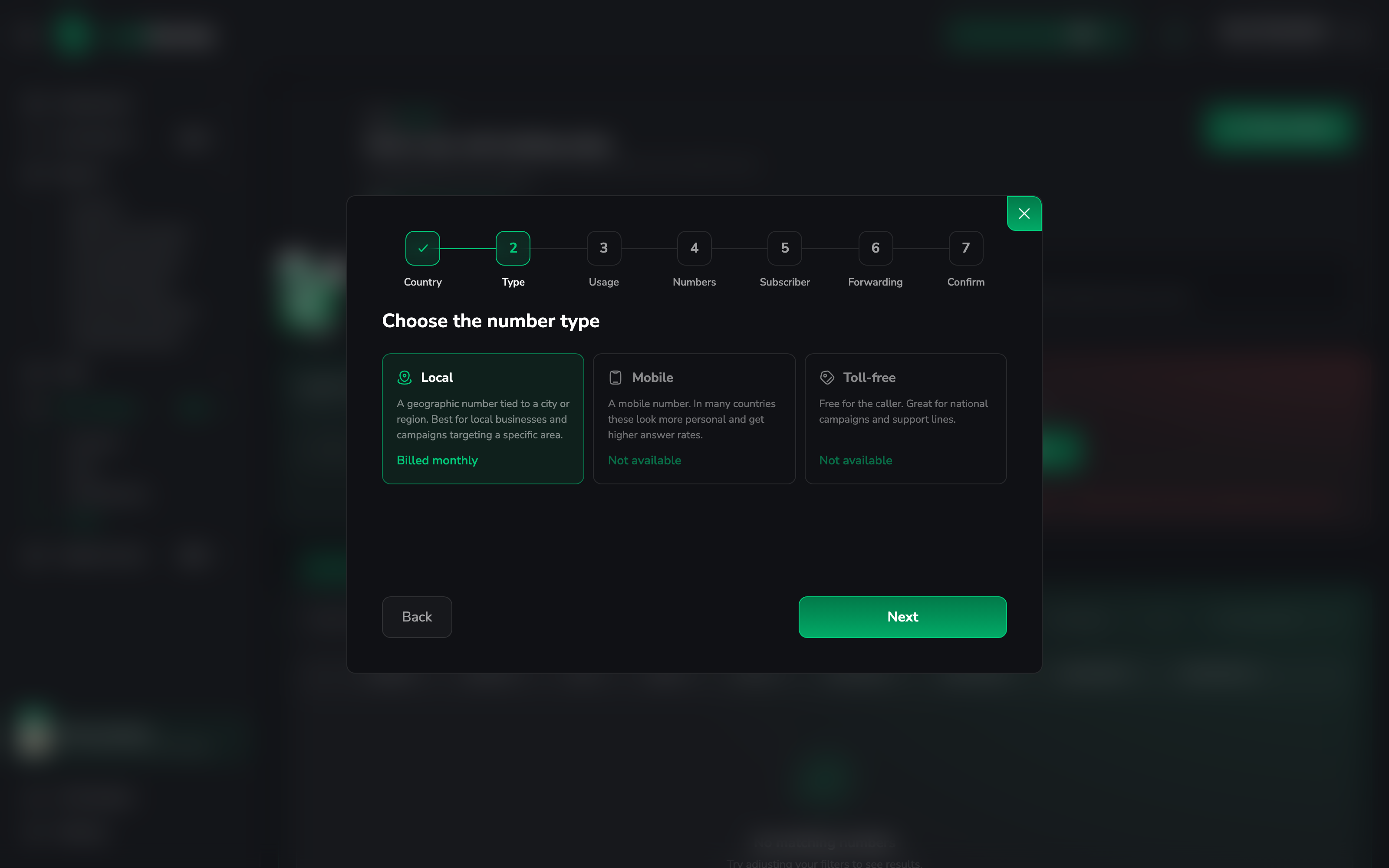
Number type
Pick Local (tied to a city or region), Mobile or Toll-free. Types the carrier doesn't offer in that country show as Not available. For most local businesses, Local is the right choice: callers trust a familiar area code.
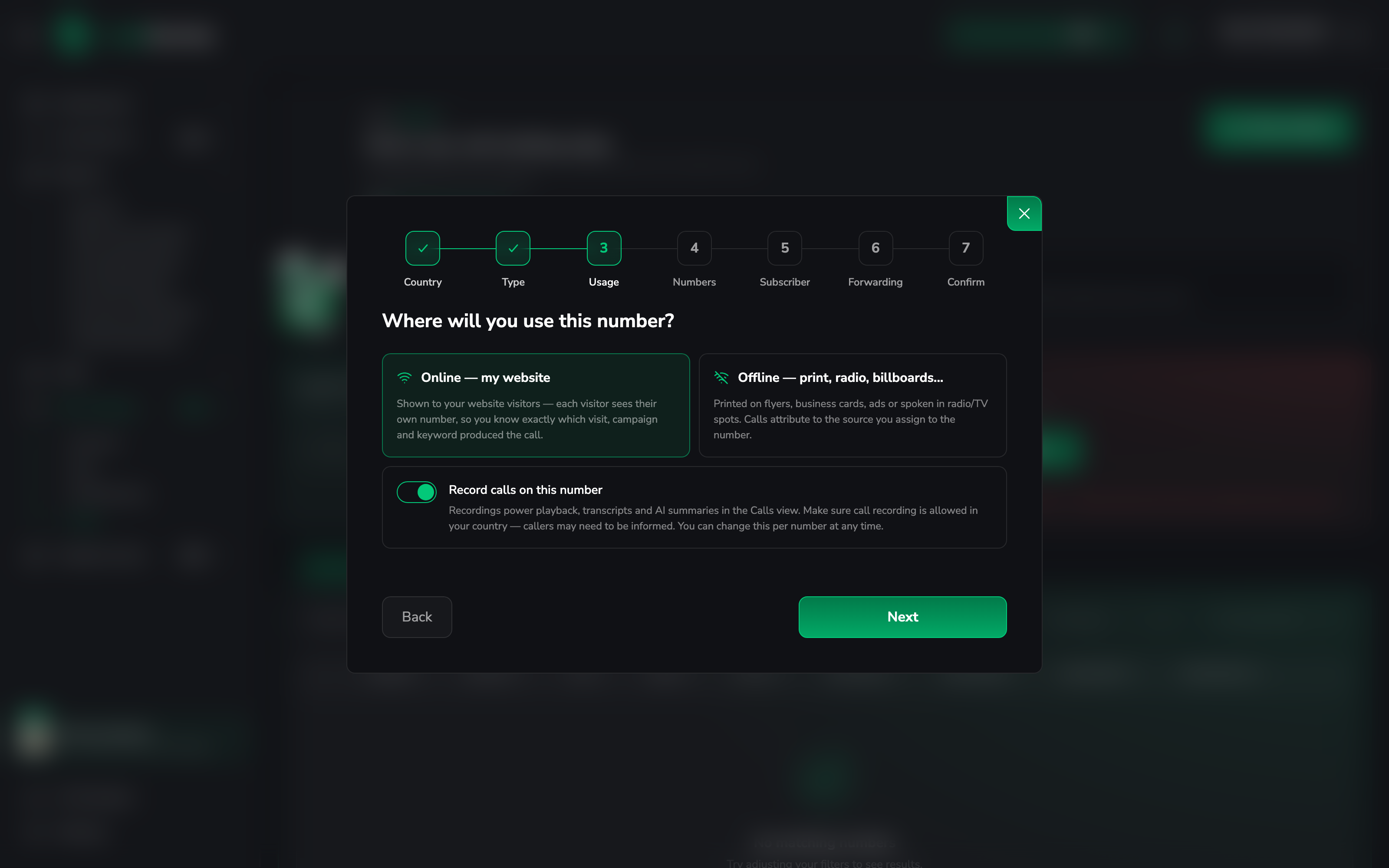
Usage: static or dynamic
This is the choice from the section above.
- Online, my website: dynamic numbers for your website pool.
- Offline, print, radio, billboards: a static number for one offline channel.
Leave Record calls on this number on if you want playback, transcripts and AI summaries. Check whether your country requires you to tell callers they're being recorded.
Pick your numbers
You see the numbers the carrier has available. Filter by City / town (or area code) and click Search, then tick the numbers you want. Use Consecutive block if you want a continuous range (mostly available in the US and Canada).
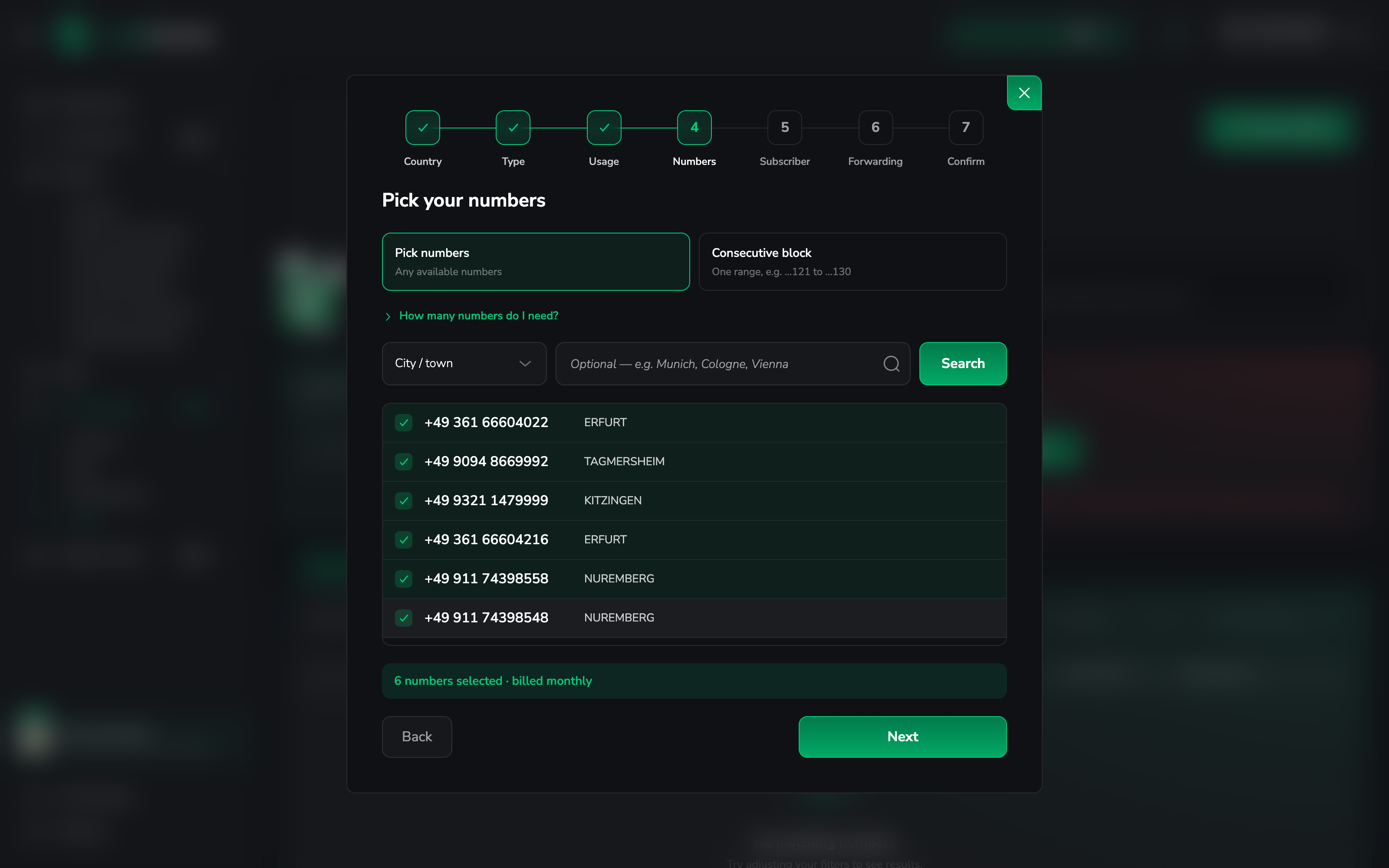
For a website pool, open How many numbers do I need? and enter your monthly visitors. LeadJourney recommends a pool size, and at least 4 numbers in any case. Each visitor holds a number for their whole session plus ten minutes, so the pool has to cover your busiest moments.
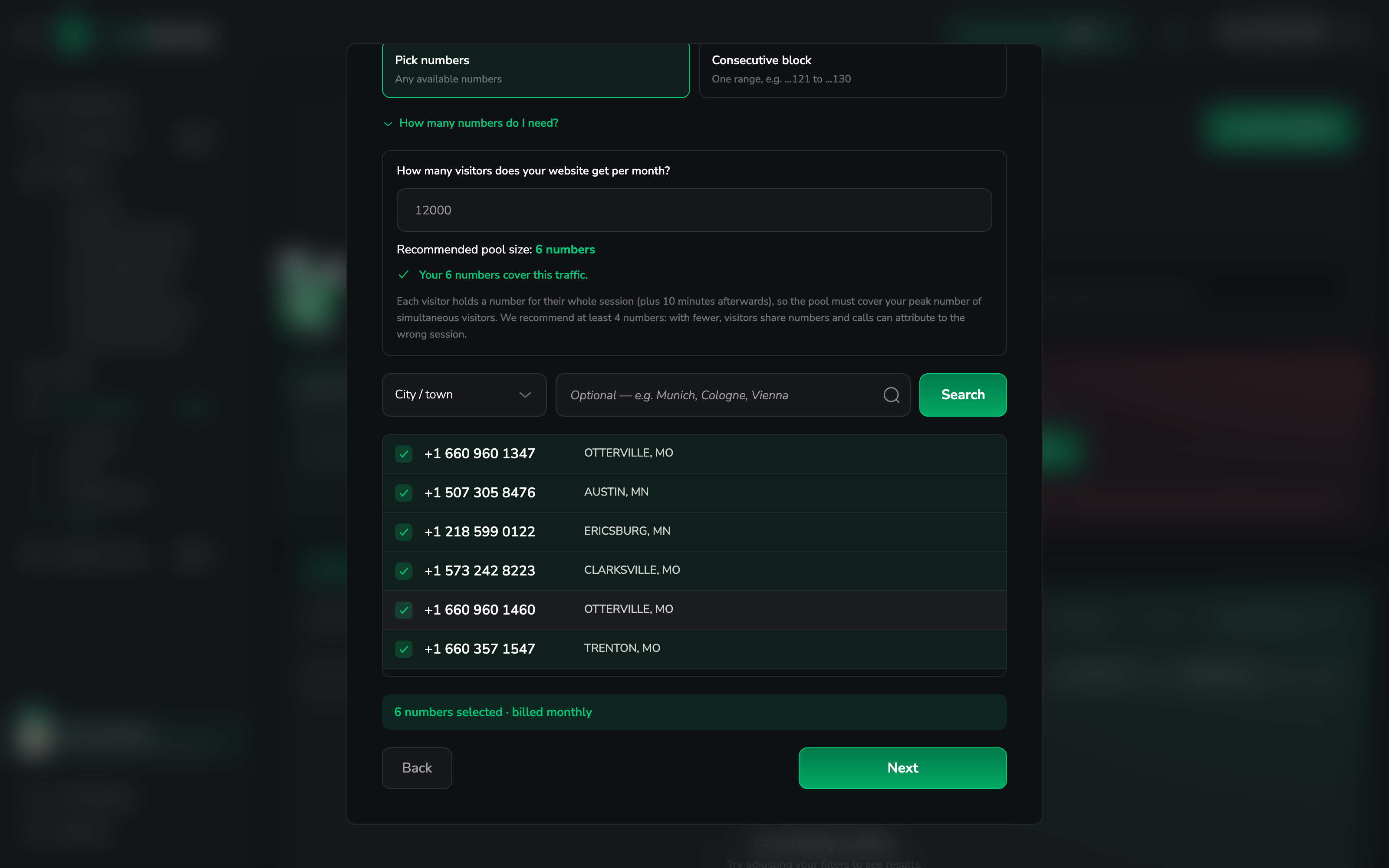
See how many numbers a pool needs for the full table.
Subscriber
The subscriber is the company or office the number is registered to. If the country requires it, you can't continue without one.
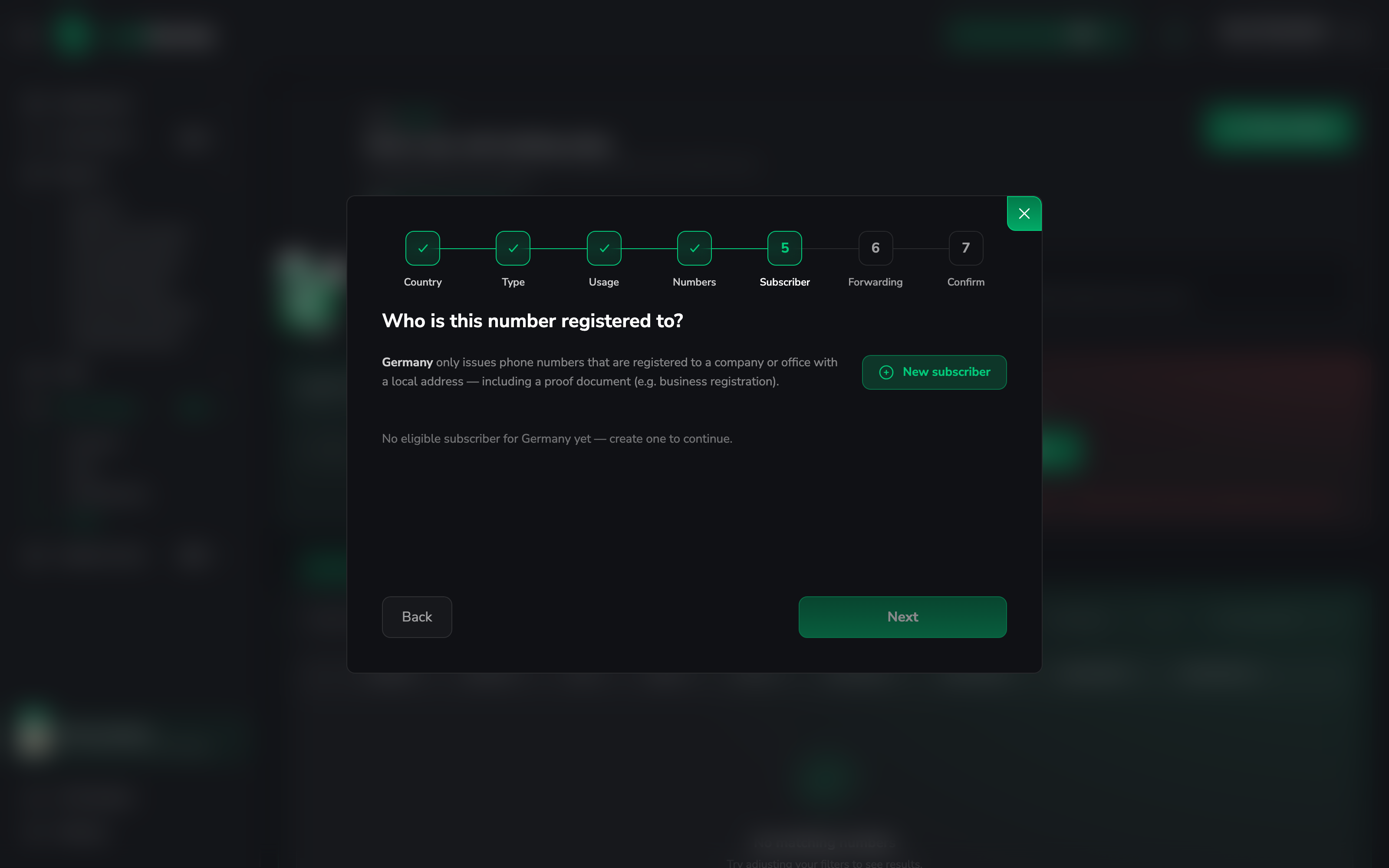
Click New subscriber and fill in the company, contact person and local address, then upload the proof document the country asks for (for example a business registration). Use one subscriber per location or legal entity.
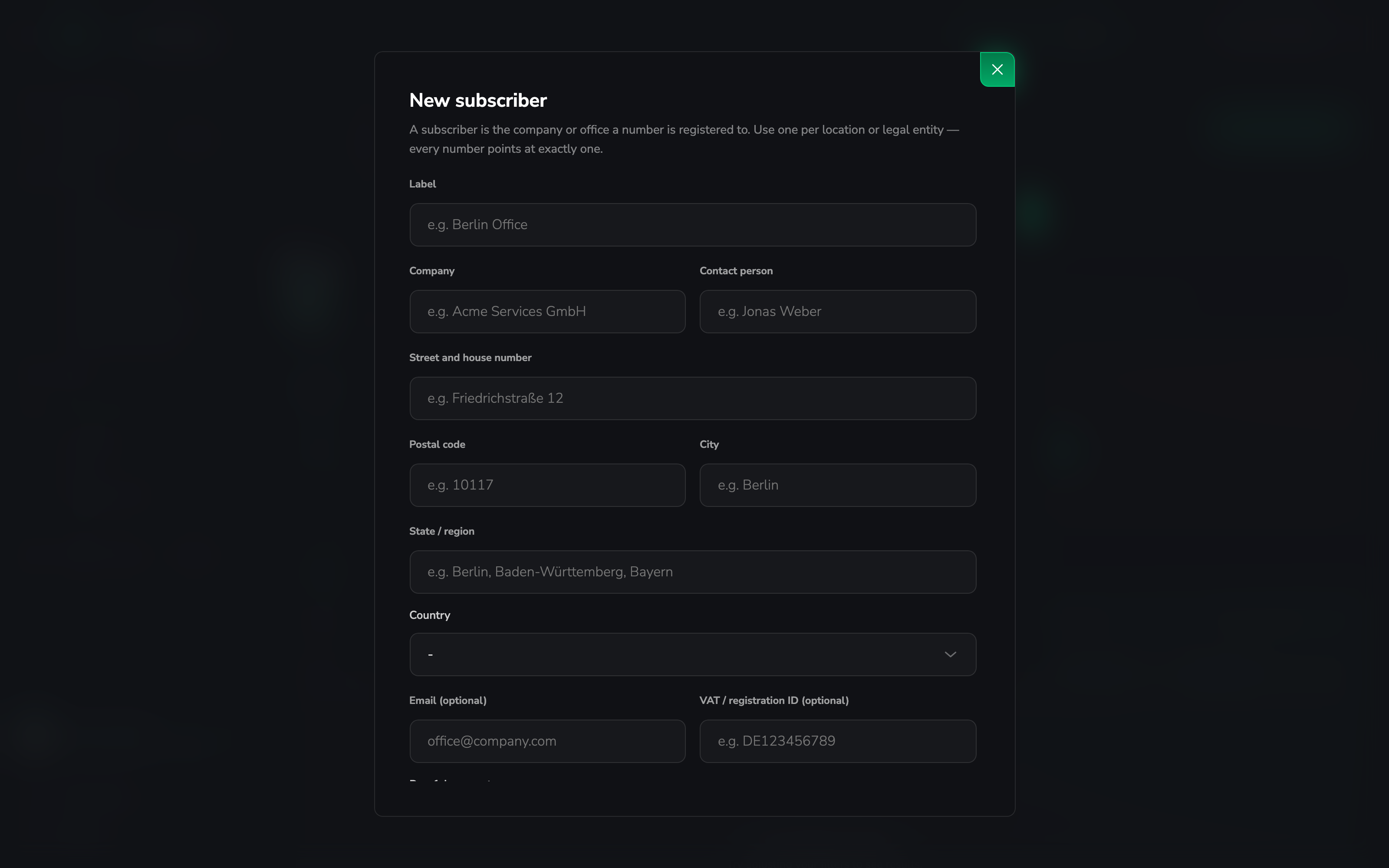
Once a subscriber is approved for a country, every number you buy there afterwards goes live in minutes. You can manage subscribers later on the Subscribers tab. Countries without this requirement let you skip the step.
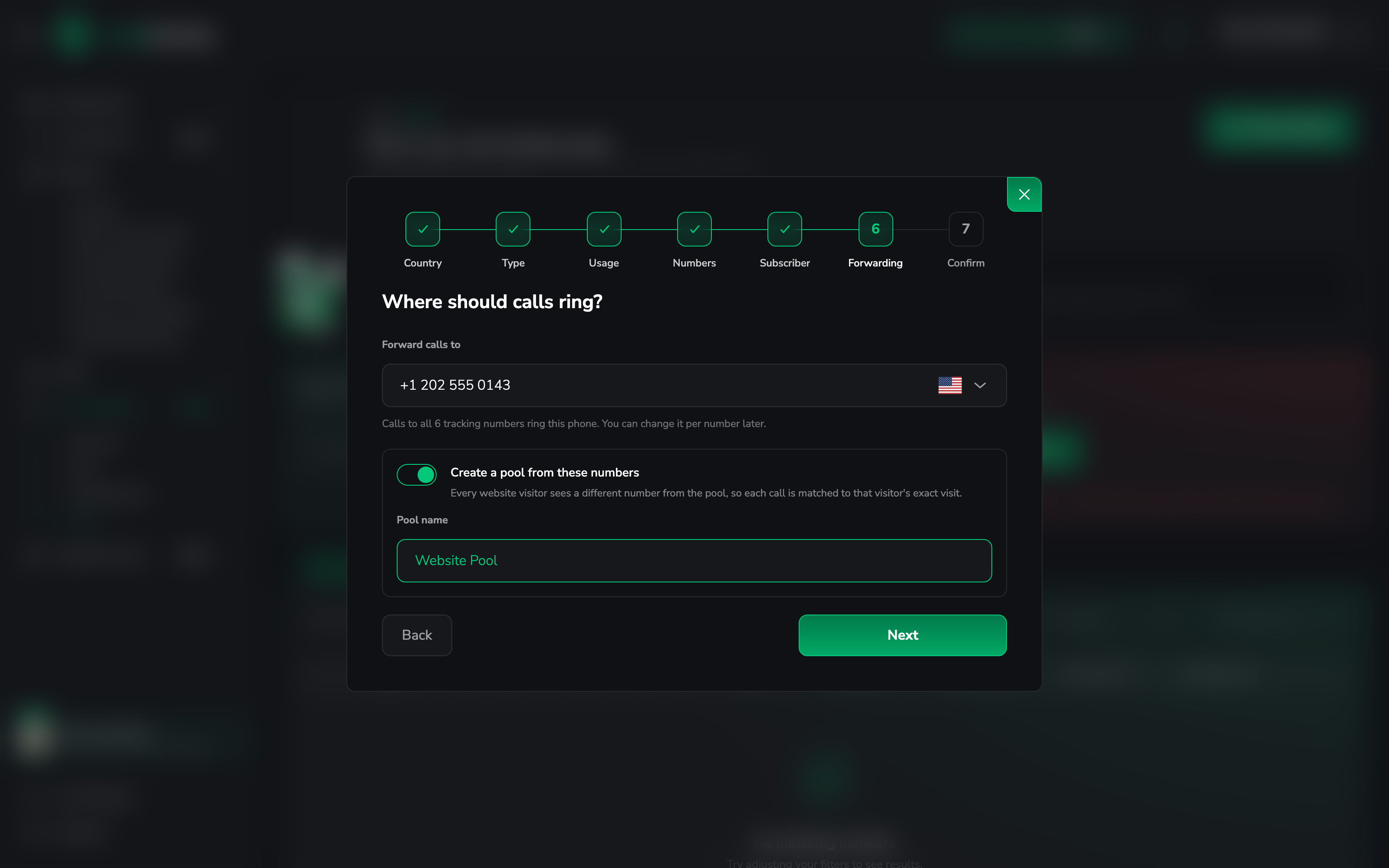
Forwarding and pool
Under Forward calls to, enter the phone number that should ring, usually your office or sales line. All the numbers you're buying forward there. You can change it per number later.
For website numbers, switch on Create a pool from these numbers and give the pool a name, for example Website Pool. That saves you building the pool by hand afterwards.
Review and purchase
Check the summary: numbers, forwarding target, usage, recording and the new pool. You can give each number a name, for example Google Ads DE or Flyer spring, which makes the call log easier to read. Then click Purchase.
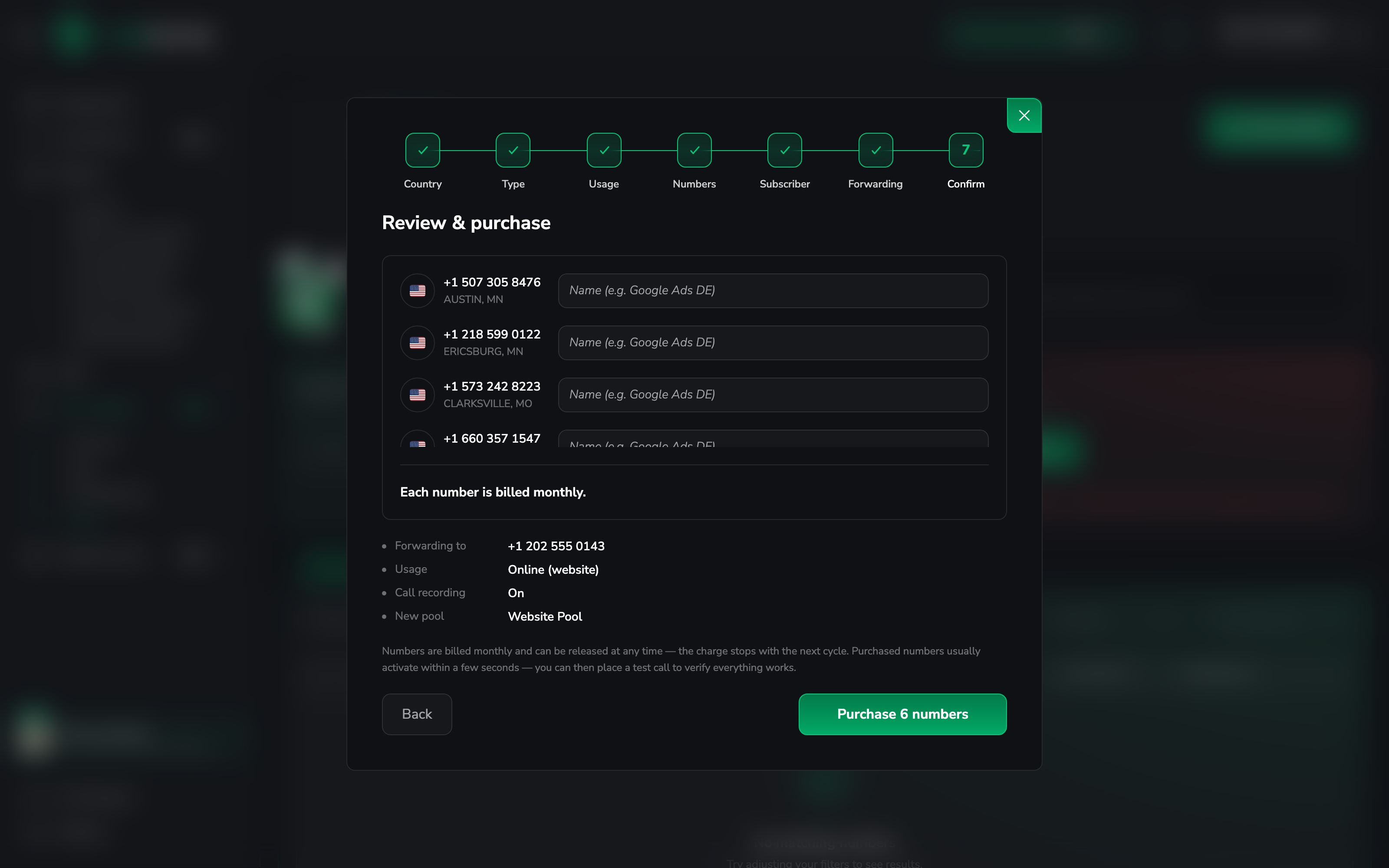
Numbers usually activate within seconds. In countries that need paperwork they show Docs required or In review in the list until the regulator approves them.
Step 3: Test a number
Before you go live, call it once. In the number list, open the row menu and choose Test number (call it now), click I'm ready, start test and dial the number from your phone.
LeadJourney confirms that the call was received, forwarded to your phone, logged in Calls (tagged test-call) and, if recording is on, recorded.
Step 4: Static numbers: assign a traffic source
If you only use website numbers, skip this step.
A static number is attributed to whatever source you assign. In the number list, open the row menu of the offline number, choose Assign to traffic source, pick the source (for example Print, Radio or Google My Business) and click Assign source. Every call to that number is attributed to that source from then on.
Step 5: Website numbers: switch on dynamic number insertion
Switch to the Website script step at the top of the setup page.
Turn on dynamic number insertion
The Dynamic number insertion switch controls everything below it. While it's off, your website is never modified. Turn it on.

Make sure the tracking script is installed
Section 1, Tracking script shows your snippet. If it's already on your site for form tracking,
you don't need to do anything. If not, copy it into the <head> of every page. See
Install the tracking script.

Tell the pool which number to replace
Under 3, Pools & numbers to replace, click Configure next to your pool (or, on the Pools tab, open the row menu and choose Set up website & numbers to replace). Then fill in:
- Website: the site that runs the tracking script.
- Numbers to replace on your site: the phone number currently shown on your website, written any way you like. The script finds it with or without country code, spaces, dashes or brackets. Add another number if your site shows more than one.
- Numbers in this pool: tick the numbers visitors should rotate through.
Save, and the pool changes from Needs setup to Configured.

Your visible number can stay the same
If people call you through a button or link whose text isn't a phone number ("Call us now", a phone icon), only the link target changes and the page looks exactly as before. For the details, see How dynamic number insertion works.
Verify the installation
Under 4, Verify installation, enter a page URL from your site and click Verify. LeadJourney checks that the script is live and that the numbers are actually being swapped.

You can also check it yourself: open your website in a private window and look at the phone number. It should be one of your pool numbers.
Step 6: Lead creation, recording and notifications
The last sections of Website script apply to all your numbers, static and dynamic.
Lead creation. Switch on Automatically create a lead for every call if every call should become a lead. New callers become leads with the call's full attribution. Repeat callers are added to their existing lead. Leave it off if you'd rather link calls to leads by hand from the call details, because not every call is a lead.

Call recording. Record calls turns on recordings, transcripts and AI summaries. Recording laws differ by country, and many require you to tell the caller first, so add an announcement if yours does. A single number can still opt out in its forwarding settings.

Email notifications. The workspace owner is always told when a number needs documents, when the regulator rejects them, or when forwarding minutes run low. Add anyone else who should get these emails.
You're live
Calls now appear under Call Tracking → Calls with their source, recording, transcript and AI summary. Call Reporting shows which channels and campaigns produce calls. If lead creation is on, every caller also appears in the CRM with their full customer journey.
Common questions
Related articles
How dynamic number insertion works
What the script changes on your page, pool sizing and SEO.
Install the tracking script
The same snippet powers form and call tracking.
Connect CallRail
Using CallRail instead of LeadJourney's own numbers.
Lead Overview
Where a tracked call shows up on the person's journey.
Import conversions
Bring conversions that didn't happen on your website into LeadJourney: a CSV or Excel export from your CRM, or a single deal typed in by hand. Each row is matched to its lead and dated when it really happened.
How dynamic number insertion works
The technical explanation of LeadJourney's call tracking – how a visitor gets their own number, what the script actually changes on your page, how many numbers a pool needs, and what it means for your NAP consistency and SEO.