Features
Import conversions
Bring conversions that didn't happen on your website into LeadJourney: a CSV or Excel export from your CRM, or a single deal typed in by hand. Each row is matched to its lead and dated when it really happened.
Not every conversion happens in a browser. A deal closes on the phone, your CRM isn't connected yet, or you want the last six months of sales in your reports from day one. Import takes a file – or a single conversion – and files each row on the right lead, on the date it really happened.
What you can import
- Any of your events – leads, purchases, booked calls, won deals – one event per file, or several at once when a column in the file says which.
- CSV or Excel (
.csv/.xlsx), up to 10,000 rows per import. - Or one conversion by hand, for the single deal that just closed.
Where to find it
Open the CRM tab (the Lead Overview) and click Import in the toolbar above the table.

Step by step
The wizard has five steps – Conversion, Template, Upload, Match columns, Review – and you can go Back at any point without losing what you've done.
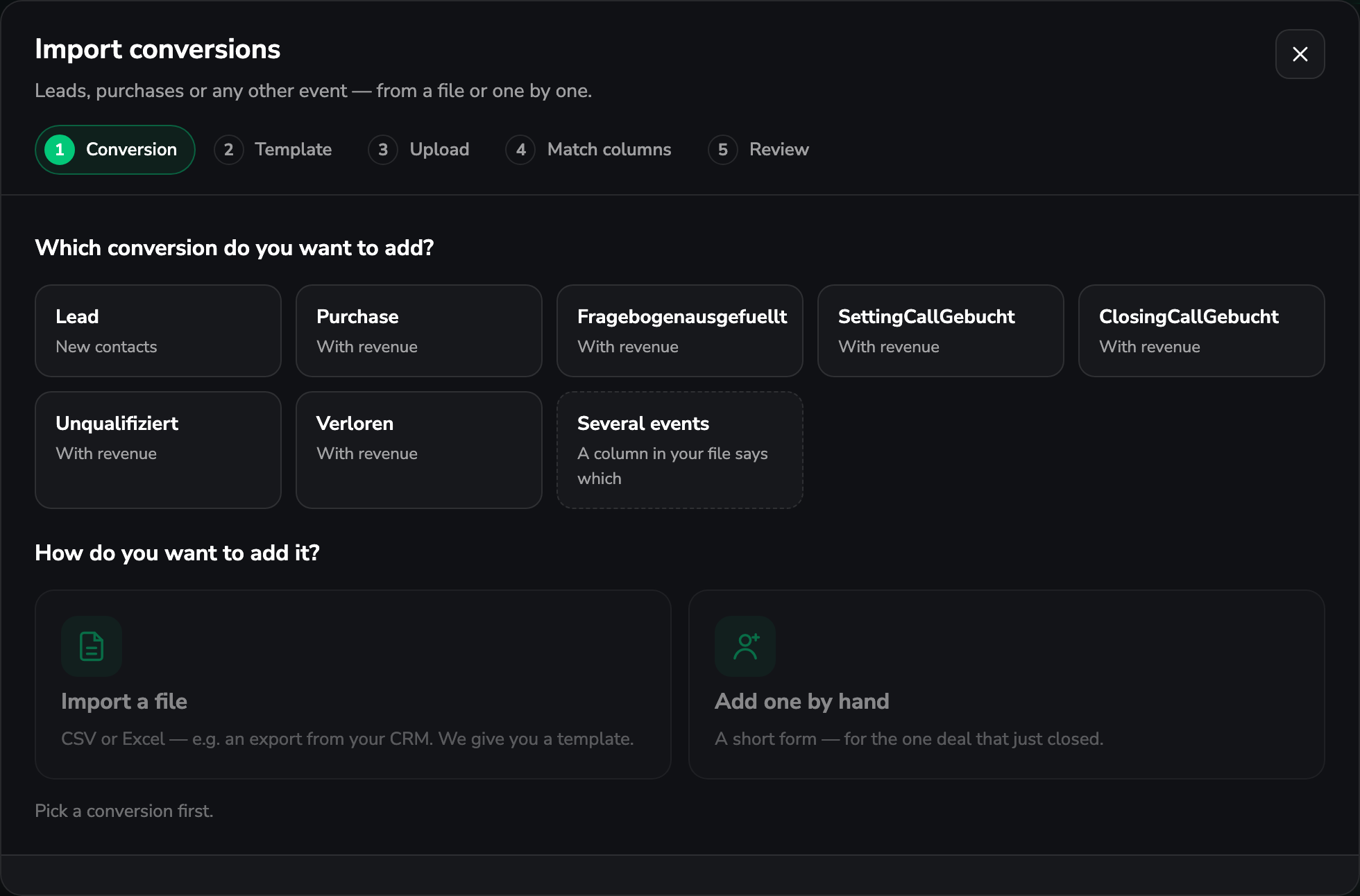
Pick the conversion and how you're adding it
Which conversion do you want to add? lists your workspace's events, plus Several events for a file where a column names the event per row.
Then How do you want to add it?: Import a file (a CSV or Excel export from your CRM) or Add one by hand (a short form for a single conversion).
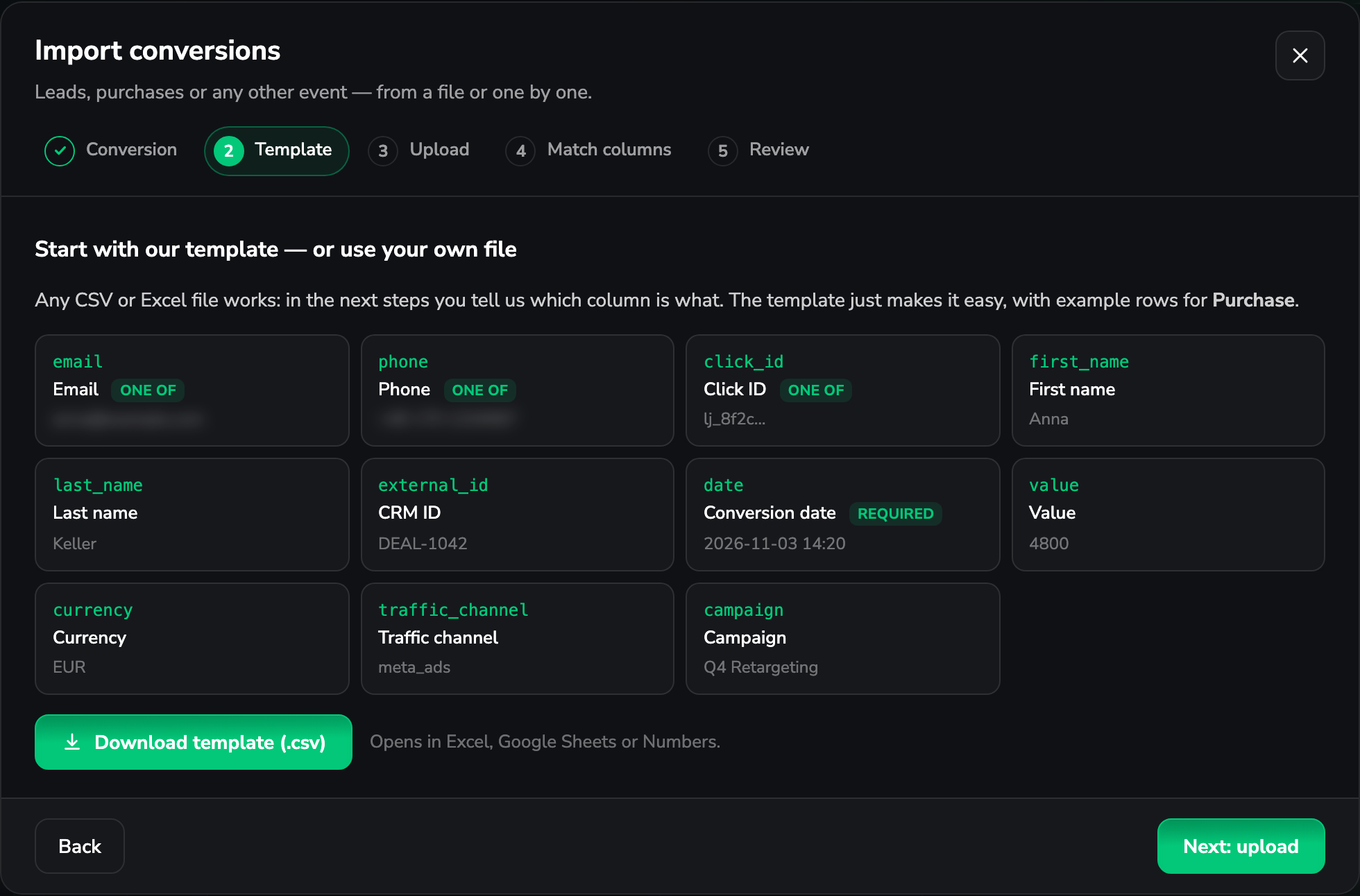
Take the template – or bring your own file
Any CSV or Excel file works; you say which column is what in a later step. The template just saves you the guesswork: it has the right columns and example rows for the event you picked.
Download template (.csv) opens in Excel, Google Sheets or Numbers.
Upload the file
Drop the file on the upload area or click to choose one. The file needs a header row and at least one data row.
Limits
.csv and .xlsx only, and at most 10,000 rows per import. Bigger exports go in several
files – re-importing is safe when your rows carry a CRM ID (see below).
Match the columns
LeadJourney matches what it can on its own – a column called email, E-Mail-Adresse or mail
all land on Email. Your file's columns are on the left, the LeadJourney field each one goes
into on the right. Change any row, or set a column to Don't import.
The three chips at the top show what's still missing before you can continue.

Review, then import
Check n rows runs every row against your existing leads and sorts them: ready to import, add to existing leads, create new leads, have errors — skipped and no lead found — skipped. Each row shows which lead it matched and what it matched by.
Three options sit next to the summary:
- No matching lead? – Create a new lead (the default) or Skip the row.
- Tag every imported conversion – optional, e.g. the trade fair or CRM export this file is from. Added on top of the tags in your file.
- Also send to ad platforms – off by default. See the callout below.
Then start the import. When it's done you get the count, and Import more or Done.
What every row needs
| Field | Why | |
|---|---|---|
| One of | Email, Phone or Click ID | It's how the row finds its lead. |
| Required | Conversion date | The date that counts in your reports – not the day you import. |
| Optional | Value | Revenue for this conversion. |
Everything else is optional, and you only map what you have.
The fields you can map
| Field | What it is |
|---|---|
| Email, Phone | Identify the lead. |
| Click ID | The LeadJourney click ID your form passed to your CRM. The most exact match – and the only way to attribute a brand-new lead. |
| CRM ID | Your CRM's own ID for the deal or contact. Re-importing the same ID updates instead of duplicating. |
| First name, Last name, Full name | Who the lead is. |
| Event | Only for a Several events file: the event name per row. |
| Conversion date | When it happened. |
| Value, Currency | Revenue of this conversion. |
| Traffic channel, Campaign, Ad group / ad set, Ad, Keyword | Attribution you set by hand, for leads LeadJourney has never seen. |
| Tags | Comma- or semicolon-separated; merged with the tag you set for the whole import. |
| Your custom fields | Every custom field in your workspace can be imported too. |
Dates and numbers
The date column is the one people most often have in an unexpected shape, so it's forgiving:
2026-11-03, 03.11.2026, 03/11/2026, with or without a time, an ISO timestamp
(2026-11-03T14:20:00Z) or a Unix timestamp all work. An Excel date cell works as-is.
Values take both conventions: 1.250,50 and 1,250.50 both arrive as 1250.50, and currency
symbols are stripped.
How a row finds its lead
LeadJourney looks for an existing lead in this order:
- Click ID – exact, and it ties the conversion to the click that earned it.
- Email or phone – the usual case for a CRM export.
- CRM ID – finds a row you've imported before and updates it.
No match? Create a new lead makes one; Skip the row leaves it out. Several rows for the same new person share one lead, not one each.
A new lead without a click ID can't be attributed
If a row creates a lead and carries neither a click ID nor a traffic channel, LeadJourney
doesn't know where that person came from and files it under a fallback source. For imports of
historical CRM data this is normal – but where you can, bring the click ID along (see
Read and store the click ID), or set
Traffic channel by hand, e.g. meta_ads.
Sending imported conversions to your ad platforms
Also send to ad platforms forwards the imported conversions to Meta, Google & Co. exactly like live ones – but only for events that have Send back to Ads switched on.
Old conversions get rejected
Ad platforms refuse conversions that are too far in the past. For a backfill of historical data, leave this off: the data still lands in your LeadJourney reports, it just isn't pushed to the platforms. Switch it on for recent conversions you want to optimise on.
Adding a single conversion by hand
Add one by hand skips the file entirely: a short form with the lead's email, phone or click ID, the date, the value, and – for a lead LeadJourney doesn't know yet – the channel, campaign, ad set, ad and keyword. Picking a channel first narrows what you're asked for: a keyword field only appears for search channels, and Meta's ad group is labelled Ad set. Where your ad accounts are connected, the campaign, ad set and ad fields suggest the real names.
Troubleshooting
“Needs an email, phone or click ID to find the lead.”
That row has none of the three. Add one of them to the file, or map the column that holds it.
“Can't read the conversion date …”
The date in that row isn't one of the formats above – often a text cell like Nov 3rd or a
column that mixes formats. Fix it in the file and upload again.
“Unknown event …” on a Several-events file
The event column has a value that doesn't exist in your workspace. The file may name the event by its label or its type, but it has to exist – create it in Events first.
A channel is kept “as written”
The value in Traffic channel isn't one LeadJourney knows. Use the channel's key
(meta_ads) or its name as it appears in your workspace – see
Traffic channels.
The file is rejected
Only .csv and .xlsx are read, the file needs a header row plus at least one data row, and
10,000 rows is the limit per import.
Common questions
Related articles
Lead Overview
Every lead in one table, with first- and last-touch source, CRM status, tags, revenue and full journey. Click any lead to see its complete timeline of clicks, conversions and sales – the person behind the numbers.
How dynamic number insertion works
The technical explanation of LeadJourney's call tracking – how a visitor gets their own number, what the script actually changes on your page, how many numbers a pool needs, and what it means for your NAP consistency and SEO.