Integrations
Connect Bing Ads
Connect Microsoft Advertising (Bing Ads) as a traffic channel, link your ad accounts via OAuth and tag your campaigns so LeadJourney attributes every lead and sends offline conversions back.
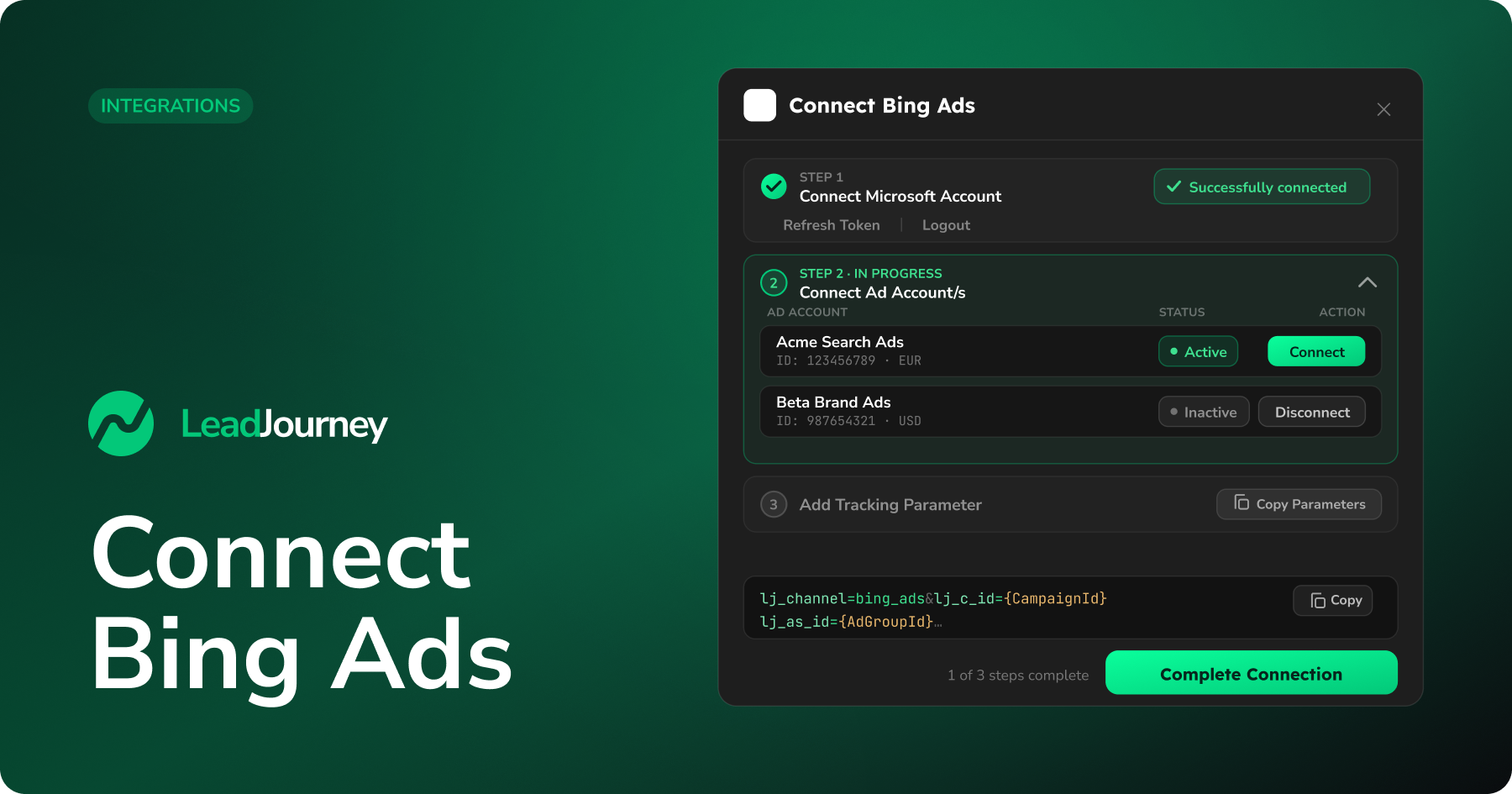
Connecting Bing Ads lets LeadJourney pull in your Microsoft Advertising campaign data and send offline conversions back to Microsoft – so every lead is attributed to the right campaign, ad group and ad.
Before you start
You'll need an active LeadJourney workspace and a Microsoft account with access to the Microsoft Advertising (Bing Ads) ad accounts you want to track. There's no pixel or access token to paste – the connection runs entirely through Microsoft's OAuth login.
Where to find it
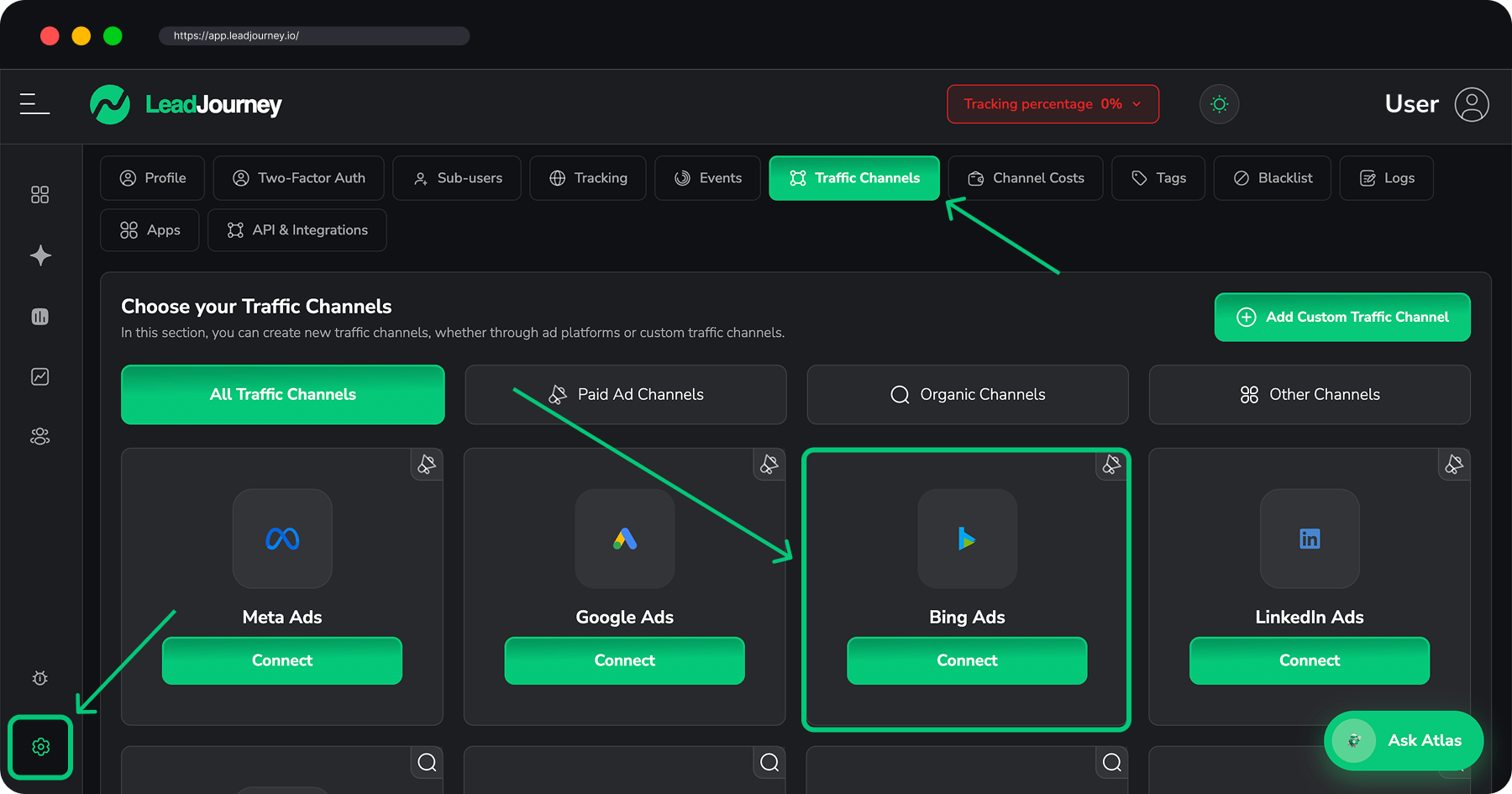
In LeadJourney, open Settings → Traffic Channels, find Bing Ads in the channel list and click it. The “Connect Bing Ads” dialog opens and walks you through three steps: connect your Microsoft account, choose your ad accounts, and add the tracking parameters.
Step by step
Connect your Microsoft account via OAuth
Under Step 1, click Connect Microsoft Account. You'll be taken to Microsoft – sign in and accept the permissions LeadJourney requests so it can read your ad accounts and send conversions back.
When you return, the button changes to “Successfully connected”, and you'll also see Refresh Token and Logout options for later.
Connect your ad accounts
Under Step 2 – Connect Ad Account/s, the ad accounts from your Microsoft Advertising profile appear in the All Connected Accounts table, with their Ad Account ID, Name, added date and currency. Use the search box to find a specific account by name or ID.
For each account you want to track, click Connect in the Action column – its Status switches to Active. To stop tracking an account later, open this dialog again and click Disconnect.
Only accounts marked Active here send data to and from LeadJourney. Accounts left Inactive are ignored.
Add LeadJourney's tracking parameters to your campaigns
Under Step 3 – Add Tracking Parameter, click Copy Parameters and paste the string into the URL options of your Microsoft Advertising campaigns – either the Tracking template or the Final URL suffix, at the account, campaign or ad-group level:
lj_channel=bing_ads&lj_c_id={CampaignId}&lj_as_id={AdGroupId}&lj_ad_id={AdId}&lj_keyword_id={TargetId}&lj_keyword={keyword}The {CampaignId}, {AdGroupId}, {AdId}, {TargetId} and {keyword} are Microsoft
Advertising's dynamic URL parameters – Microsoft fills them in automatically on every
click. Paste the string exactly as shown.
Click Complete connection to finish.
Keeping the connection healthy
- Data stopped updating? Open the channel again and click Refresh Token.
- Disconnect Bing Ads anytime with Logout in Step 1, or Disconnect an individual ad account in Step 2.
Troubleshooting
No conversions showing up?
Check that (1) your Microsoft account is still connected in Step 1, (2) each ad account you care about shows Active in Step 2, and (3) the tracking parameters are actually set in the URL options of your live Microsoft Advertising campaigns.
Related articles
Add tracking parameters to LinkedIn Ads
Step-by-step guide to adding LeadJourney's lj_ tracking parameters to your LinkedIn Ads campaigns, so every click is attributed to the right campaign, ad set and ad.
Add tracking parameters to Bing Ads
Step-by-step guide to adding LeadJourney's lj_ tracking parameters to your Microsoft Advertising (Bing Ads) campaigns, so every click is attributed to the right campaign, ad group, ad and keyword.