Integrations
Connect Multiple Ad Accounts
You're not limited to a single ad account. Connect as many Meta, Google, LinkedIn and Microsoft (Bing) ad accounts as you need – all from one login per platform.
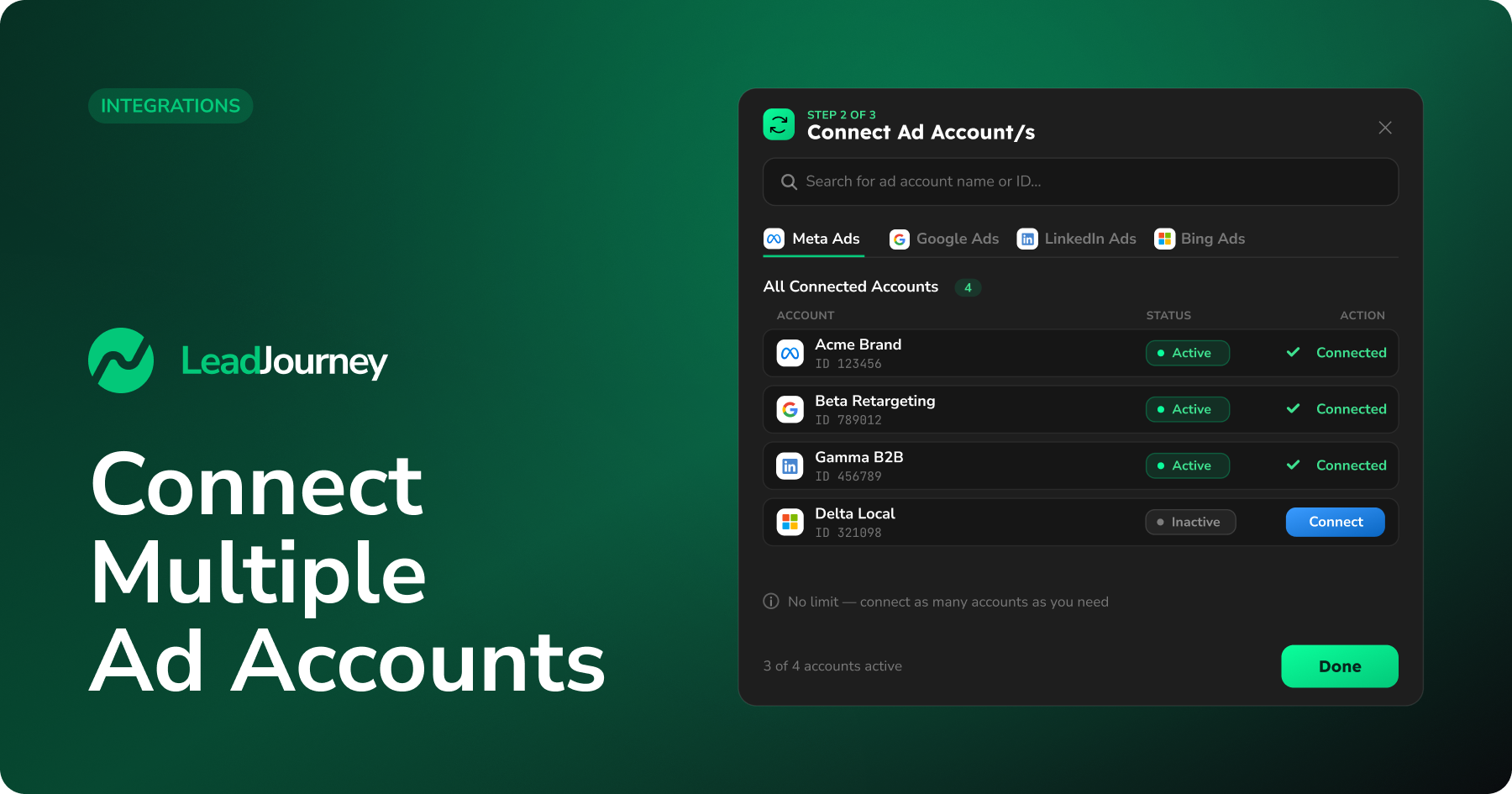
LeadJourney is not limited to one ad account per platform. After you connect a platform once via OAuth, every ad account you have access to shows up in a list – and you can connect as many of them as you like. This works the same way for Meta Ads, Google Ads, LinkedIn Ads and Microsoft (Bing) Ads.
In short
Connect the platform once, then turn on every ad account you want to track. Agencies, multi-brand businesses and anyone running several accounts can pull them all into a single LeadJourney workspace – no extra login per account.
Where to find it
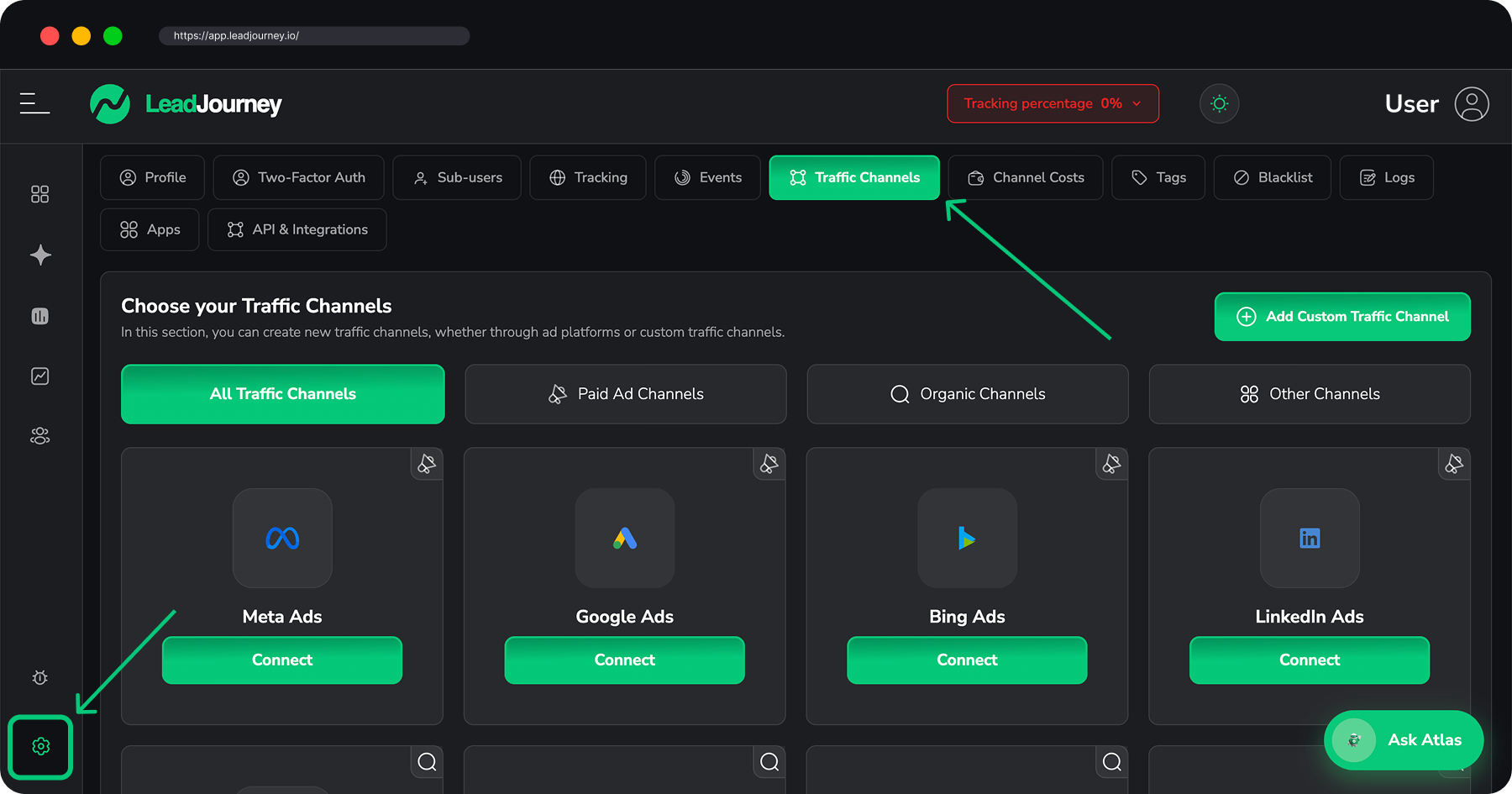
In LeadJourney, open Settings → Traffic Channels, or go straight to app.leadjourney.io/settings?slug=traffic-channels. Pick the platform you want – Meta Ads, Google Ads, LinkedIn Ads or Bing Ads – and its Connect dialog opens.
How multiple accounts work
Every platform dialog follows the same three steps:
- Step 1 – Connect via OAuth. You log in to the platform once (Facebook, Google, LinkedIn or Microsoft).
- Step 2 – Connect Ad Account/s. All ad accounts you have access to appear in an All Connected Accounts table. This is where you connect more than one.
- Step 3 – Map pixels / add tracking parameters, depending on the platform.
The key step is Step 2 – notice it's labelled "Connect Ad Account/s". That /s is the hint: one OAuth login can expose dozens of ad accounts, and you decide which ones to track.
Step by step
Open the platform and connect via OAuth
Under Step 1, click the connect button (e.g. Connect Facebook Account, Connect your Google Account). Accept the permissions LeadJourney requests so it can read your ad accounts. You only do this once per platform, no matter how many accounts you plan to add.
When you return, the button shows Successfully connected, along with Refresh Token and Logout options for later.
Find your accounts in the list
Under Step 2 – Connect Ad Account/s, the All Connected Accounts table lists every ad account your login can reach. Each row shows its Account ID, Account Name and a status of Active or Inactive.
Use the search box ("Search for ad account name or ID…") to find a specific account if the list is long.
Google manager (MCC) accounts
If you log in with a Google manager (MCC) account, the table groups its sub-accounts underneath it. Expand the manager account to see and connect each child account individually.
Connect each account you want to track
Turn on every account you want LeadJourney to track:
- Meta Ads – open the account's row, map it to a Pixel / Dataset (you can reuse one pixel across several accounts) and click Save & Connect. Repeat for each account.
- Google, LinkedIn & Bing Ads – click Connect on each account row. Use Disconnect to stop tracking an account again at any time.
A connected account flips to Active. There's no limit – connect 2, 10 or every account in the list.
Add tracking parameters (per platform)
Finish with Step 3: map your pixels (Meta) or copy LeadJourney's tracking parameters into your campaigns (Google, LinkedIn, Bing). These apply across all the accounts you connected on that platform, so you only set them up once. See Connect Meta Ads for the full Meta walkthrough.
Click Done to close the dialog.
Mixing platforms
You can connect multiple accounts on several platforms at the same time. A typical setup might be three Meta ad accounts, two Google Ads accounts and one LinkedIn account – all feeding the same LeadJourney workspace. Each platform keeps its own OAuth connection and its own All Connected Accounts list, so they don't interfere with one another.
Adding or removing accounts later
You don't have to connect everything up front. Reopen the platform dialog any time to:
- Connect another account – it appears in the same table; just connect it.
- Disconnect an account – click Disconnect (Meta: remove the account's mapping). Its status returns to Inactive and LeadJourney stops tracking it.
Need more accounts than you can see?
The list only shows ad accounts your logged-in user has access to on the platform. If an account is missing, make sure your platform user is granted access to it (in Meta Business, Google Ads, etc.), then click Refresh Token and reopen the list.
Troubleshooting
An account I expected isn't in the list
LeadJourney can only see accounts your platform login can access. Add your user to the missing ad account on the platform side, then use Refresh Token in Step 1 and reload the table.
A connected account shows no data
Confirm the account's status is Active, that (for Meta) it's mapped to a valid pixel with a working Conversions API token, and that your tracking parameters are live on that account's campaigns.
Related articles
Connect ChatGPT Ads
Connect ChatGPT Ads with an API key per ad account. LeadJourney syncs campaigns, ad groups, ads and spend, and sends conversions back to OpenAI – including the two keys that look alike but aren't interchangeable.
API access & tokens
Create a personal API token to connect external tools like Zapier to LeadJourney. Generate, copy and revoke tokens, and find your API base URL.