Integrations
Connect X Ads
Connect X Ads with one sign-in. LeadJourney syncs spend and performance down to ad level, pulls in your creatives, sends conversions back through the X Conversions API, and syncs lead segments as Custom Audiences.
Connecting X Ads does two things at once: it pulls your spend and performance into LeadJourney so every campaign, ad group and ad gets a real cost per lead, and it sends your conversions back to X so the platform can optimise on what actually happened rather than on form fills.
What the connection covers
- Spend and performance for campaigns, ad groups and ads, plus your ad creatives.
- Conversions back to X server-side through the X Conversions API – this needs an X Pixel.
- Lead segments as Custom Audiences through Audience Sync.
- Optional auto-tagging of the website cards on your promoted posts.
Before you start
- An X user that has access to your ad account in ads.x.com.
- Tracking is live on your site – see Install the tracking script.
- The conversion types you want to report back, set up in the Events Manager.
Where to find it
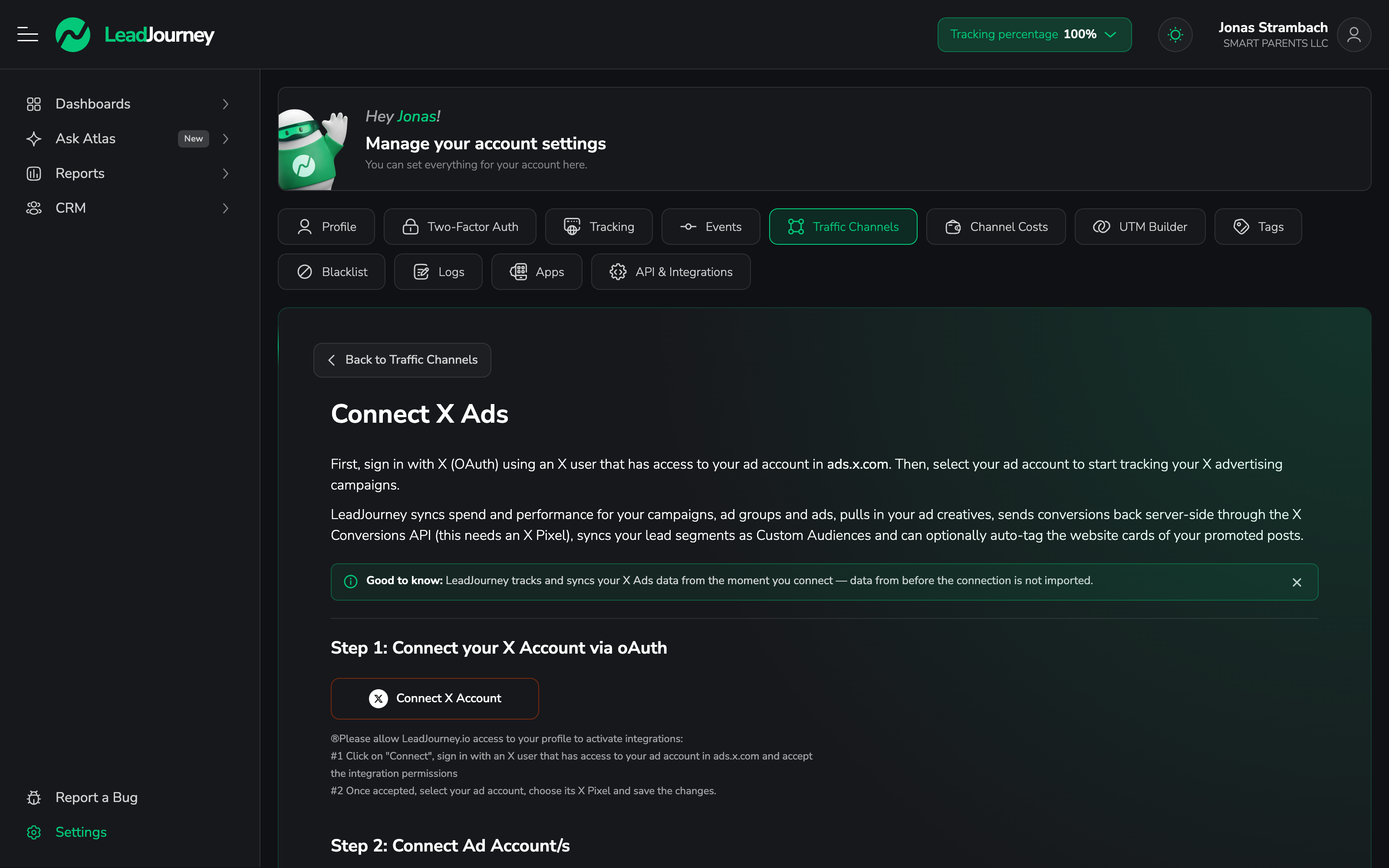
Open Settings → Traffic Channels, find the X Ads card and click Connect.
Step by step
Connect your X account via OAuth
Under Step 1, sign in with X. Use an account that can reach the ad account you want to track. After you approve, the step shows Successfully connected, with Refresh Token, Resync Accounts and Logout next to it.
Connect your ad accounts
Under Step 2, the ad accounts your X user can reach appear in a table. Switch on the ones this workspace should track. Spend and performance start syncing from that moment – data from before the connection is not imported.
Map events to X Ads
Under Step 3 – Map Events to X Ads, decide how each LeadJourney conversion is named when it
goes back to X as an offline conversion. Every event gets a row, prefilled with
<Event> by LeadJourney. Rename what you want X to recognise; whether an event is sent back at all
is controlled by its Send back to Ads? switch in the
Events Manager, not here.
Conversions back to X need a pixel
The X Conversions API posts to an X Pixel, chosen per ad account. X has no documented pixel-listing API, so LeadJourney can't offer you a dropdown – you paste the Pixel ID by hand for each account. Without it, spend and performance still sync, but nothing goes back to X.
Add the tracking parameter
Under Step 4 – Add Tracking Parameter, copy LeadJourney's parameter string and add it to your campaign URLs:
lj_channel=x_ads&lj_c_id=CAMPAIGN_ID&lj_as_id=AD_GROUP_ID&lj_ad_id=AD_IDX fills the CAMPAIGN_ID, AD_GROUP_ID and AD_ID placeholders and appends its own twclid
click ID to every ad click. If you'd rather not paste it into every campaign by hand, switch on
auto-tagging for the website cards of your promoted posts.
Syncing starts when you connect
LeadJourney tracks X Ads data from the moment you connect. Spend, campaigns and clicks from before the connection are not imported.
Keeping the connection healthy
- Refresh Token renews the authorisation without disconnecting anything.
- Resync Accounts pulls the ad account list again after you've been given access to a new one.
- Logout disconnects X entirely.
Troubleshooting
No spend showing up?
Check that (1) the ad account is switched on in Step 2, (2) your X login still has access to it in ads.x.com, and (3) enough time has passed – platform spend syncs on a schedule, not instantly.
Clicks arrive but aren't attributed to a campaign?
The tracking parameter is missing from the campaign URL, so LeadJourney sees the visit but not which campaign sent it. Re-copy the string from Step 4, or turn on auto-tagging.
Conversions aren't reaching X?
Three things to check: the Pixel ID is filled in for that ad account, the event's Send back
to Ads? switch is on, and the conversion actually carries a twclid. The
API Postbacks log shows each attempt with its status.
Related articles
Add tracking parameters to Bing Ads
Step-by-step guide to adding LeadJourney's lj_ tracking parameters to your Microsoft Advertising (Bing Ads) campaigns, so every click is attributed to the right campaign, ad group, ad and keyword.
Connect Reddit Ads
Connect Reddit Ads with one sign-in. LeadJourney syncs spend and performance down to ad level, sends conversions back to Reddit, and auto-tags your campaign URLs so every click is attributed.