Integrations
Connect Microsoft Dynamics 365
Connect your Dynamics 365 environment with one authorization, no API keys to copy. All fifteen triggers explained – leads, contacts, opportunities, quotes, orders and cases – plus how to map Dataverse fields so every deal is attributed to the campaign, ad set and ad that earned it.
Connecting Microsoft Dynamics 365 turns Dataverse record events – new leads, new opportunities, stage changes, closed-won deals and more – into LeadJourney conversions, automatically attributed to the campaign, ad set and ad that earned them. You authorize Dynamics once (no keys to copy), then map each Dynamics event onto one of your conversion types.
Mapped events flow through the same postback pipeline as your offline conversions, so a won opportunity automatically picks up every ad postback you've already configured – and Meta, Google, LinkedIn and Microsoft Ads start optimising on real revenue instead of form fills.
Before you start
Have these ready so the connection works end to end:
- An active LeadJourney workspace and a Dynamics 365 environment you can sign in to.
- Tracking is live, because clicks have to be recorded first so records can be matched back to a campaign. See Install the tracking script.
- A way to carry the click ID onto your Dynamics records, typically a custom column on the Lead (see the callout below).
- At least one conversion type to map onto (e.g.
WonClient). Set these up first in the Events Manager. - For the webhook registration, a Microsoft account with the System Administrator role in the environment you're connecting.
Where to find it
Open Settings → Apps, or go to
app.leadjourney.io/settings?slug=apps. Click the
Dynamics 365 card to open the integration (you can also jump straight to it with
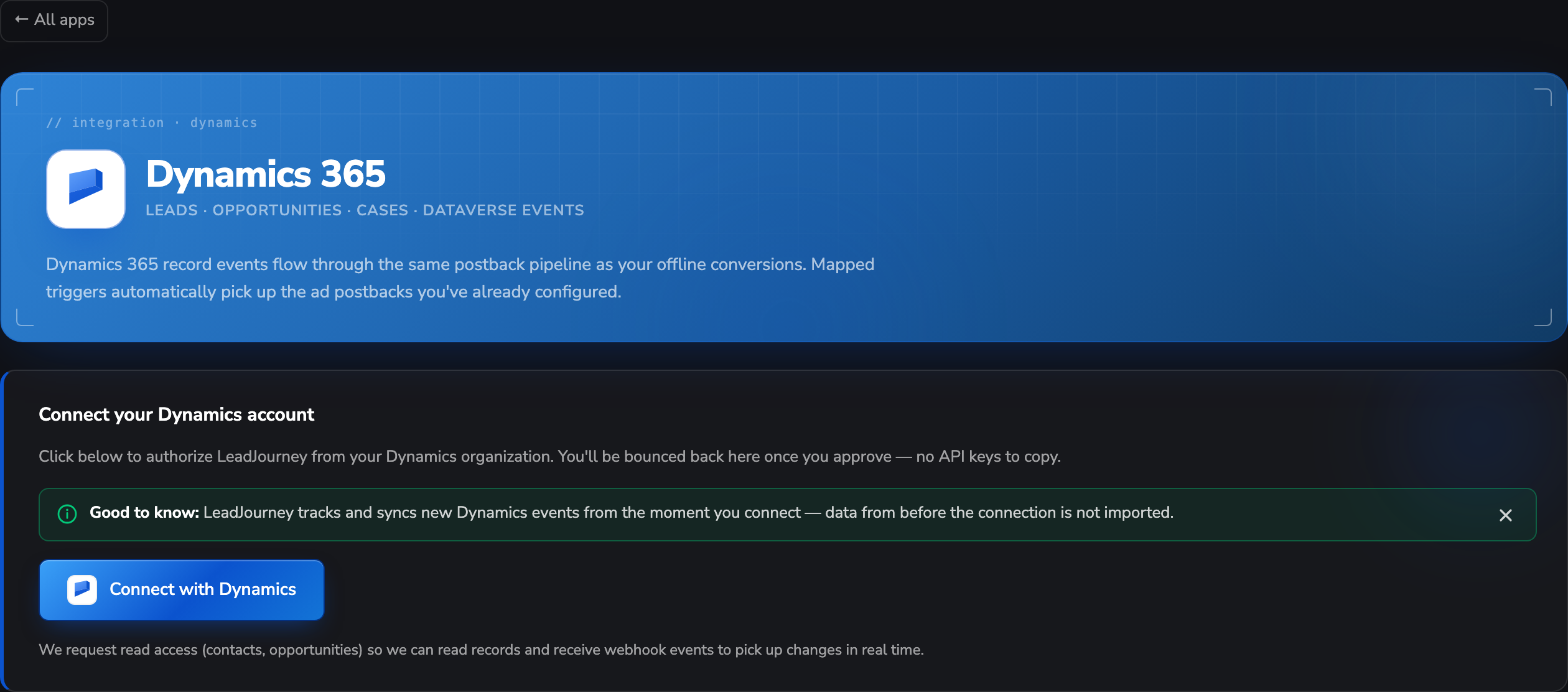
?slug=apps&app=dynamics). While you're not connected you'll see a “Connect your Dynamics
account” card; once connected, the same screen shows your environment and your triggers.
Step by step
Authorize LeadJourney from Dynamics
On the Connect your Dynamics account card, click Connect with Dynamics. You'll be redirected to Microsoft to sign in and approve LeadJourney's access. There are no API keys to copy.
LeadJourney requests read access (contacts, opportunities) so it can read records and receive webhook events to pick up changes in real time.
Syncing starts when you connect
LeadJourney tracks new Dynamics events from the moment you connect. Records and changes from before the connection are not imported.
Choose an environment
A Dynamics access token belongs to one environment, and every environment lives on its own
address (https://yourorg.api.crm4.dynamics.com). If your Microsoft account can reach more than
one, LeadJourney asks you to choose an environment right after the sign-in – usually your
production one.
Most customers have exactly one production environment and never see this step; that one is connected outright.
Nothing is saved until you pick
If you close the dialog without choosing, no half-connected account is left behind. Start the connection again and pick an environment to finish it.
Check the connection details
Once connected, the header shows a Live pill (or Needs reconnect if something breaks), plus Re-authorize and Disconnect buttons. Below it you'll see the Connection status, your Environment, Active triggers (active out of total) and the Connected since date.
Add a trigger
In the Triggers panel (“Each trigger maps a Dynamics record event to one of your conversions.”) click Add trigger. In the New Dynamics trigger dialog:
- App: Dynamics 365 (already selected).
- LeadJourney Event: pick the conversion type this Dynamics event should record, e.g.
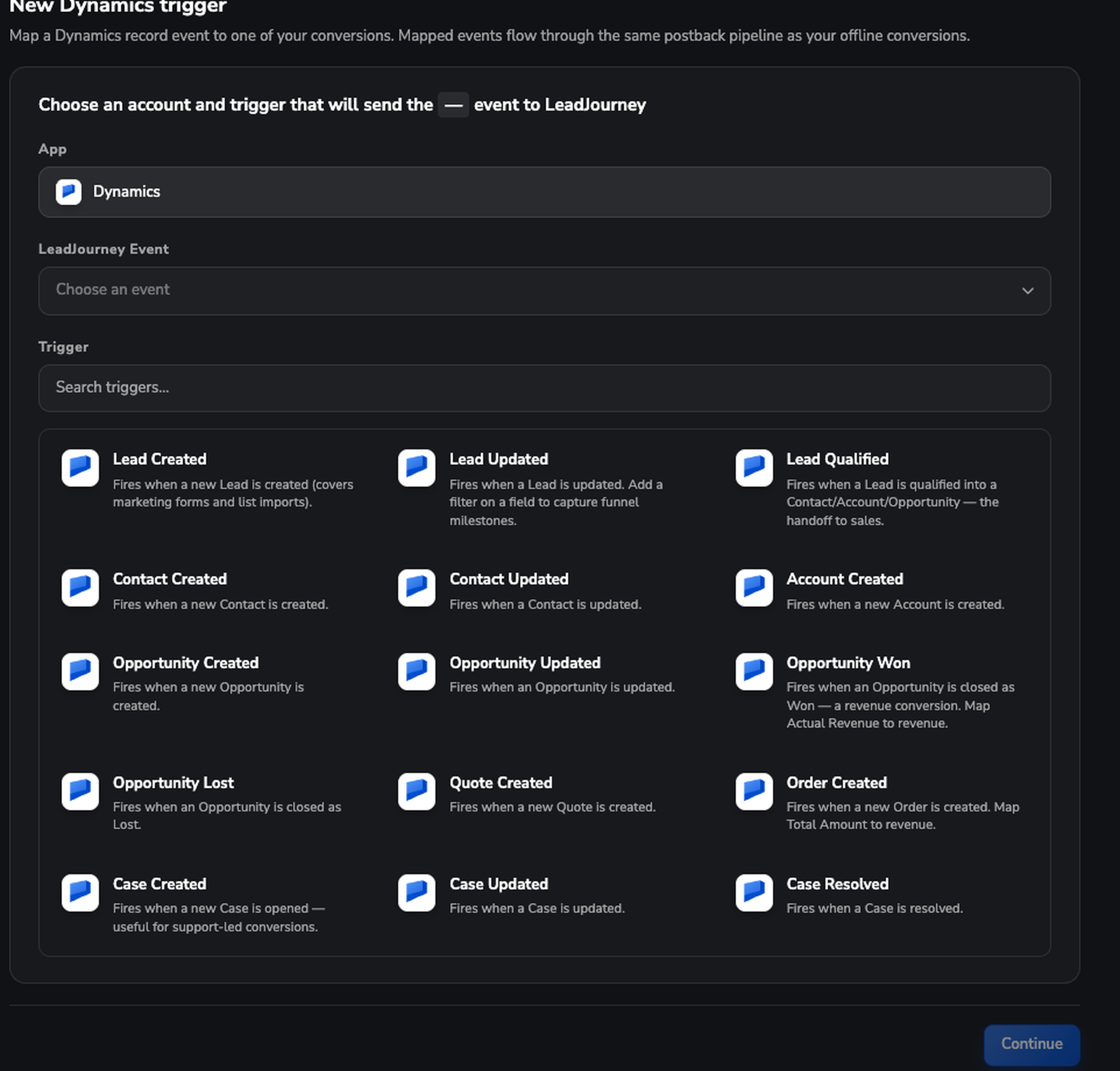
WonClient. (No options? Create one under Settings → Events first.) - Trigger: choose the Dynamics event from the card grid. Each card shows the event and a short description, and Search triggers… narrows the list. All fifteen are listed under The available triggers below.
Click Continue.
Receive data and confirm the mapping
The dialog opens a three-tab flow:
- Receive Data: click Find latest data to load the 3 most recent records for the event you picked. If no data appears, create a matching record in Dynamics and check again. Select the record you want to map against (expand it to see the raw payload), then click Continue with selected record.
- Configure Mapping: map the record onto LeadJourney columns. New triggers start with
Email, Name, Phone, click_id, Revenue and Currency, pre-filled where
LeadJourney finds a likely match. You can pick several paths for one column (they are joined
with a space) or type
static:valuefor a fixed value. Use Add custom field to add First name, Last name or one of your workspace's custom fields, or Create new field (type Text, Number or Currency). Mappingclick_idis recommended but optional. - Filtering (optional): click Add filter and set a Path, an Operator (equals, not equals, contains, greater than, less than, exists and more) and a Value. The trigger only fires when every filter matches.
Click Save & Continue to finish, or Save and continue later to keep your progress.
The available triggers
Dynamics 365 offers 15 triggers, grouped by the Dataverse table they watch. Pick the one that matches the milestone you want to count, then map it onto a conversion type.
Leads
| Trigger | Fires when |
|---|---|
| Lead Created | A new Lead is created. Covers marketing forms and list imports. |
| Lead Updated | A Lead is updated. Add a filter on a field to capture funnel milestones. |
| Lead Qualified | A Lead is qualified into a Contact, Account or Opportunity — the handoff to sales. |
Contacts and accounts
| Trigger | Fires when |
|---|---|
| Contact Created | A new Contact is created. |
| Contact Updated | A Contact is updated. |
| Account Created | A new Account is created. |
Opportunities
| Trigger | Fires when |
|---|---|
| Opportunity Created | A new Opportunity is created. |
| Opportunity Updated | An Opportunity is updated. |
| Opportunity Won | An Opportunity is closed as Won — a revenue conversion. Map Actual Revenue to revenue. |
| Opportunity Lost | An Opportunity is closed as Lost. |
Quotes and orders
| Trigger | Fires when |
|---|---|
| Quote Created | A new Quote is created. |
| Order Created | A new Order is created. Map Total Amount to revenue. |
Cases
| Trigger | Fires when |
|---|---|
| Case Created | A new Case is opened — useful for support-led conversions. |
| Case Updated | A Case is updated. |
| Case Resolved | A Case is resolved. |
Which ones most workspaces start with
Lead Created for the top of the funnel and Opportunity Won for revenue is enough to close the loop: leads tell you what your ads produce, won opportunities tell you what they're worth. Add Lead Qualified when you want to judge campaigns on lead quality rather than volume.
The “Updated” triggers need a filter
Lead Updated, Contact Updated and Opportunity Updated fire on every change to the
record, which is rarely what you want on its own. Add a filter on the Filtering tab so the
trigger only counts the change you care about — a status reaching a specific value, for example.
previous. paths are useful here, because they let you match the transition rather than the state.
Reading Dynamics field paths
Dynamics fields arrive under record. keyed by their Dataverse logical name, not the label you
see in the interface – so the email column is record.emailaddress1, not record.Email. Three
things are worth knowing when you build a mapping or a filter:
| Prefix | What it holds |
|---|---|
record. | The business row itself, e.g. record.emailaddress1, record.fullname, record.telephone1. |
previous. | On update events, the values as they were before the change – useful in filters to catch a specific transition. |
record.close. | On Opportunity Won / Lost, the close record, e.g. record.close.actualrevenue. |
Option sets, lookups and money columns also expose a _label sibling carrying Dynamics' own
display text – for example record.statuscode gives the raw value and record.statuscode_label
gives the text a user would read. Filters are usually easier to get right on the raw value; the
label is the better choice when you map something into a custom field for reporting.
Which revenue field to map
A won opportunity carries the realised figure in record.actualvalue, and the close record
holds the same number as record.close.actualrevenue. record.estimatedvalue is the forecast,
not the result – map it only if you deliberately want pipeline value rather than won revenue in
your reports.
How Dynamics records link to the right campaign
Dynamics doesn't capture LeadJourney's click ID on its own, so you store it on the record and map it here. The usual setup is a custom text column on the Lead that holds the visitor's click ID, filled by the form that creates the lead. On the Configure Mapping tab, point click_id at that column and every record arrives already tied to the click, and therefore the campaign, ad set and ad that earned it. No click ID? LeadJourney falls back to matching on email or phone. See Read and store the click ID.
Managing your triggers
Each trigger appears as a row (Dynamics event → conversion type) with an Active / Paused pill and a summary of how many fields and filters it uses.
- Pause / Resume: use the toggle to stop a trigger temporarily without deleting it.
- Edit: change the event, mapping, filters or target conversion. The URL gets a
trigger_idparameter, so you can share a link that opens that trigger directly. - Delete: type
deleteto confirm. The mapping and filters can't be recovered; other triggers keep running. - Add another: use Add trigger again to map more Dynamics events onto different conversions.
Sending won revenue back to your ad platforms
Dynamics events land as ordinary LeadJourney conversions, so the way back to the ad platforms is the one you already use: switch on Send back to Ads? for that event in the Events Manager. A won opportunity then goes back to Meta, Google, LinkedIn and Microsoft Ads as an offline conversion, with the revenue attached.
This integration reads from Dynamics, it doesn't write to it
LeadJourney requests read access, so it ingests record events and doesn't create or update records inside Dynamics. If you need LeadJourney data written onto a record, use the Conversion API from your own automation, or one of the CRMs with a Send data back panel – see Apps.
Reconnecting
If Microsoft revokes the app, the webhook isn't registered, or Dynamics is unreachable, the header flips to Needs reconnect and a banner explains why:
| Banner | What it means |
|---|---|
| Microsoft revoked the connection | The sign-in was revoked, or the app registration's client secret expired. Reconnect to restore the integration. |
| Events aren't registered yet | The connection works, but LeadJourney's webhook isn't registered in this environment, so no events arrive. Use the button in the banner to register it – this needs the System Administrator role in Dynamics 365. |
| Dynamics is unreachable | Dynamics' API didn't respond. This is often a temporary outage – try again in a minute. |
To refresh granted permissions while everything still works, use Re-authorize in the header. In both cases your triggers and settings are kept.
Disconnecting
To remove Dynamics, click Disconnect in the header and confirm. This is deliberate because it's destructive:
Disconnect deletes your triggers
Disconnecting permanently disconnects your Dynamics organization from the workspace and deletes every trigger. Dynamics events stop flowing into your conversions immediately. You can reconnect later, but your trigger configuration won't be restored, so you'll set it up again.
Troubleshooting
No records when you click “Find latest data”?
Nothing recent exists in Dynamics for that event yet. Create or update a matching record, then click Find latest data again. Only events from after you connected are available.
Connected, but no events arrive at all?
Check the header banner first. Events aren't registered yet means the webhook is missing in that environment – register it from the banner with an account that has the System Administrator role. If the header says Live, check that your trigger is Active and that its filters aren't excluding everything.
Records come in but aren't attributed to a campaign?
LeadJourney needs to know which click the record belongs to. Check that (1) the tracking script is installed and recording clicks, (2) your records carry the click ID in a custom column and the trigger maps click_id to it, and (3) the trigger is Active. As a fallback, email or phone can be used to match.
Common questions
Related articles
Apps overview
How the Apps page works and what else you can connect.
Events & the Events Manager
Define the conversion types your Dynamics triggers map onto.
Read and store the click ID
Get the click ID onto your Dynamics records so they're attributed.
Connect Microsoft Ads
Send won Dynamics revenue back to Microsoft Advertising.
Connect Salesforce
Connect your Salesforce organization with one authorization, no API keys to copy. Map Salesforce record events like new leads, new opportunities and stage changes onto your conversions, and push LeadJourney data back into Salesforce as records.
Connect Zoho CRM
Authorize Zoho CRM once — any data centre — and turn leads, contacts and deals into attributed conversions. LeadJourney adds the LJ Click ID field for you and can write leads back into Zoho.