Integrations
Connect Heyflow
Heyflow has no public API, so the connection is a webhook URL you paste into each flow — plus two settings inside Heyflow that make attribution work: pass URL parameters and a hidden lj_click_id field.
Connecting Heyflow turns flow submissions into LeadJourney conversions, attributed to the campaign, ad set and ad that earned them.
Heyflow has no public API
No OAuth, no API key. Connecting in LeadJourney only mints the webhook URL – everything else is done inside Heyflow, by hand, per flow. Budget a couple of minutes for each flow you want to track.
Before you start
- A Heyflow account with the flows you want to track.
- Tracking is live on the page that hosts the flow – see Install the tracking script.
- At least one conversion type to map onto – see Events & the Events Manager.
Where to find it
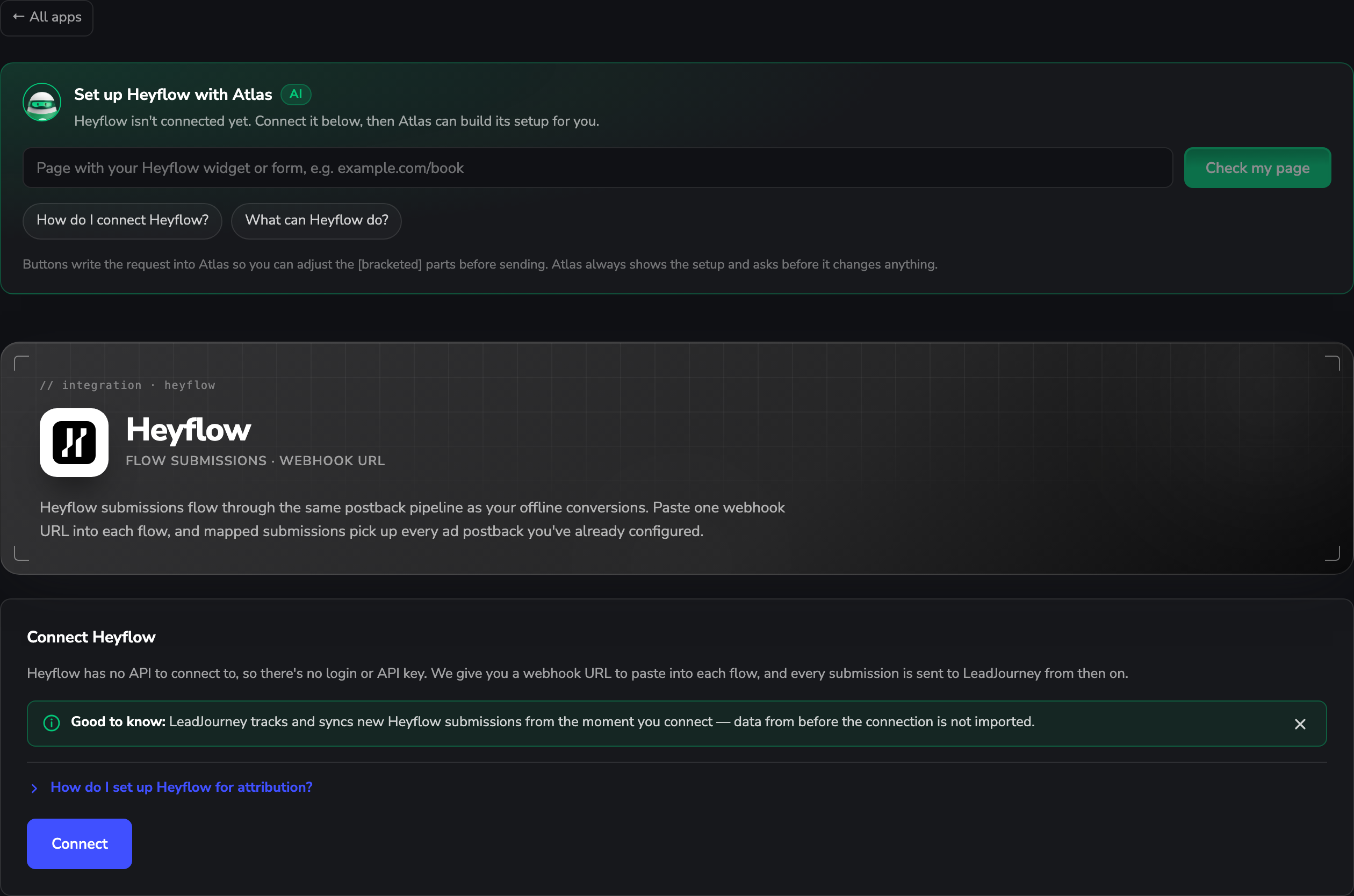
Open Settings → Apps, or go to
app.leadjourney.io/settings?slug=apps, and click
the Heyflow card (or use ?slug=apps&app=heyflow).
Step by step
Connect to get your webhook URL
Click Connect. LeadJourney gives you a webhook URL – that's all this step does.
Treat the URL as a secret
The token in the URL is what keeps your endpoint private. Paste it into Heyflow, not into a public document or a repository.
Paste the URL into every flow
In Heyflow, open your flow → Integrate → Webhook, paste the URL and activate it.
Repeat for every flow you want to track. There's no account-wide setting – a flow without the webhook simply sends nothing.
Turn on “Pass URL parameters”
Still in Heyflow, open the flow's Settings → Tracking and switch on Pass URL parameters.
Without this, the flow never sees the parameters on your landing-page URL – and the click ID in the next step stays empty.
Add a hidden lj_click_id field
Add a hidden input field to the flow with the variable name lj_click_id.
LeadJourney's tracking script fills it from the landing-page URL, which is what ties each submission to the ad that produced it. See Read and store the click ID.
Submit once, then map it with a trigger
Submit the flow once – Heyflow's Test button works – so LeadJourney has a real submission to show you.
Then, in the Triggers panel, click Add trigger, pick the LeadJourney Event the submission should record, and go through the three tabs: Receive Data (Find latest data picks up your test submission), Configure Mapping (map Email, Name, Phone, click_id, Revenue and Currency onto your flow's fields) and Filtering (optional).
Click Save & Continue.
Troubleshooting
No submissions arrive at all
The webhook isn't active on that flow. Each flow needs its own webhook under Integrate → Webhook – check the one you actually submitted.
Submissions arrive but click_id is empty
Two usual causes: Pass URL parameters is off under Settings → Tracking, or the hidden
field isn't named exactly lj_click_id. Both are per flow.
“Find latest data” shows nothing
LeadJourney hasn't received a submission yet. Submit the flow once (the Test button is enough) and check again.
Submissions aren't attributed to a campaign
Check the click ID chain end to end: tracking script on the hosting page → Pass URL
parameters on → hidden lj_click_id field → click_id mapped in the trigger. Email and
phone are the fallback – see Missing leads.
Common questions
Related articles
Connect Jotform
Connect Jotform with an account API key. LeadJourney registers a webhook on every form and can add an lj_click_id field for you, so each submission is attributed to the ad that drove it.
Connect Calendly
Connect your Calendly account in minutes – no API keys, no webhooks to wire by hand. Authorize once, then map booking events like meetings booked, cancellations and no-shows straight onto your conversions.