Integrations
Connect Swoogo
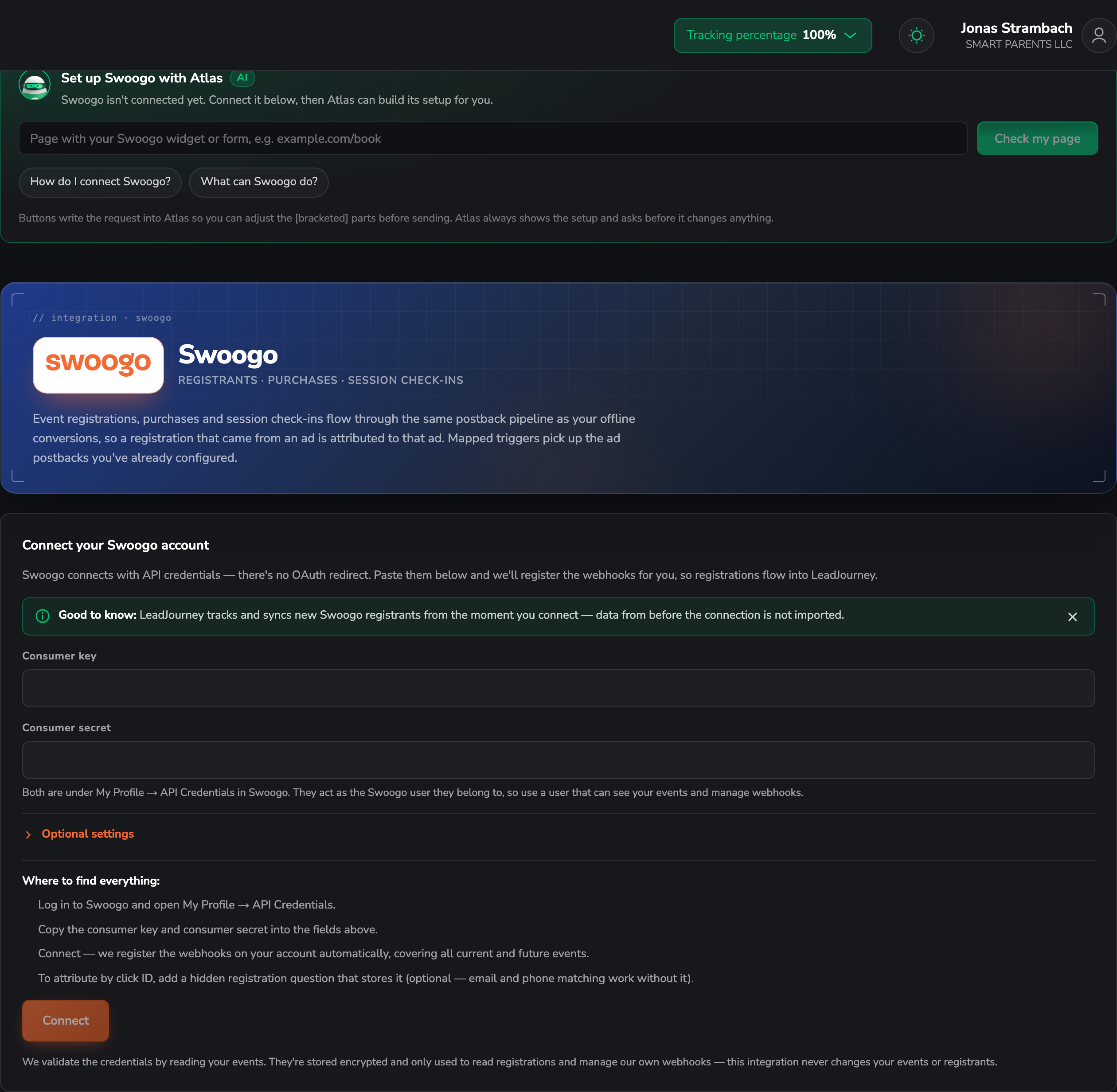
Connect Swoogo with a consumer key and secret — LeadJourney registers the webhooks for all current and future events. Registrants, purchases and session check-ins become attributed conversions.
Connecting Swoogo turns registrants, purchases and session check-ins into LeadJourney conversions, attributed to the campaign, ad set and ad that earned them.
What the connection covers
- 4 triggers across registrants, purchases and session check-ins.
- Webhooks are registered for you, covering all current and future events – nothing to repeat per event.
- Attribution by click ID is optional: email and phone matching work without it.
Before you start
- A Swoogo consumer key and secret – self-service, from your own profile (see step 1). There's no app to register.
- Tracking is live – see Install the tracking script.
- At least one conversion type to map onto – see Events & the Events Manager.
Where to find it
Open Settings → Apps, or go to
app.leadjourney.io/settings?slug=apps, and click
the Swoogo card (or use ?slug=apps&app=swoogo).
Step by step
Get your API credentials
Log in to Swoogo and open My Profile → API Credentials. Copy the consumer key and consumer secret.
The credentials act as the user they belong to
Swoogo API credentials are per user. LeadJourney sees exactly what that person sees, so use a user that can see your events and manage webhooks – and ideally one that isn't going to leave the company next month.
Paste them and connect
On the Connect your Swoogo account card, paste both values and connect. There's no OAuth redirect.
LeadJourney then registers the webhooks on your account automatically, covering all current and future events.
Add a hidden registration question for the click ID (optional)
Swoogo only captures URL data through hidden registration questions. If you add one for the
LeadJourney click ID, enter its field key (e.g. c_123) or its name under the optional
settings.
Even without it, any ID-shaped answer is checked against your recorded clicks – and email and phone matching work regardless.
Add a trigger
In the Triggers panel, click Add trigger, pick the LeadJourney Event the Swoogo event
should record (e.g. a purchase as Purchase), then the Swoogo event that fires it.
Go through Receive Data, Configure Mapping – Email, Name, First name, Last name, Phone, click_id, Revenue and Currency, plus your custom fields – and Filtering (optional), then Save & Continue.
Troubleshooting
The credentials are rejected
Check that you copied both values from My Profile → API Credentials and that the user they belong to can manage webhooks. Credentials from a user without that right can't complete the setup.
A new event's registrations don't arrive
They should: the webhooks cover future events too. Check that the registration happened after you connected, and that the connecting user can see that event.
Registrants arrive but aren't attributed to a campaign
Swoogo passes URL data only through hidden registration questions. Add one for the click ID and enter its field key, or rely on email and phone matching – see Missing leads.
Common questions
Related articles
Connect Luma
Connect a Luma calendar with an API key — LeadJourney registers the webhook for you. Registrations, ticket purchases and calendar subscribers become attributed conversions, and attribution works off Luma's UTM parameters.
Connect Typeform
Connect your Typeform account in minutes. Authorize once, LeadJourney registers a webhook on every form, then give each form an lj_click_id URL parameter so submissions are attributed to the ad that drove them.