Integrations
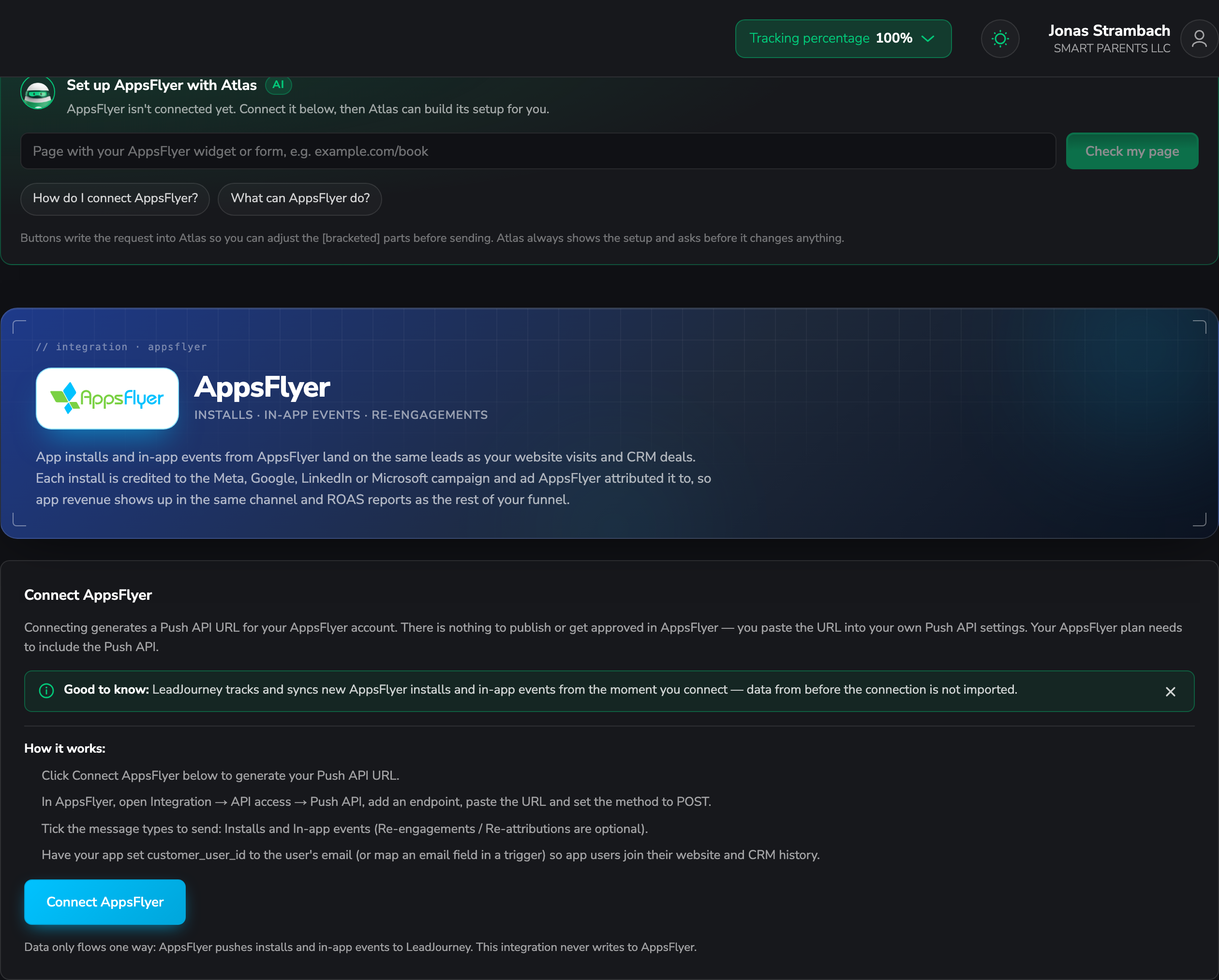
Connect AppsFlyer
Credit app installs and in-app purchases to the ads that drove them. Connecting mints a Push API URL you paste into AppsFlyer — one-way only, and it works best when your app sets customer_user_id to the user's email.
Connecting AppsFlyer credits app installs and in-app purchases to the Meta, Google, LinkedIn and Microsoft ads that drove them – on the same leads as your website visits. Your app and your web funnel finally sit in one report.
What the connection covers
- 7 triggers across installs and in-app events.
- App activity joins the same lead as that person's website and CRM history.
- One way only: AppsFlyer pushes to LeadJourney. This integration never writes to AppsFlyer.
Before you start
- An AppsFlyer account whose plan includes the Push API – this is the one prerequisite that can block you.
- Access to Integration → API access in AppsFlyer.
- Ideally, your app setting
customer_user_idto the user's email (see step 4).
Nothing to publish or get approved
There's no app to submit and no review to wait for. You paste a URL into your own Push API settings, and that's the whole integration.
Where to find it
Open Settings → Apps, or go to
app.leadjourney.io/settings?slug=apps, and click
the AppsFlyer card (or use ?slug=apps&app=appsflyer).
Step by step
Generate your Push API URL
Click Connect AppsFlyer. There's nothing to enter – AppsFlyer has no OAuth and no key to validate, so connecting simply mints the Push API URL for your workspace.
Treat the URL as a secret
The token in the URL is what keeps your endpoint private. Paste it into AppsFlyer, not into a public document or a repository.
Add the endpoint in AppsFlyer
In AppsFlyer, open Integration → API access → Push API, add an endpoint, paste the URL and set the method to POST.
Choose the message types
Tick the message types to send:
- Installs – required.
- In-app events – required for purchases and any other in-app conversion.
- Re-engagements / Re-attributions – optional.
Set customer_user_id to the user's email
Have your app set customer_user_id to the user's email address. That's what lets AppsFlyer
events join the same lead as that person's website visits and CRM records, instead of sitting
in a separate silo.
If your app can't do that, you can map an email field in a trigger instead – but the earlier the email is set, the more of the journey joins up.
Add a trigger
In the Triggers panel, click Add trigger, pick the LeadJourney Event the AppsFlyer
event should record (e.g. Purchase), then the AppsFlyer event that fires it. Go through
Receive Data, Configure Mapping – Email, Name, First name, Last name,
Phone, Revenue and Currency, plus your custom
fields – and Filtering (optional).
Click Save & Continue.
Why there's no click_id to map
Mobile installs don't carry a LeadJourney click ID – the app install happens in the store, not
in the browser that clicked. AppsFlyer events are joined to a lead by the email in
customer_user_id instead, which is why step 4 matters more here than anywhere else.
Troubleshooting
There's no Push API section in AppsFlyer
Your plan doesn't include the Push API. That's an AppsFlyer plan matter – nothing can be configured on the LeadJourney side to work around it.
Nothing arrives
Check the endpoint in Integration → API access → Push API: the URL pasted in full, the method set to POST, and at least Installs and In-app events ticked.
App events don't join the right person
customer_user_id isn't set to the user's email, so there's nothing to join on. Set it in the
app, or map an email field on the trigger.
Common questions
Related articles
Apps overview
How the Apps page works and what else you can connect.
Events & the Events Manager
Define the conversion types your AppsFlyer triggers map onto.
Send conversions by webhook
The generic way to report conversions from your own backend.
How attribution works
How events join one lead across devices and apps.
Connect Google BigQuery
Stream LeadJourney clicks, conversions and leads into a BigQuery dataset you own with a service account key, backfill past data, and read the tables from Looker Studio, Power BI or Tableau.
Connect via MCP (Model Context Protocol)
Connect Claude, Cursor, ChatGPT, VS Code, or any MCP-compatible client to LeadJourney over the Model Context Protocol, so you can query your workspaces, reports, and leads in plain language. Per-app OAuth, revoke any time.