Integrations
Connect Zoho CRM
Authorize Zoho CRM once — any data centre — and turn leads, contacts and deals into attributed conversions. LeadJourney adds the LJ Click ID field for you and can write leads back into Zoho.
Connecting Zoho CRM turns CRM events – new leads, new contacts, new and updated deals – into LeadJourney conversions, automatically attributed to the campaign, ad set and ad that earned them. You authorize Zoho once; there are no API keys to copy and no webhook URLs to paste.
What the connection covers
- 9 triggers across Leads, Contacts and Deals.
- Any Zoho data centre – US, EU, India, Australia and the rest.
- LeadJourney adds an “LJ Click ID” field to your CRM so conversions match their ad clicks.
- Send back: LeadJourney clicks, leads and conversions written into Zoho as a Lead, Contact, Deal or Account.
Before you start
- A Zoho CRM administrator account – the authorization needs admin rights so LeadJourney can subscribe to record events and add the click ID field.
- Tracking is live – see Install the tracking script.
- At least one conversion type to map onto – see Events & the Events Manager.
Where to find it
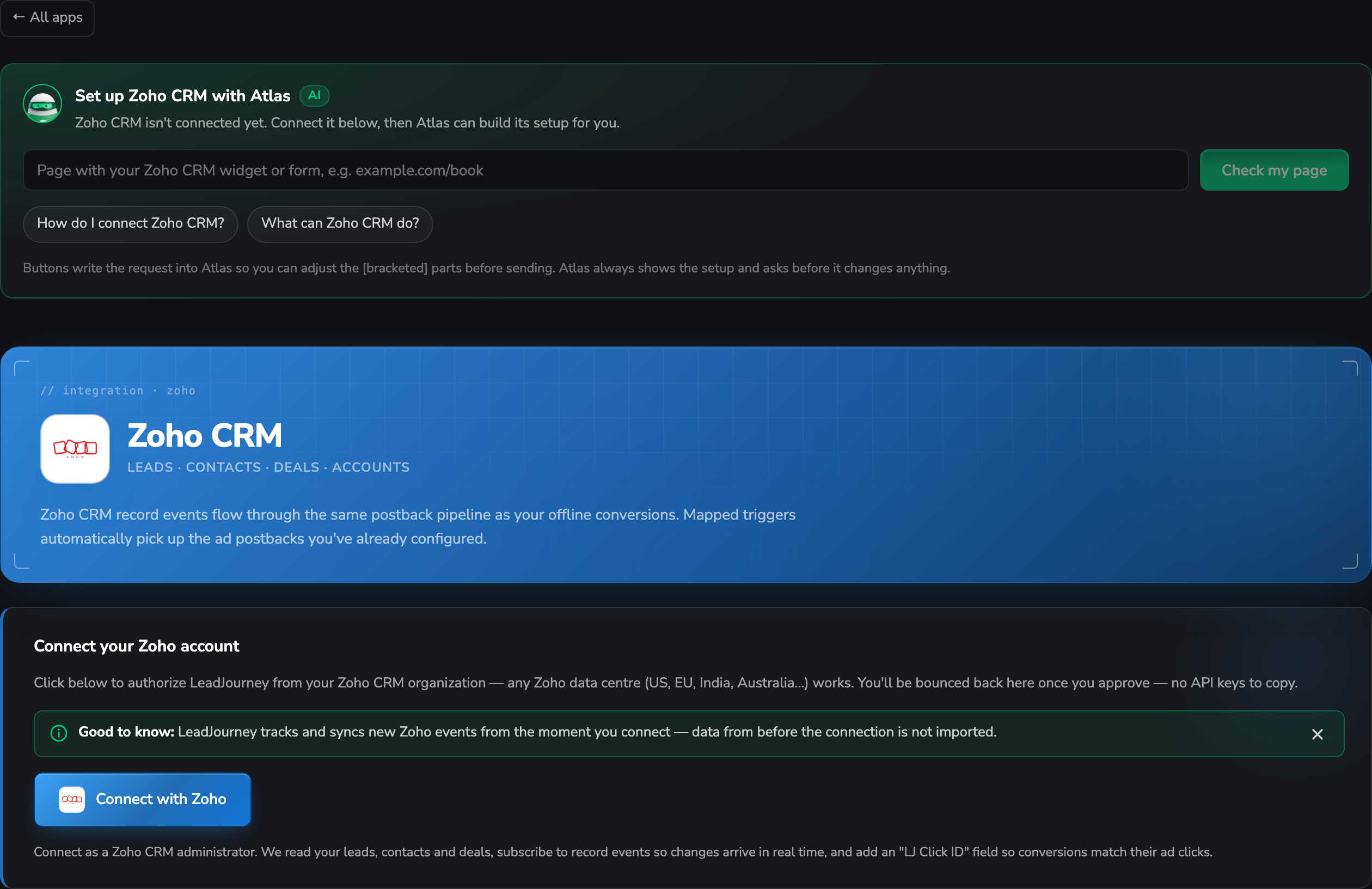
Open Settings → Apps, or go to
app.leadjourney.io/settings?slug=apps, and click
the Zoho CRM card (or use ?slug=apps&app=zoho).
Step by step
Authorize LeadJourney from Zoho
On the Connect your Zoho account card, click Connect with Zoho. You'll be sent to Zoho to sign in and approve the access, then bounced straight back.
Connect as a Zoho CRM administrator. With that grant LeadJourney reads your leads, contacts and deals, subscribes to record events so changes arrive in real time, and adds an “LJ Click ID” field so conversions can be matched to their ad clicks.
Your data centre is detected automatically
Zoho runs separate data centres (.com, .eu, .in, .com.au, …) and an account only exists
in one of them. You don't pick one – the authorization tells LeadJourney which to use.
Syncing starts when you connect
LeadJourney records new Zoho events from the moment you connect. Data from before the connection is not imported.
Fill the LJ Click ID field from your site
LeadJourney creates the field; your website has to fill it. Pass the visitor's click ID into the form that creates the Zoho record – see Read and store the click ID.
Without a click ID, records are matched on email or phone instead. That works, it's just less exact.
Add a trigger
In the Triggers panel, click Add trigger, pick the LeadJourney Event this Zoho record
should record (e.g. WonClient), then choose the Zoho event that fires it – a new lead, a new
contact, a new or updated deal. Search triggers… narrows the list of 9.
Receive data and confirm the mapping
The dialog opens the usual three tabs:
- Receive Data – click Find latest data to load the most recent records for that event, pick one and continue. Nothing there? Create a matching record in Zoho and check again.
- Configure Mapping – map the Zoho record onto Email, Name, First name, Last name, Phone, click_id, Revenue and Currency, plus any of your custom fields. Point click_id at the LJ Click ID field.
- Filtering (optional) – conditions so the trigger only fires on matching records, e.g. Stage equals Closed Won.
Click Save & Continue.
Send data back to Zoho
The Send to Zoho panel writes LeadJourney clicks, leads and conversions into Zoho as records. Click + Add destination, then choose:
- The Zoho record: Lead, Contact, Deal or Account.
- When this happens: the LeadJourney event, optionally narrowed to one conversion type.
- Write mode: Create always creates, Update only updates an existing match and skips if there is none, Upsert updates the match or creates it.
- Matching field (Update and Upsert): the Zoho field used to find the existing record. For Deals and Accounts you can match through the linked contact's email or phone instead.
- Map fields: the Zoho field and the LeadJourney value to send.
Each destination row has Pause / Resume, Edit and Delete, and Sync history lists every delivery with its status and a Retry button for failed or skipped ones.
Troubleshooting
The LJ Click ID field is missing in Zoho
LeadJourney couldn't create it – almost always because the connecting user isn't a CRM administrator. Reconnect as an admin, or create a text field named LJ Click ID yourself and map click_id to it.
No records when you click “Find latest data”
Nothing recent exists in Zoho for that event yet. Create a matching record, then click Find latest data again.
Records arrive but aren't attributed to a campaign
Check that the tracking script is live, that your forms write the click ID into LJ Click ID and the trigger maps click_id to it, and that the trigger is Active. Email and phone are the fallback – see Missing leads.
The connection shows “Needs reconnect”
Zoho has revoked the grant or the event subscription is gone. Click Reconnect to re-run the authorization; your triggers are preserved.
Common questions
Related articles
Connect Microsoft Dynamics 365
Connect your Dynamics 365 environment with one authorization, no API keys to copy. All fifteen triggers explained – leads, contacts, opportunities, quotes, orders and cases – plus how to map Dataverse fields so every deal is attributed to the campaign, ad set and ad that earned it.
Connect SAP Sales Cloud
Connect SAP Sales Cloud V2 with a technical user — there is no OAuth for third-party apps. Turn leads, opportunities and customers into attributed conversions, and write LeadJourney leads back into SAP.