Integrations
Connect Ticket Tailor
Connect a Ticket Tailor box office with an API key and turn ticket orders, issued tickets, memberships and waitlist signups into attributed conversions — attribution comes free from the ?ref= on your checkout links.
Connecting Ticket Tailor turns ticket orders, issued tickets, memberships and waitlist signups from your box office into LeadJourney conversions, attributed to the campaign, ad set and ad that earned them.
What the connection covers
- 6 triggers across orders, issued tickets, memberships and waitlist signups.
- The click ID comes from Ticket Tailor's own
referral_tag– the?ref=on a checkout link – so there's usually no hidden field to add. - Optional signature verification on every webhook delivery.
Before you start
- A Ticket Tailor API key – self-service, from your box office settings (see step 1). No application and no approval step.
- Tracking is live – see Install the tracking script.
- At least one conversion type to map onto – see Events & the Events Manager.
Where to find it
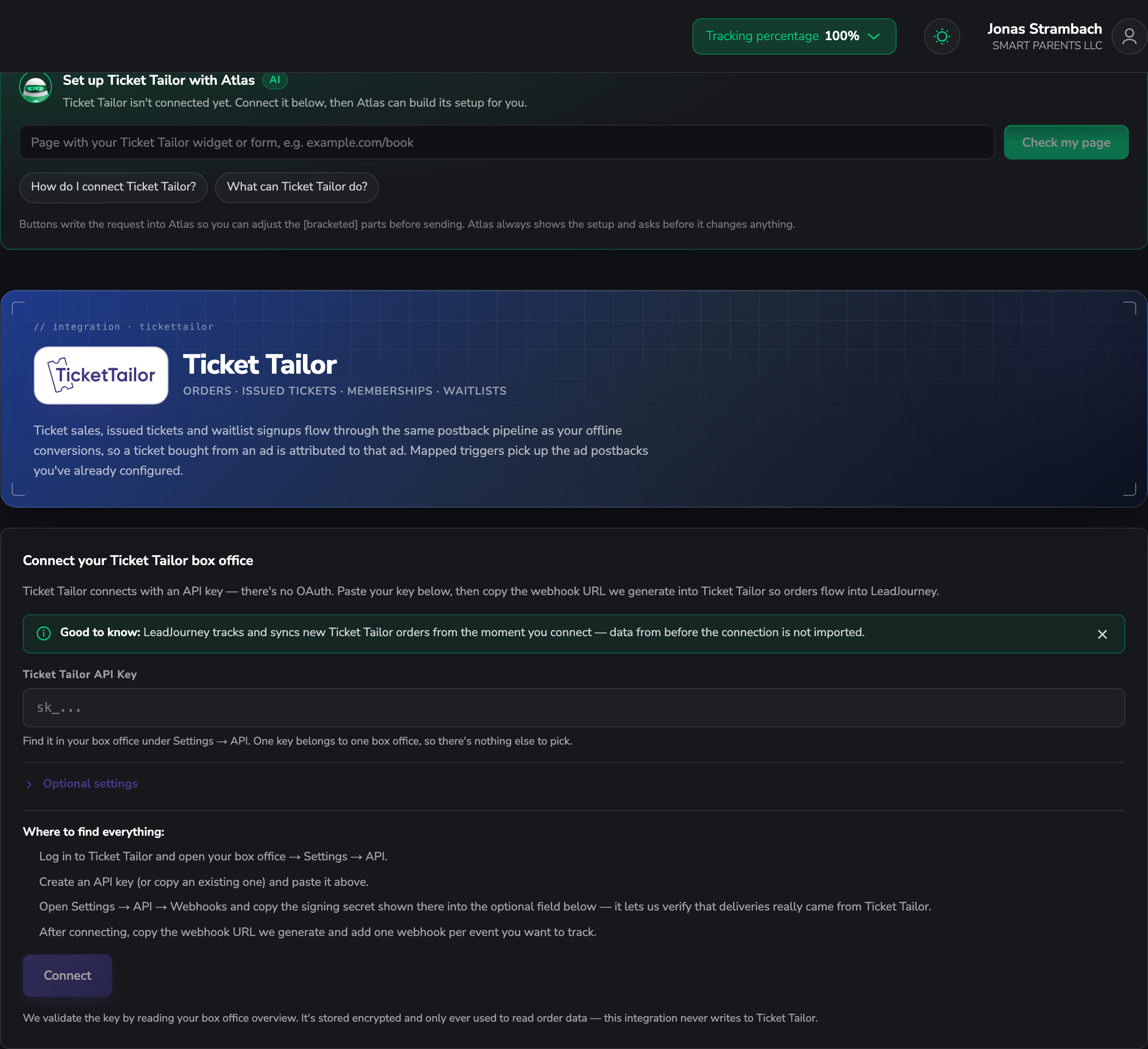
Open Settings → Apps, or go to
app.leadjourney.io/settings?slug=apps, and click
the Ticket Tailor card (or use ?slug=apps&app=tickettailor).
Step by step
Get your API key
Log in to Ticket Tailor and open your box office → Settings → API. Create an API key (or copy
an existing one) – it starts with sk_.
One key belongs to one box office, so there's nothing else to pick. Several box offices mean several connections.
Add the webhook signing secret (optional)
Under Settings → API → Webhooks, Ticket Tailor shows a signing secret. Paste it into the optional Webhook signing secret field in LeadJourney.
With it, LeadJourney verifies the signature on every delivery. Without it, the secret token in your webhook URL is what keeps the endpoint private – which is fine, just weaker. You can add it later.
Connect and add the webhooks in Ticket Tailor
Paste the key, connect, then copy the webhook URL LeadJourney generates and add one webhook per event you want to track in Ticket Tailor.
No webhook, no events
The API key lets LeadJourney read your box office; the webhooks are what actually deliver orders as they happen. Both halves are needed.
Add a trigger
In the Triggers panel, click Add trigger, pick the LeadJourney Event the Ticket Tailor
event should record (e.g. Purchase), then the Ticket Tailor event that fires it.
Go through Receive Data, Configure Mapping – Email, Name, First name, Last name, Phone, click_id, Revenue and Currency, plus your custom fields – and Filtering (optional), then Save & Continue.
How orders are attributed
LeadJourney reads the click ID from Ticket Tailor's own referral_tag – that's the ?ref=
parameter on a checkout link. For most box offices that means attribution works with no extra
fields.
If you'd rather collect the click ID in a hidden checkout question, type its wording – exactly as it appears on your checkout – into Checkout question carrying the click ID under the optional settings.
Troubleshooting
Orders don't arrive
Check that you added the webhooks in Ticket Tailor for the events you're tracking. The API key alone doesn't deliver anything.
Orders arrive but aren't attributed to a campaign
Your checkout links need to carry the ?ref= referral tag – that's where the click ID comes
from. If you use a hidden checkout question instead, make sure its wording in LeadJourney matches
the checkout exactly. Email and phone are the fallback – see Missing
leads.
Only one box office shows up
A key belongs to one box office. Connect each box office separately.
Common questions
Related articles
Connect Square
Sign in to Square once and turn payments, orders, invoices and bookings into attributed conversions. Read-only access, matched by the buyer's email or phone — or exactly, by a click ID in the order metadata.
Connect Luma
Connect a Luma calendar with an API key — LeadJourney registers the webhook for you. Registrations, ticket purchases and calendar subscribers become attributed conversions, and attribution works off Luma's UTM parameters.