Integrations
Connect Luma
Connect a Luma calendar with an API key — LeadJourney registers the webhook for you. Registrations, ticket purchases and calendar subscribers become attributed conversions, and attribution works off Luma's UTM parameters.
Connecting Luma turns event registrations, ticket purchases and calendar subscribers into LeadJourney conversions, attributed to the campaign, ad set and ad that earned them.
What the connection covers
- 5 triggers across registrations, ticket purchases and calendar subscribers.
- The webhook is registered for you – there is nothing to set up inside Luma.
- Attribution works off the UTM parameters Luma keeps from your registration link, so usually there's no extra field to add.
Before you start
- A Luma calendar API key – self-service, but the calendar needs Luma Plus (see step 1).
- Tracking is live – see Install the tracking script.
- At least one conversion type to map onto – see Events & the Events Manager.
Where to find it
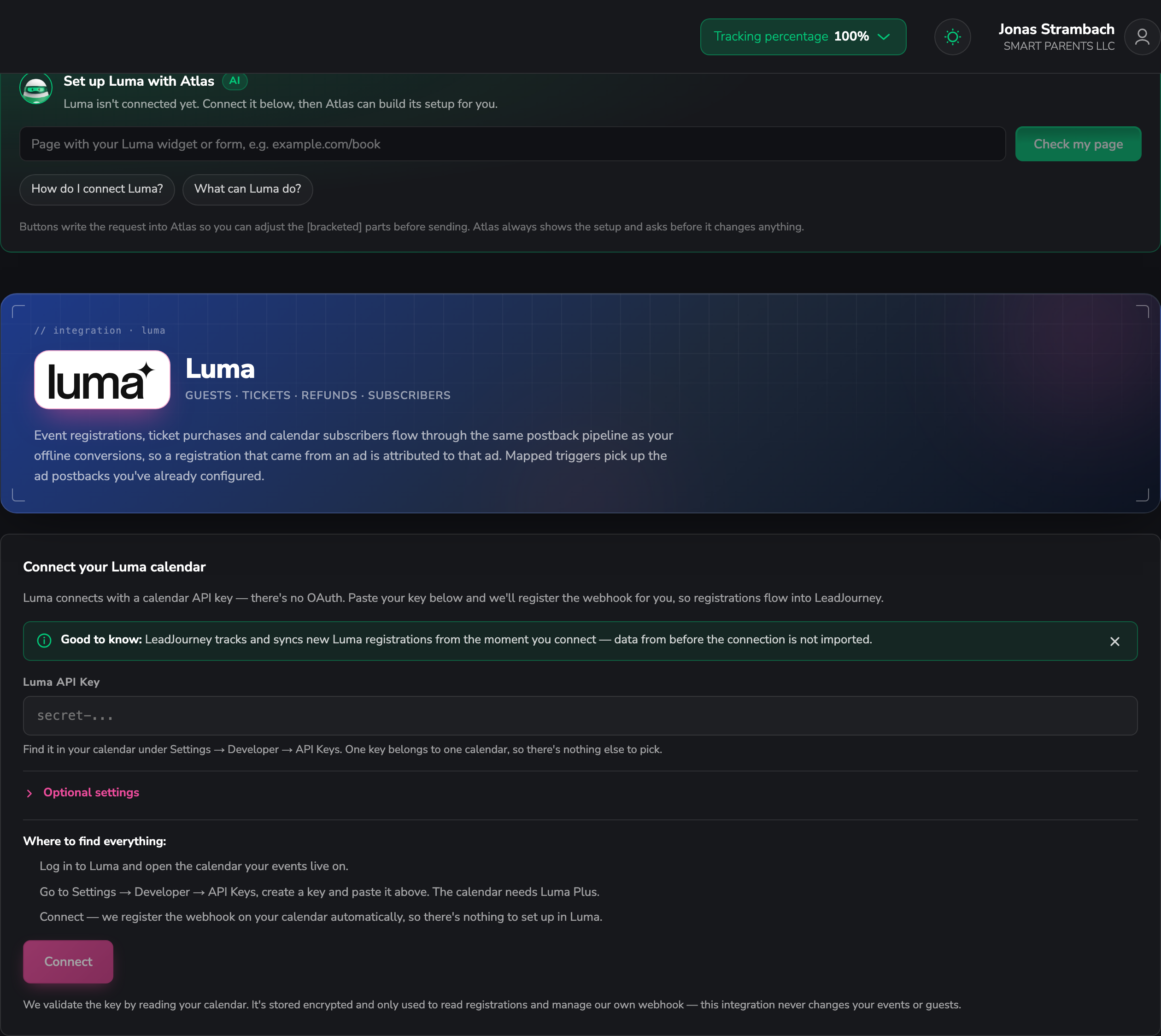
Open Settings → Apps, or go to
app.leadjourney.io/settings?slug=apps, and click
the Luma card (or use ?slug=apps&app=luma).
Step by step
Create the API key in Luma
Log in to Luma and open the calendar your events live on. Go to Settings → Developer → API
Keys and create a key – it starts with secret-.
API keys need Luma Plus
The API Keys screen only exists on a calendar with Luma Plus. Without it there's no key to create, and no way to connect.
One key belongs to one calendar, so there's nothing else to pick.
Paste the key and connect
On the Connect your Luma calendar card, paste the key and connect. LeadJourney registers the webhook on your calendar automatically – nothing to configure in Luma.
Add a trigger
In the Triggers panel, click Add trigger, pick the LeadJourney Event the Luma event
should record (e.g. a ticket purchase as Purchase), then the Luma event that fires it.
Go through Receive Data, Configure Mapping – Email, Name, First name, Last name, Phone, click_id, Revenue and Currency, plus your custom fields – and Filtering (optional), then Save & Continue.
How registrations are attributed
Luma keeps the UTM parameters from a registration link, and LeadJourney checks every UTM value
(e.g. utm_content) against your recorded clicks. For most calendars that's all it takes – no
extra field.
If you do collect the click ID in a registration question, type its label – exactly as it appears on your form – into Registration question carrying the click ID under the optional settings.
Troubleshooting
There's no API Keys screen in Luma
The calendar isn't on Luma Plus. That's a Luma plan matter – nothing on the LeadJourney side can work around it.
Registrations don't arrive
The webhook is registered automatically, so check the simpler things first: the key belongs to the calendar your events are actually on, and the registration happened after you connected.
Registrations arrive but aren't attributed to a campaign
Your registration links need to carry UTM parameters – that's what LeadJourney checks against recorded clicks. See Add tracking parameters, and Missing leads for the email and phone fallback.
Common questions
Related articles
Connect Ticket Tailor
Connect a Ticket Tailor box office with an API key and turn ticket orders, issued tickets, memberships and waitlist signups into attributed conversions — attribution comes free from the ?ref= on your checkout links.
Connect Swoogo
Connect Swoogo with a consumer key and secret — LeadJourney registers the webhooks for all current and future events. Registrants, purchases and session check-ins become attributed conversions.