Integrations
Connect Square
Sign in to Square once and turn payments, orders, invoices and bookings into attributed conversions. Read-only access, matched by the buyer's email or phone — or exactly, by a click ID in the order metadata.
Connecting Square turns your sales – payments, orders, paid invoices and bookings – into LeadJourney conversions, automatically attributed to the campaign, ad set and ad that earned them. You sign in once; there are no keys to copy and nothing to install.
What the connection covers
- 7 triggers across payments, orders, customers, invoices and bookings.
- Access is read-only – LeadJourney never changes anything in Square.
- Sales are matched to your leads by the buyer's email or phone, or exactly by a click ID your checkout stores in the order's metadata.
Before you start
- A Square account you can sign in to.
- Tracking is live – see Install the tracking script.
- At least one conversion type to map onto – see Events & the Events Manager.
Where to find it
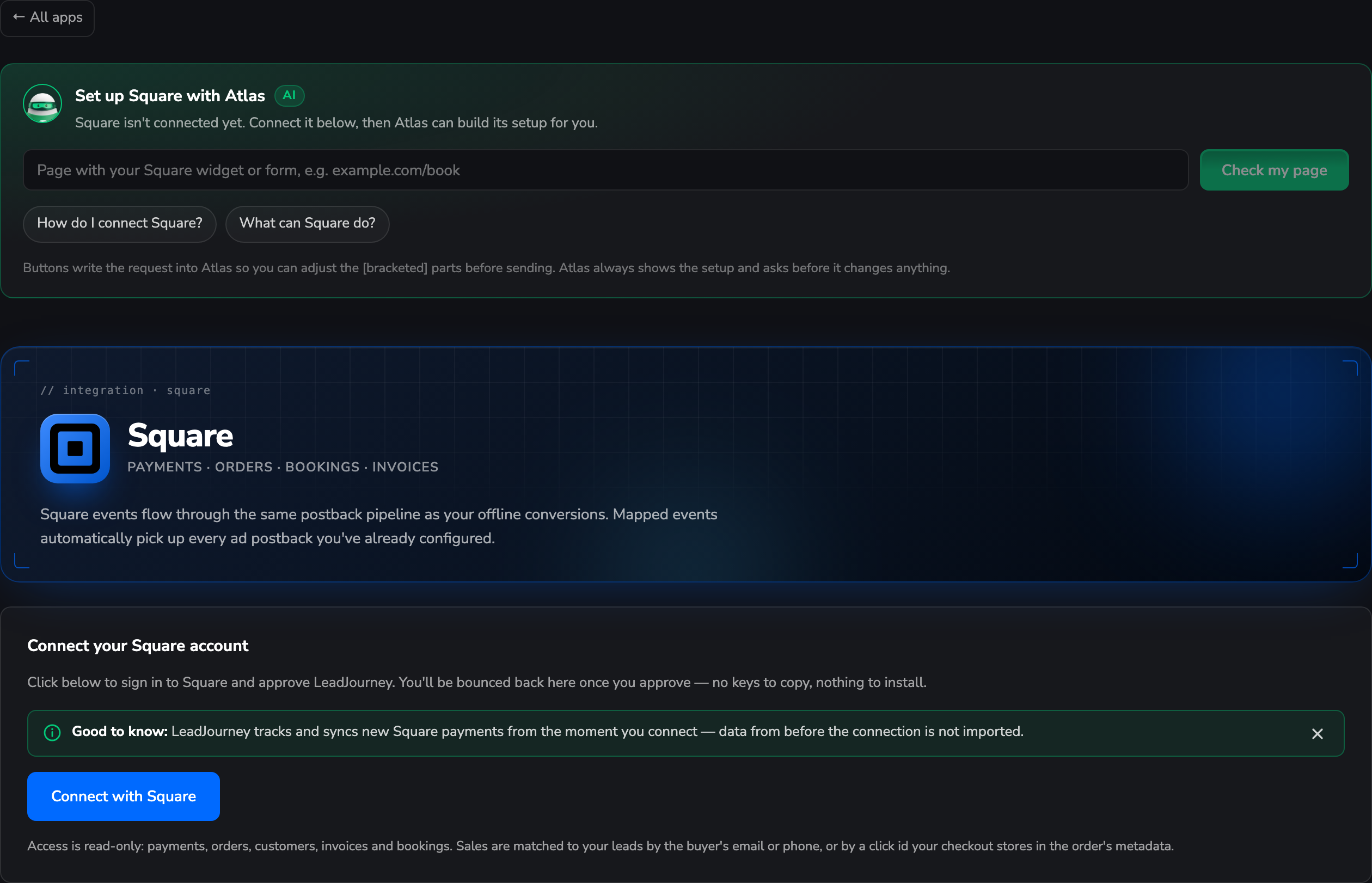
Open Settings → Apps, or go to
app.leadjourney.io/settings?slug=apps, and click
the Square card (or use ?slug=apps&app=square).
Step by step
Authorize LeadJourney from Square
On the Connect your Square account card, click Connect with Square, sign in and approve the access. You'll be bounced straight back.
Read-only, by design
The grant covers payments, orders, customers, invoices and bookings – reading only. Nothing LeadJourney does can alter a payment, an order or a customer record.
Syncing starts when you connect
LeadJourney records new Square payments from the moment you connect. Sales from before the connection are not imported.
Decide how sales are matched (optional but worth it)
Out of the box, a sale is tied to a lead by the buyer's email or phone. That covers most stores.
For exact attribution, have your checkout write the visitor's click ID into the order's metadata. Then the sale lands on the right click even when the buyer pays with a different email – see Read and store the click ID.
Add a trigger
In the Triggers panel, click Add trigger, pick the LeadJourney Event the Square event
should record (e.g. Purchase), then choose the Square event that fires it – a completed payment,
a paid invoice, a booking. Search triggers… narrows the list of 7.
Receive data and confirm the mapping
The dialog opens the usual three tabs:
- Receive Data – Find latest data loads the most recent Square records for that event; pick one and continue.
- Configure Mapping – map the record onto Email, Name, Phone, click_id, Revenue and Currency, plus any of your custom fields. Mapping Revenue and Currency is what makes Square sales show up as revenue rather than a bare count.
- Filtering (optional) – conditions so the trigger only fires on matching records, e.g. a specific location.
Click Save & Continue.
Troubleshooting
Payments arrive but aren't attributed to a campaign
Square sales are matched by the buyer's email or phone unless your checkout stores a click ID in the order metadata. A buyer who pays with a different address than the one they gave on your site won't match – that's the case the click ID solves. See Missing leads.
Conversions show no revenue
Revenue and Currency aren't mapped on the trigger. Open it, map both on the Configure Mapping tab and save.
No records when you click “Find latest data”
Nothing recent exists in Square for that event yet. Take a test payment (or create a booking), then click Find latest data again.
Common questions
Related articles
Connect Magento (Adobe Commerce)
There's no Magento app yet, but the setup is two pieces you can do today – paste the tracking script into the Magento admin, then send completed orders to LeadJourney's Conversion API. Includes the CSP whitelist that Magento 2.4.7 needs and both a no-code and a developer path.
Connect Ticket Tailor
Connect a Ticket Tailor box office with an API key and turn ticket orders, issued tickets, memberships and waitlist signups into attributed conversions — attribution comes free from the ?ref= on your checkout links.