Integrations
Connect WriteUpp
Connect your WriteUpp site with an API key and attribute clinic activity — new patients, online bookings, attendance and paid invoices — back to the ad click that produced it. Read-only, and region-aware.
Connecting WriteUpp attributes clinic activity – new patients, online bookings, attendance and paid invoices – back to the ad click that produced it. 8 triggers are available, and LeadJourney checks your site for new activity every few minutes.
What the connection covers
- 8 triggers across patients, appointments and invoices.
- One key covers every clinician on the site.
- Read-only: LeadJourney never writes to a patient record.
Before you start
- A WriteUpp API key – a site administrator generates it (see step 1).
- Tracking is live – see Install the tracking script.
- At least one conversion type to map onto – see Events & the Events Manager.
Where to find it
Open Settings → Apps, or go to
app.leadjourney.io/settings?slug=apps, and click
the WriteUpp card (or use ?slug=apps&app=writeupp).
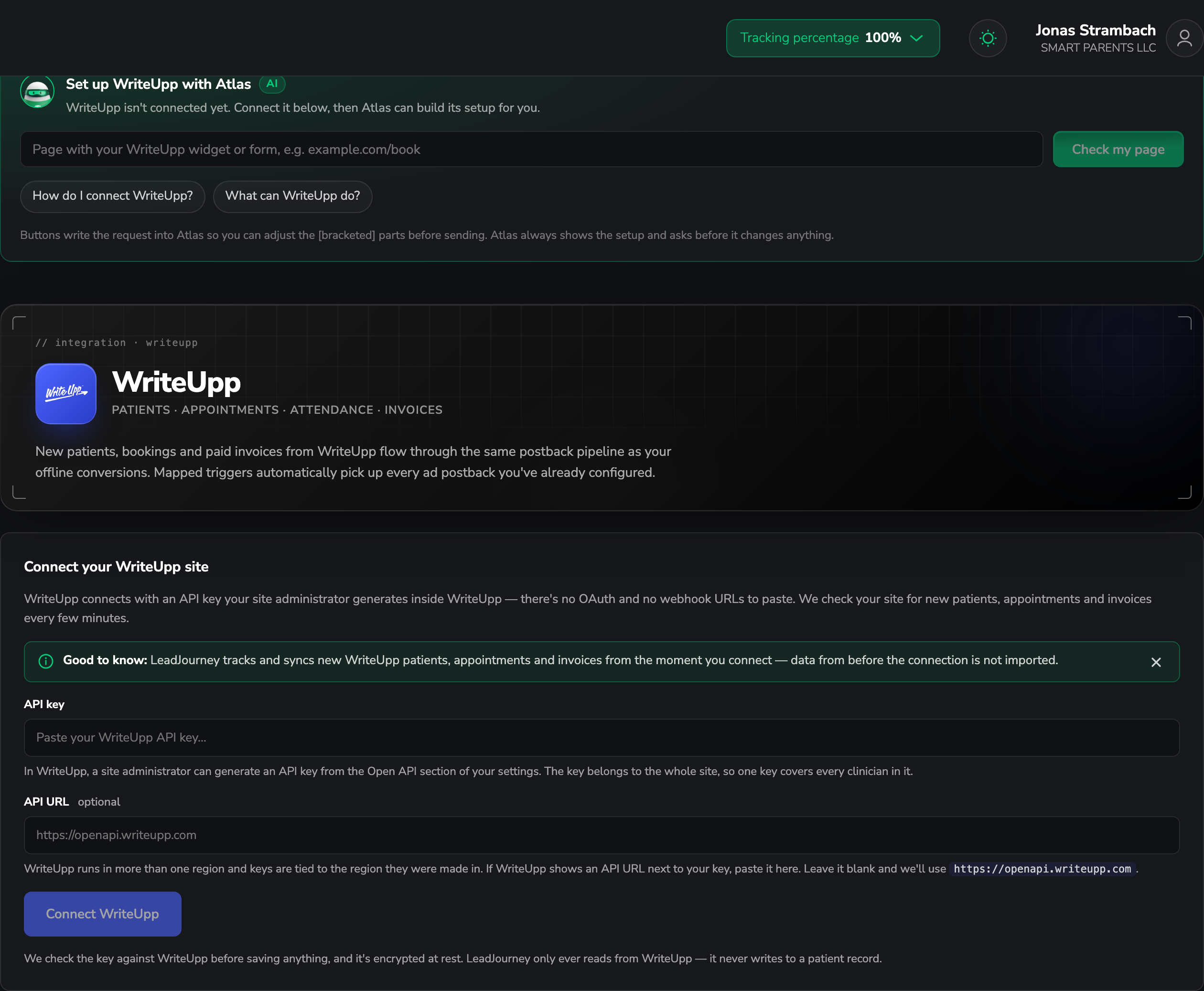
Step by step
Generate the API key in WriteUpp
In WriteUpp, a site administrator generates an API key from the Open API section of your settings.
The key belongs to the whole site, so one key covers every clinician in it – there's nothing to repeat per practitioner.
Paste the key into LeadJourney
On the Connect your WriteUpp site card, paste the key into API key and click connect. There's no OAuth and no webhook URL to paste back.
LeadJourney checks the key against WriteUpp before saving anything, and stores it encrypted at rest.
Add the API URL if WriteUpp shows one (optional)
WriteUpp runs in more than one region, and a key only works in the region it was made in.
If WriteUpp shows an API URL next to your key, paste it into the optional API URL field.
Leave it blank and LeadJourney uses the primary region (https://openapi.writeupp.com).
Add a trigger
In the Triggers panel, click Add trigger, pick the LeadJourney Event the WriteUpp
activity should record (e.g. a booking as Appointment), then the WriteUpp event that fires it.
Search triggers… narrows the list of 8.
Go through Receive Data, Configure Mapping – Email, Name, First name, Last name, Phone, click_id, Revenue and Currency, plus your custom fields – and Filtering (optional), then Save & Continue.
Activity arrives within a few minutes
LeadJourney polls WriteUpp rather than receiving webhooks, checking for new patients, appointments and invoices every few minutes. A short delay is normal.
Troubleshooting
The key is rejected
Two usual causes: it wasn't generated by a site administrator, or it belongs to a different region. If WriteUpp shows an API URL next to the key, paste that into the API URL field and try again.
Nothing arrives, but the connection looks healthy
Nothing matching has happened in WriteUpp since you connected – activity from before the connection is not imported. Create a test booking and wait a few minutes for the next poll.
Records arrive but aren't attributed to a campaign
Patients booked through your website need the click ID carried into WriteUpp and mapped to click_id on the trigger. Email and phone are the fallback – see Missing leads.
Common questions
Related articles
Connect SevenRooms
Connect SevenRooms with the API credentials your venue group issues and turn reservations — new bookings, completions, cancellations and no-shows — into attributed conversions across every venue in the group.
Connect Intercom
Turn Intercom chat visitors who leave their email into attributed leads. One authorization, no triggers to configure — LeadJourney stores the click ID on the Intercom profile and records a lead when the visitor gives their email.